Blood Oxygen disappeared—what changed on your wrist?
You open the Blood Oxygen app and it’s gone, or the tile in Health is empty. Most of the time, nothing “broke.” You’re running into a mix of model support, country rules, and one unusually messy U.S. exception: some Apple Watch units sold in the U.S. after mid-January 2024 shipped with Blood Oxygen disabled, even though the sensor hardware is still there.
To make it more confusing, Apple has since rolled out a redesigned Blood Oxygen experience for some U.S. users via software updates, so two watches that look identical can behave differently.
The only reliable starting point is a quick checkpoint: your exact watch model, where it was sold, and what your region supports right now.
First checkpoint: does your exact Apple Watch still support Blood Oxygen in your region?
That “exact watch model, where it was sold, and what your region supports” sounds simple—until you realize two Series 9 watches can look the same and still have different feature access. The fastest way to stop guessing is to identify the watch precisely, then confirm eligibility against Apple’s own availability list.
On your iPhone, open the Watch app > General > About. Note the Model Name, Model Number, and watchOS version. If you bought the watch in the U.S. (especially new units sold after mid-January 2024) or you’re using a refurbished/secondhand watch, treat that as a red flag: some U.S.-sold units may have Blood Oxygen disabled regardless of the sensor hardware.
Now check Apple’s watchOS feature availability page for Blood Oxygen using your current region settings. If it’s supported there, the next question is usually simpler: the app, settings, or permissions aren’t lined up yet.
If it’s supported, why can’t you see it: settings, apps, and permissions to confirm
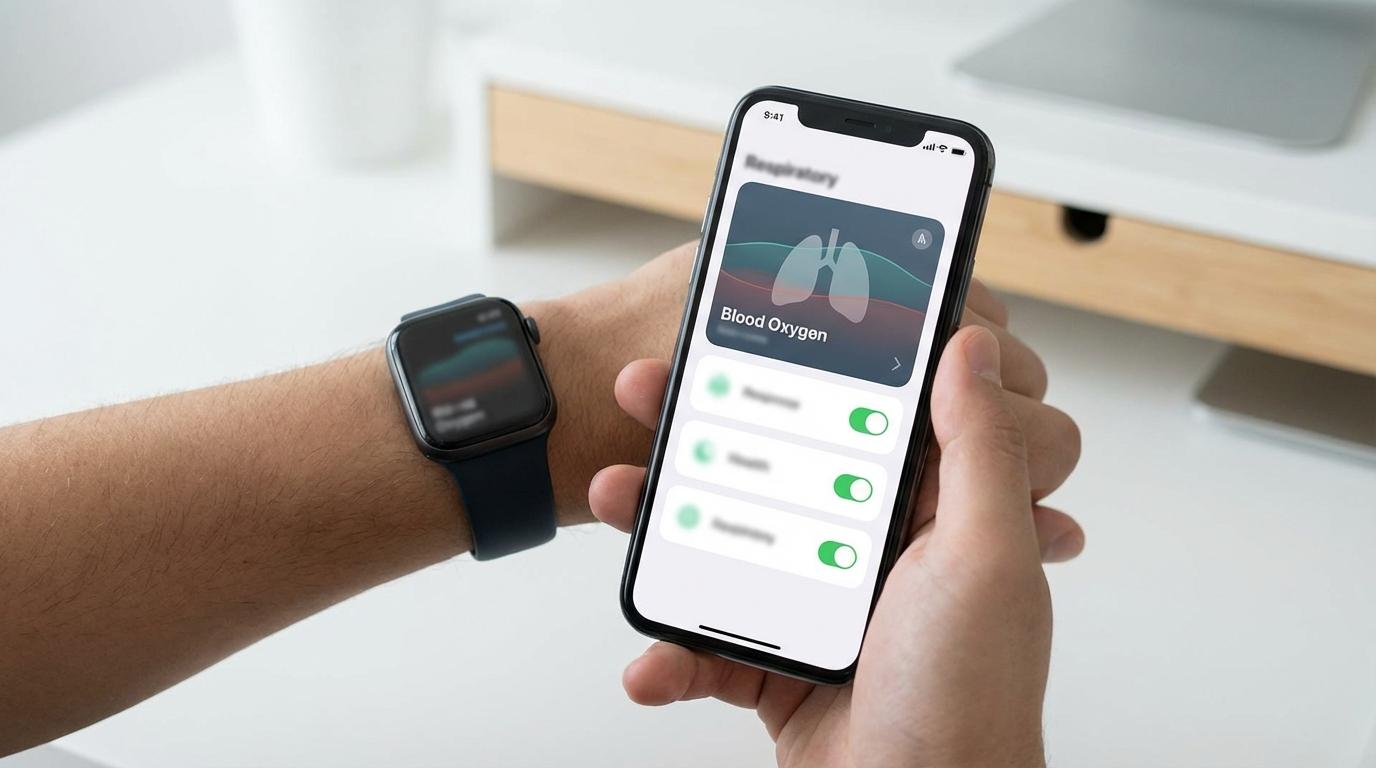
When Blood Oxygen is listed as available for your model and region, the usual failure is that you’re looking in the wrong place—or the feature is present but blocked by a setting. Start on the iPhone: open the Watch app, tap My Watch, then scroll to Blood Oxygen. If that menu isn’t there at all, that’s a strong hint your specific watch build doesn’t expose the feature.
If the menu exists, make sure Blood Oxygen Measurements is turned on. Then open the Health app > Browse > Respiratory > Blood Oxygen and confirm you haven’t removed permissions by accident (common after restoring a new iPhone or resetting the watch). Also check Settings on the Watch > Privacy > Health to ensure Health access is allowed.
One real trade-off: enabling background measurements can add a small battery hit. For a clean test, take a manual reading first, then decide whether you want background data at all.
Once the app and permissions line up, the next step is getting a successful 15-second reading on your wrist.
Take a successful reading now (and what “good” looks like during the 15 seconds)
That 15-second reading is usually where people realize the feature works—but only if the watch can get a steady, clean signal. On your watch, open Blood Oxygen, rest your arm on a table or your lap, and keep your wrist still. Keep the watch snug (not painfully tight), with the back flat against your skin. If you’re walking, talking with your hands, or holding your arm up in the air, expect failures.
During the countdown, “good” looks boring: no movement, a relaxed hand, and a stable fit. If the reading completes, you’ll see a percentage (SpO2). Many healthy adults land in the mid-to-high 90s at rest, but your normal can vary—altitude and illness can pull it down. A single low number isn’t a diagnosis; it’s a prompt to recheck when you’re warm and still.
If you keep getting “measurement unsuccessful,” don’t keep retrying in the same conditions. The fastest wins usually come from fit, warmth, and motion—exactly what we’ll troubleshoot next.
Common reasons readings fail in everyday life—and the quickest fix for each

Those “fit, warmth, and motion” problems usually show up in normal moments: you’re standing at the kitchen counter, your sleeve brushes the watch, you shift your wrist, and the reading fails. The sensor needs steady skin contact and a clean path for light, so small everyday changes can tank a 15‑second test.
If the watch feels loose or sits on your wrist bone, slide it a bit higher and snug the band one notch. If you’re cold (after going outside, AC, or a winter commute), warm your hands for a minute, then retry—poor circulation makes signals harder to read. If you have tattoos under the sensor, rotate the watch so the back sits on clearer skin, or try the other wrist if that area is lighter.
Two more common snags: motion and sleeves. Rest your forearm on a table and keep your hand relaxed, and pull cuffs away from the back of the watch so fabric doesn’t break contact. If it still fails after you fix those basics, it’s time to separate a temporary glitch from a watch that simply can’t measure anymore.
Still not working after all that? How to tell “temporary glitch” from “this watch can’t do it”
That “temporary glitch vs. can’t do it” split usually becomes obvious when you check what’s missing. If the Blood Oxygen menu is gone from the iPhone Watch app (My Watch list), or the Blood Oxygen app can’t be found on the watch (App Library/Search), treat that as “this watch build doesn’t expose the feature” more than a sensor problem.
If the menu and app are present but readings keep failing, assume a software snag first. Restart both devices (power off/on the watch and iPhone), then confirm you’re on the latest watchOS you can install. If manual readings still fail in ideal conditions (snug fit, warm skin, forearm resting, no sleeves), unpair and re-pair the watch; it resets a lot of Health-related handshakes. The friction: it takes time, and you can lose some settings if the backup doesn’t restore perfectly.
If a clean re-pair doesn’t bring back the menu or complete a single reading, it’s time to decide between support, replacement, or upgrading.
What to do next: upgrade paths, replacements, and when Apple Support is worth your time
That decision usually comes down to one question: is Blood Oxygen missing because of your watch’s build, or because something is misconfigured. If the app/menu never appears, swapping bands or resetting won’t help—your practical “upgrade path” is a different watch unit that still exposes the feature in your region (often older stock, a non‑U.S. unit, or a pre‑January 2024 U.S. sale).
If the app/menu exists but won’t complete a reading after a re-pair, Apple Support is worth your time when you can share your model number, purchase date, and screenshots showing Blood Oxygen availability and failures. The trade-off: replacements may come back as the same restricted configuration, so ask directly whether a swap restores Blood Oxygen before you commit.