You want one tool that sticks (not five tabs of repos)
You open GitHub to fix a small annoyance—then you end up with five promising repos, three install guides, and no clear winner. A week later, none of them are in your daily flow. The problem usually isn’t the tool; it’s that the “cool” option takes just enough setup, tweaking, or relearning to lose the next time you’re busy.
This is about picking one tool that earns a permanent spot by saving you time within a day or two. A text expander that removes repeated typing, a screenshot tool that cuts friction, a notes app that syncs without locking you in. The trade-off is focus: saying no to experiments now so you can actually feel the payoff. That starts with a quick repo sanity check.
Before you install anything: a 60-second repo sanity check

That quick repo sanity check is how you avoid spending your “setup energy” on something that won’t survive a busy week. Most of the time, the warning signs show up before you download anything—you just need a simple order of operations.
Start on the README. If you can’t find a one-screen “Install” plus a basic “How do I use this?” example, assume you’ll be debugging instead of benefiting. Then check releases: a recent tagged release is a better signal than a high star count, because it suggests the author still ships changes in a usable form. After that, scan the issues. You’re not looking for “no issues” (that can mean nobody uses it). You’re looking for open bugs with replies, closed issues that show follow-through, and a clear pattern of what breaks.
One practical friction: some great tools are stable but quiet. If commits are old, lean on docs quality and release history. If those are thin too, keep scrolling. Then install only when the repo answers your first three questions fast.
When you type the same things all day, espanso pays back fast
When a tool answers your first three questions fast, the next test is whether it removes a repeat task you do dozens of times a week. For many people, that’s typing the same snippets: your email, meeting links, canned replies, invoice lines, boilerplate intros, even the “here’s the doc” message you paste into Slack.
Espanso is a text expander that turns short triggers into longer text. You type “;addr” and it drops your full mailing address. You type “;zoom” and it expands into your standard meeting blurb with the link. If you write support replies, “;refund” can expand into a full, polite template you tweak once instead of rewriting forever.
The trade-off is collisions: pick triggers that won’t accidentally fire inside normal words, and expect a small setup session to name things consistently. Once you feel that payoff, screenshots tend to be the next daily friction point.
Screenshots are a workflow, not a file: Flameshot
Once screenshots become the next daily friction point, the pain usually isn’t capturing the image—it’s everything right after. You grab a screen, save a file, name it, open it again, crop it, add an arrow, then finally paste it into a ticket or message. That’s a lot of tiny steps for something you might do ten times a day.
Flameshot treats screenshots like a quick edit-and-share step. You hit a hotkey, select an area, and annotate immediately with boxes, blur, arrows, and text. Then you copy to clipboard or upload, depending on how you work. If you’re sending “here’s where to click” instructions, that speed matters more than another folder full of PNGs.
The trade-off is consistency: decide upfront whether your default is clipboard, save, or upload, and set the shortcuts once. Otherwise you’ll lose time hunting for where the shot went, which defeats the point.
Notes that don’t trap you: Joplin for capture + sync
That “where did it go?” feeling shows up again with notes: you jot something in a meeting, save a link from a call, or draft copy on your phone, then you can’t find it when you’re back at your desk. A notes tool earns its spot when capture is fast and retrieval doesn’t depend on which device you used.
Joplin fits that job because it’s straightforward to capture into notebooks, tag, and search, while syncing in ways you control. If you want to avoid getting trapped, the practical move is picking a sync target you already trust (like a standard cloud folder, WebDAV, or your own server) and keeping your notes in a format you can move later. You’re not betting your workflow on one company’s export button.
The trade-off is sync hygiene: conflicts happen if you edit the same note in two places offline. Decide on one “capture device” during the day, and you’ll feel the payoff quickly.
Your downloads folder is a landfill: Czkawka for duplicate cleanup
That same “where did it go?” feeling also shows up in your Downloads folder, except now it’s “why do I have three copies of this?” You grab a PDF from email, re-download an attachment from Slack, save an image from a ticket, and a month later you’re searching through “final(2).pdf” and “report - Copy.png” instead of doing the work.
Czkawka is built for finding duplicates and near-duplicates fast, then letting you delete or move them with some confidence. It can catch exact matches, similar photos, and same-size or same-name clutter, which is useful when downloads, desktop, and a project folder have drifted into copies of copies.
The trade-off is risk: any bulk cleanup can remove the “one file you actually needed.” Start by scanning only Downloads, review the results in small batches, and don’t auto-delete until you trust the matching mode you chose. Once that’s under control, keeping folders synced becomes the next obvious win.
Stop emailing yourself files: Syncthing keeps folders in sync
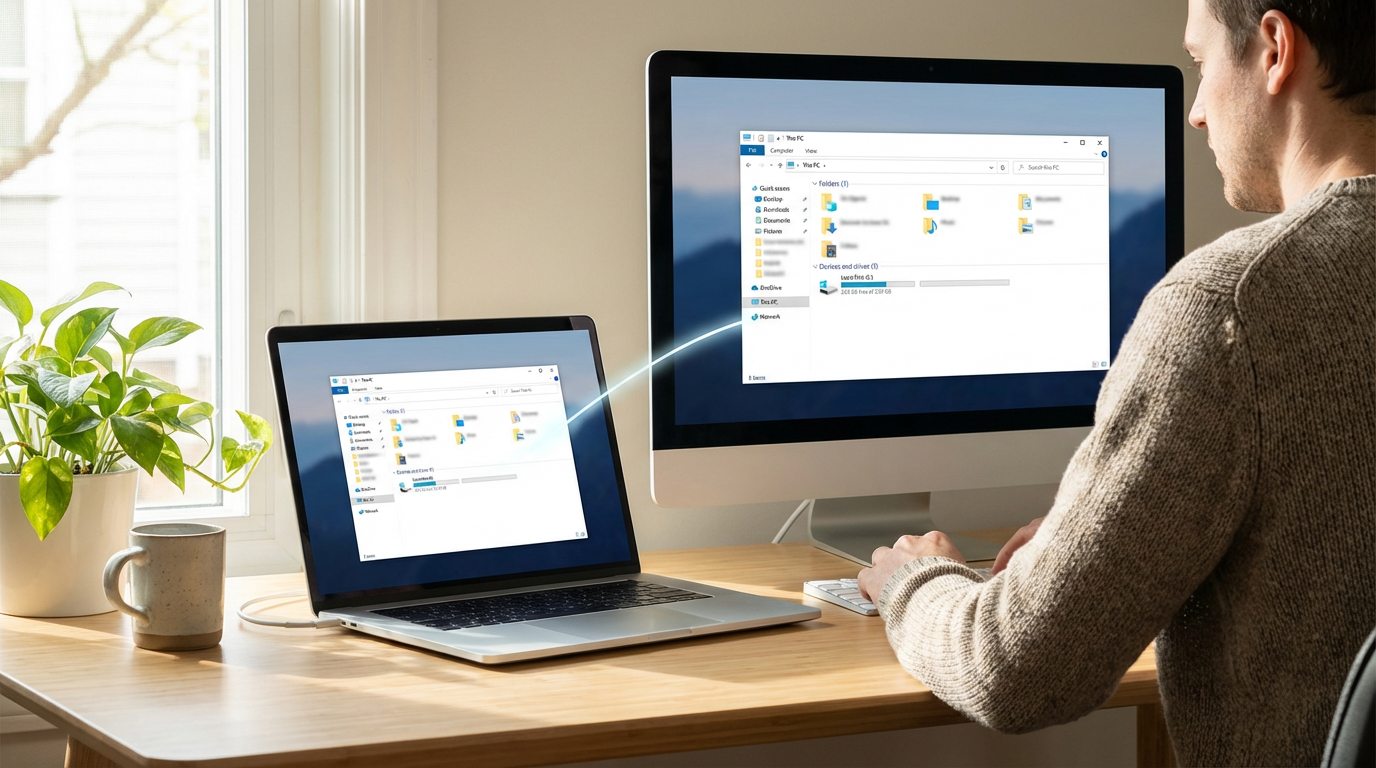
Keeping folders synced becomes the next obvious win the moment you catch yourself emailing a file to “future you,” then forgetting which version you edited. You put a contract draft on your laptop, need it on your desktop, and now you’re juggling attachments, cloud links, and “final-final” names. The time loss is small each time, but constant.
Syncthing fixes that by syncing chosen folders directly between your devices. Pick one or two “working” folders—like Active Projects or a Templates folder—and let changes flow both ways. It works well when you want your files to live in normal folders, not inside a single app.
The trade-off is coordination: if two devices edit the same file while offline, you can get conflict copies. Start with low-conflict folders (reference docs, screenshots, templates), then expand once you trust your habits.
Pick two, set a reminder, and delete the rest
Once conflict copies enter the picture, the real constraint becomes obvious: your setup time is limited, but GitHub will happily offer you an infinite menu. Pick two tools from this list that match a daily annoyance you can measure this week (typing, screenshots, notes, clutter, file sync). Install them, do the smallest setup that makes them usable, and put a calendar reminder for 14 days from today to ask one question: did this save me time at least twice?
If the answer is “no,” uninstall and delete the repo bookmark. The friction is real: keeping “maybe later” tools creates quiet guilt and slows your next decision. Keep what sticks, and you’ll trust your picks more.