Why your Xbox keeps complaining about storage at the worst time
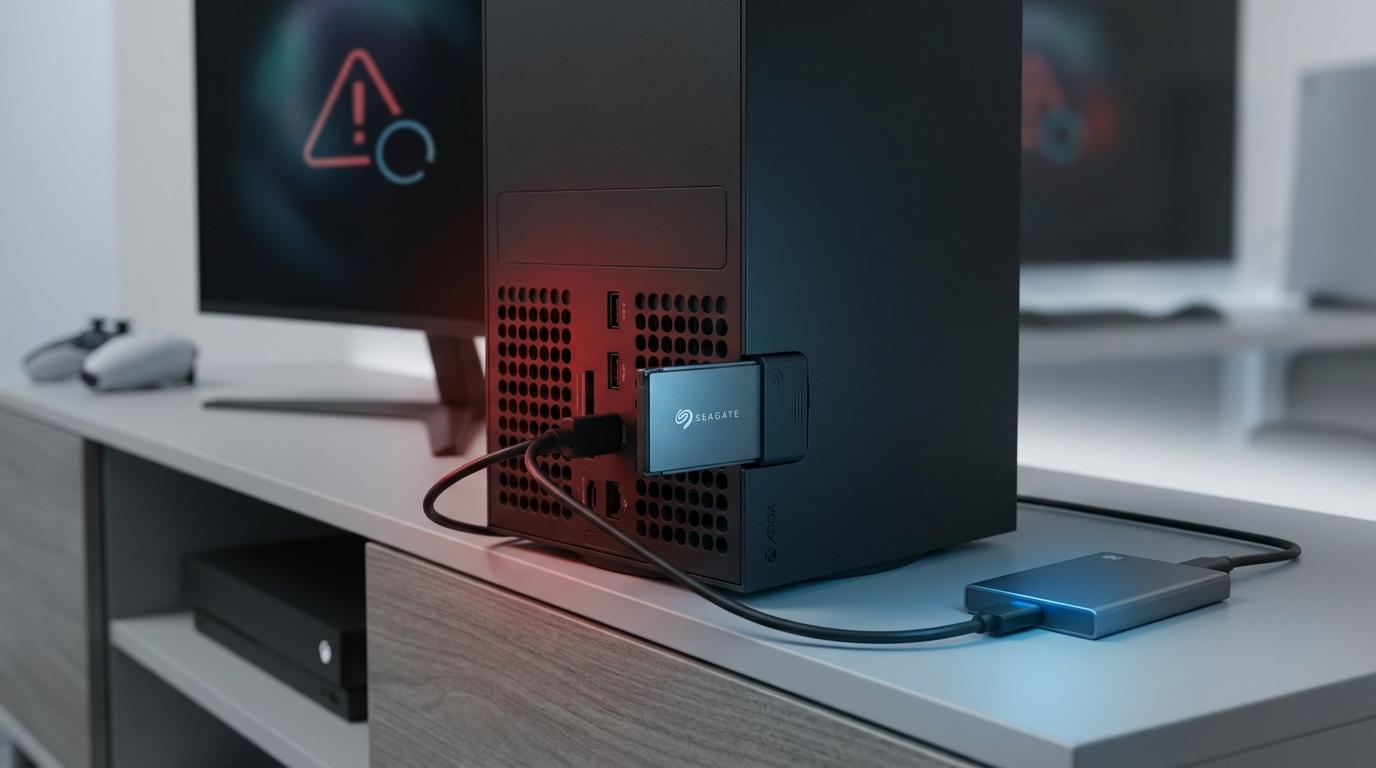
You usually see the “storage almost full” pop-up right when friends are waiting in your party, a new Game Pass hit drops, or a huge update blocks you from launching your favorite game. It feels random, but it isn’t.
On Xbox Series X/S, modern games are huge, updates arrive constantly, and the system keeps a chunk of the SSD for itself. A couple of 80–120 GB blockbusters, plus 4K textures, DLC, and game clips, can quietly eat almost the entire usable drive. The result: you end up deleting something every time you want to install anything new.
That’s the real headache—less playing, more juggling. Before spending money on more space, it helps to know whether you actually need an upgrade or just a better way to manage what’s already on your drive.
First check: do you really need more space or just better housekeeping?

Seeing that storage bar in the red can make an expansion card feel like the only sane option, but a quick reality check usually tells you more than the warning message. Ask yourself how often you actually get blocked from installing something you want right now, not just annoyed by a pop-up. If it’s only when three huge new games drop at once, you may not need more hardware yet.
Open “My games & apps,” sort by size, and look at your top 5–10 installs. Are you actively playing them, or are they there “just in case”? Big campaigns you finished months ago, co-op titles your friends have moved on from, and 4K-hungry sports games are prime candidates for removal. Then factor in your internet: if you have fast, uncapped downloads, deleting and re-downloading is mostly an inconvenience; with slow speeds or data caps, local storage matters more.
As you weigh that trade-off, the next step is to see how much pain you can remove just by cleaning up and rotating games more deliberately.
Living with what you have: smarter ways to delete, move, and re-download
Once you start cleaning, that list of huge games can feel untouchable. Start with small cuts. On a game, pick “Manage game and add-ons” and remove pieces you don’t use: 4K textures on a 1080p TV, extra languages, or a campaign you finished. Clearing captures and screenshots from the Captures menu can free even more. The catch: every chunk you remove is something you may need to download again later.
If you’ve got a spare USB 3.0 drive, use it as overflow instead of uninstalling everything. Format it for games, then move “maybe later” titles there. Xbox Series games can’t run from USB, but they can sit there until you have room on the internal SSD again. Moving a 100 GB game back takes time, though, so keep nightly staples on the fast storage and park seasonal or single‑player games.
Combine these habits with a small “always installed” lineup, and if you’re still constantly shuffling space, you’re probably ready to look at extra storage.
When deleting isn’t enough: deciding that it’s time to buy more storage
If you’re trimming DLC, parking games on USB, and still hitting “not enough space” every week, that’s your first real signal: you’ve outgrown the built‑in drive. The pattern matters more than any single warning. If every big update or new release forces a mini Tetris session in “My games & apps,” storage has become a bottleneck, not just minor upkeep.
Look at how you actually play. If you bounce between a handful of live‑service games, each with giant seasonal patches, plus Game Pass downloads “just to try,” your baseline storage needs are simply higher. Add in a shared console, slow internet, or data caps, and constant re-downloads stop being a mild hassle and start wasting evenings or chewing through your plan. At that point, paying once for more space often beats paying in time and frustration every month.
When those trade‑offs no longer feel reasonable, it’s time to plan a storage upgrade—then decide what kind makes sense: the official expansion card or a cheaper external drive.
Choosing between the official expansion card and a cheaper external drive
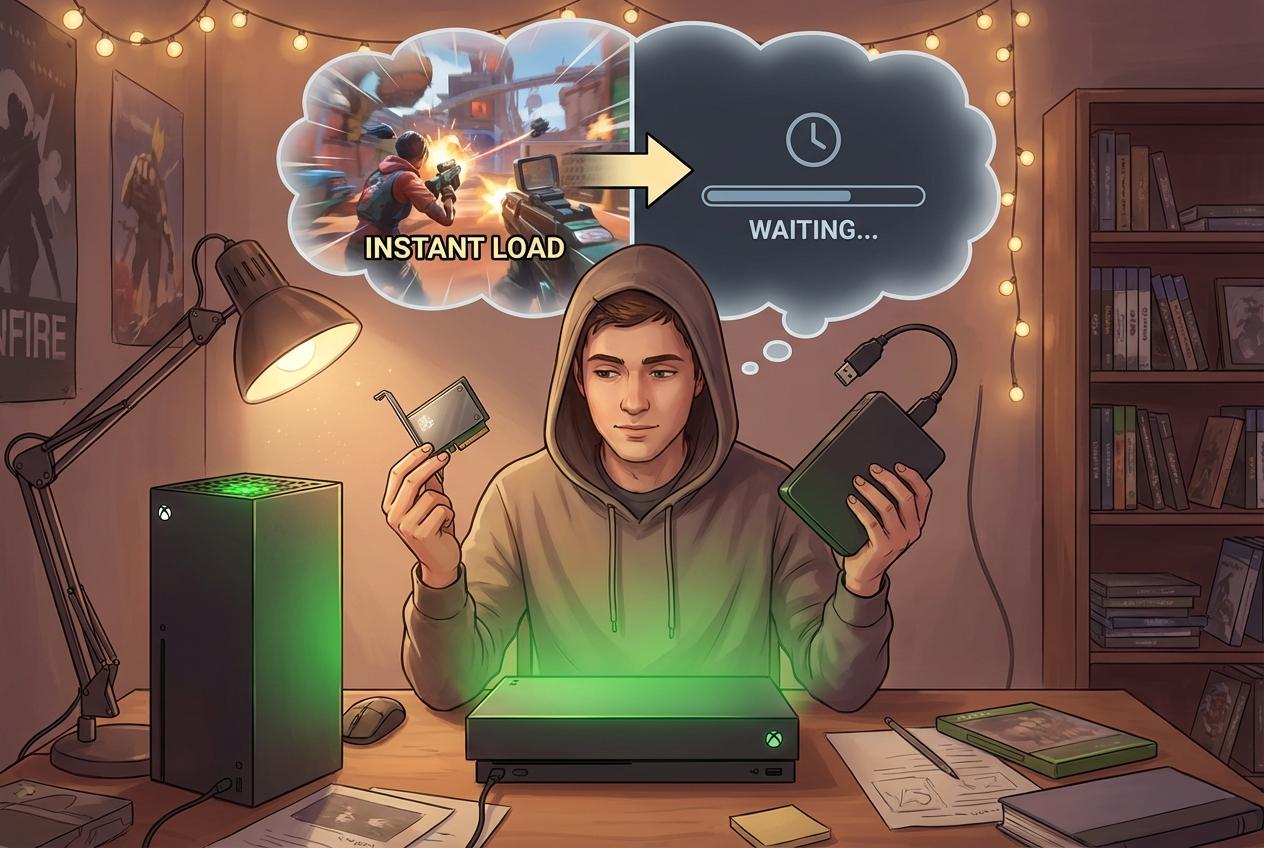
Standing in a store (or on Amazon), the choice usually looks simple: a small, pricey expansion card that says “Designed for Xbox,” or a much bigger, cheaper USB drive. The catch is they don’t work the same way. The official expansion card plugs into the Storage Expansion slot on the back and behaves like extra internal SSD space. You can install and run Xbox Series X|S games directly from it, with the same load times and features as the built‑in drive.
A USB external drive is more like long‑term parking. It’s great for storing older Xbox One/360 games and media, and you can run those directly. But for Series X|S titles, a USB drive is storage only—you have to copy them back to internal or expansion storage before you can play. That copy step is still faster than re-downloading, but it’s an extra wait whenever you bounce between big games.
So you’re trading money for convenience: the card feels invisible, the USB drive feels cheaper. Which one fits best depends on your budget and how you actually play.
Match the right setup to your budget and gaming style
If money’s tight but you’re constantly trying new Game Pass titles, a big USB drive plus careful rotation is usually the sweet spot. Keep a few current Series X|S games on the internal SSD, park everything you’re “not done with yet” on the USB drive, and accept that copying a game back now and then is the price of saving cash.
If you live inside a couple of huge online games, have slower or capped internet, and hate waiting, the official expansion card starts to feel less like a luxury and more like insurance. A 1 TB card effectively doubles your fast space, and you can still plug in a cheap USB drive later for older games. The friction drops every time a new season or 100 GB update hits.
For a shared family console or a big backlog of Xbox One and 360 games, start with the largest reliable USB drive you can afford, then add an expansion card only if Series games keep bumping into each other. Once you’ve picked the setup that matches your habits, the last step is to lock it in so storage becomes something you barely think about.
Locking in your choice so storage stops being a headache
Once you’ve picked your setup, the key shift is to stop making storage a case‑by‑case debate and start running it by simple rules. Decide how many “always installed” games you allow—say three big live games and two single‑player titles—and stick to it.
When something new comes in that doesn’t fit, it automatically gets moved to USB or deleted. No agonizing, just follow the rule you already set. The trade‑off is obvious: you give up keeping everything at once, but you also stop wasting time reshuffling icons every week.
Set a quick monthly reminder to clear captures, prune “just in case” installs, and confirm your rules still fit how you actually play. Do that, and storage goes back to being background noise instead of a recurring problem.