You’re paying for Acrobat, but your day-to-day PDF work hasn’t changed
You open a PDF, fix a typo, merge two files, get a signature, export to Word, and send it out. Most weeks, that’s the whole story—yet Acrobat still bills you like you’re running a production shop. The result is a weird mismatch: you’re paying for breadth, but using a narrow slice.
That’s why “cheaper” isn’t the only question. The real question is whether a lighter tool keeps the same outcomes on the files that matter: client-ready formatting, predictable edits, and no surprises when you hit Send. The friction comes later, when one messy PDF turns a two-minute task into twenty.
If you’re eyeing PDFGear, the decision hinges on what the subscription is actually buying you—speed, reliability, and client expectations—not just a brand name.
Reason 1: The “subscription vs. tool” decision—what cost actually buys you
That “brand name” usually shows up the moment something goes slightly off-script: a scan that needs OCR, a form field that won’t behave, a font that won’t embed, a redaction request that has to be defensible. Acrobat’s subscription isn’t just paying for a toolbar. It’s paying for a wide set of edge-case fixes, plus the comfort that many clients assume “Acrobat rules” when they send you a file.
A cheaper tool can still win if your work stays inside a smaller box: basic edits, quick merges, simple signing, and predictable exports. The trade-off is exposure. If the replacement misses one feature you rarely use, you don’t feel it until you’re on a deadline and the client’s PDF is the weird one.
So the cost question becomes practical: are you buying weekly value, or insurance for the handful of stressful jobs each month?
Before you switch, run the “client file reality check” on your messiest PDFs
That “insurance” only matters if your real files actually trigger it. Most people test a new PDF app on a clean sample, feel confident, then get blindsided by the first client upload: a scanned contract that’s slightly crooked, a brochure with odd fonts, a fillable form with locked fields, or a deck stitched together from screenshots.
Do a quick “client file reality check” before you switch. Pull 5–10 of your messiest PDFs from the last month and run the exact tasks you get paid for: fix a line of text, insert a page, reorder sections, add a signature, export to Word, and send it back. Don’t aim for perfection—aim for “client wouldn’t notice.” If you have a repeat client, include their files. They’re usually the harshest test.
The friction to watch is time. If a two-minute tweak turns into font weirdness, shifted spacing, or a re-export loop, the savings can evaporate fast. Once you know where the tool breaks, you can judge the editing and layout touch-ups that tend to hurt most.
Reason 2: Editing and layout touch-ups—will it stay fast when the PDF is ugly?
When a client sends a “simple” PDF edit, it’s rarely simple. You click into a paragraph and the cursor lands in the wrong place, the spacing shifts, or the font swaps to something close-but-not-right. That’s the moment where Acrobat often earns its keep: it’s built to handle more of the odd cases without you rebuilding the page.
Test PDFGear on edits that mimic real touch-ups: change a date inside a multi-column layout, replace a company name in a header, nudge an image caption, or delete one line without pulling the rest of the block out of alignment. Pay attention to what kind of edit it’s doing under the hood. If it treats text like a layout object (boxes and line breaks), a “one word” change can trigger reflow, and you end up chasing spacing for ten minutes.
The trade-off is speed versus control. If PDFGear stays stable on your ugly files, you win. If it forces workarounds (convert to Word, edit, re-export), you haven’t saved time—you’ve just moved the time around. The next pressure point is what happens when the file isn’t just edited, but needs to be signed or approved in a very Acrobat-shaped way.
Reason 3: Signing, forms, and approvals—what happens when a client expects Acrobat behavior
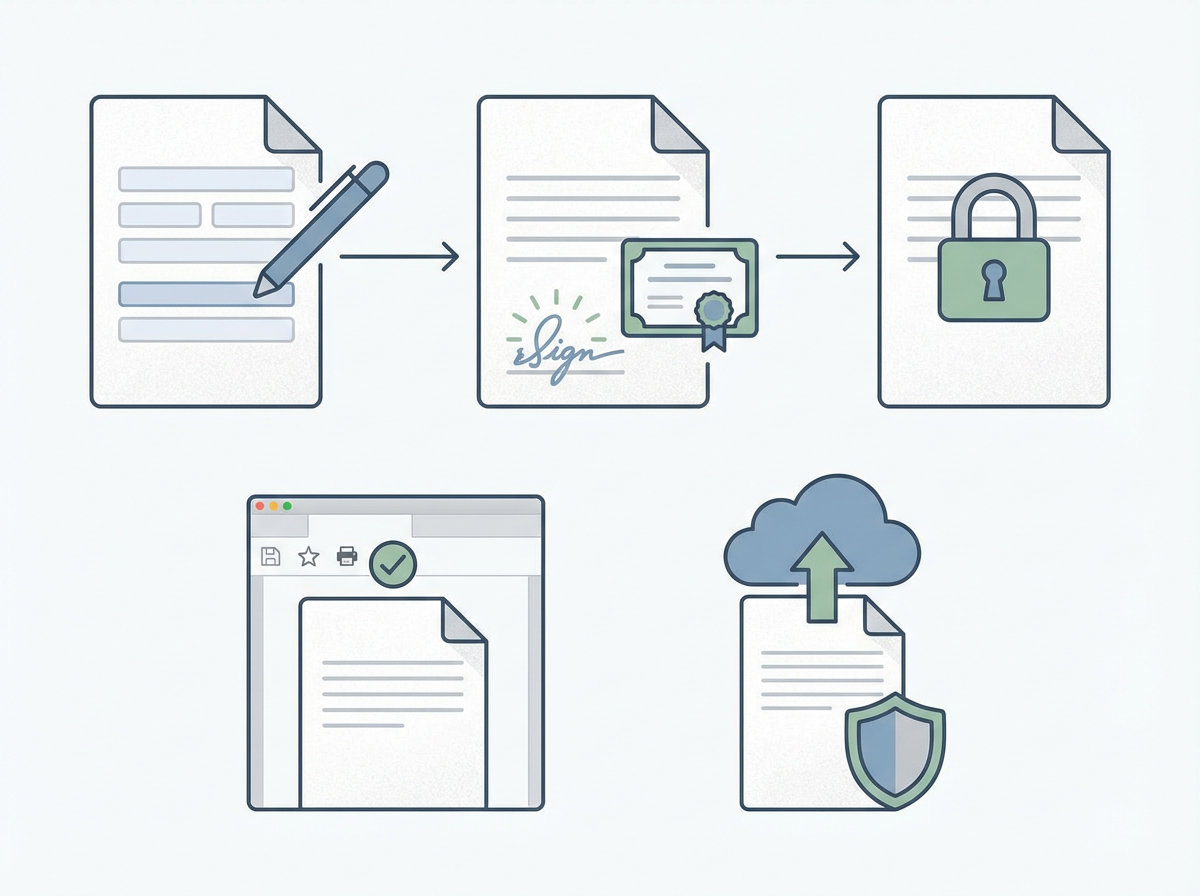
That “Acrobat-shaped” workflow usually shows up when a client says, “Just sign it and send it back,” and they mean more than dropping an image of your signature. They may expect a certificate-based digital signature, a visible appearance that looks a certain way, an audit trail, or a file that still validates when they open it in Acrobat or upload it to a portal.
Run a quick approval test on a real client form. Fill every field (especially checkboxes, dropdowns, and date fields), apply your signature, lock it if the process requires it, and then reopen the file in a different viewer to confirm nothing breaks. The friction to watch is compatibility: a form that looks filled but doesn’t “count” to the recipient, or a signature that shows visually but fails validation on their end.
If your work involves portals, regulated clients, or “Acrobat-required” language, this is where switching can cost you more than it saves. After that, the everyday litmus test is the boring stuff: combining, reordering, and compressing without creating new risks.
Reason 4: Combine, reorder, compress—do the boring tasks feel simpler or riskier
That “boring stuff” is where most people decide whether a PDF tool feels lighter or just less predictable. You merge a contract, reorder a few pages, rotate one stubborn scan, compress, and send. The success criteria is simple: the file opens fast, pages stay in the right order, and nothing new looks “off” to the client.
Test PDFGear on a mixed batch: a text-heavy PDF plus a scanned PDF plus a slide deck export. Combine them, reorder pages, delete one in the middle, add page numbers if you ever do, then compress twice—once “small enough to email,” once “as small as possible.” Watch for the trade-off: aggressive compression can blur signatures, charts, or small text, and some tools strip metadata or bookmarks that clients rely on.
If these chores stay clean, the next time sink is conversions—because accuracy there determines how much cleanup you eat.
Reason 5: Convert to/from Word/Excel/images—accuracy vs. cleanup time
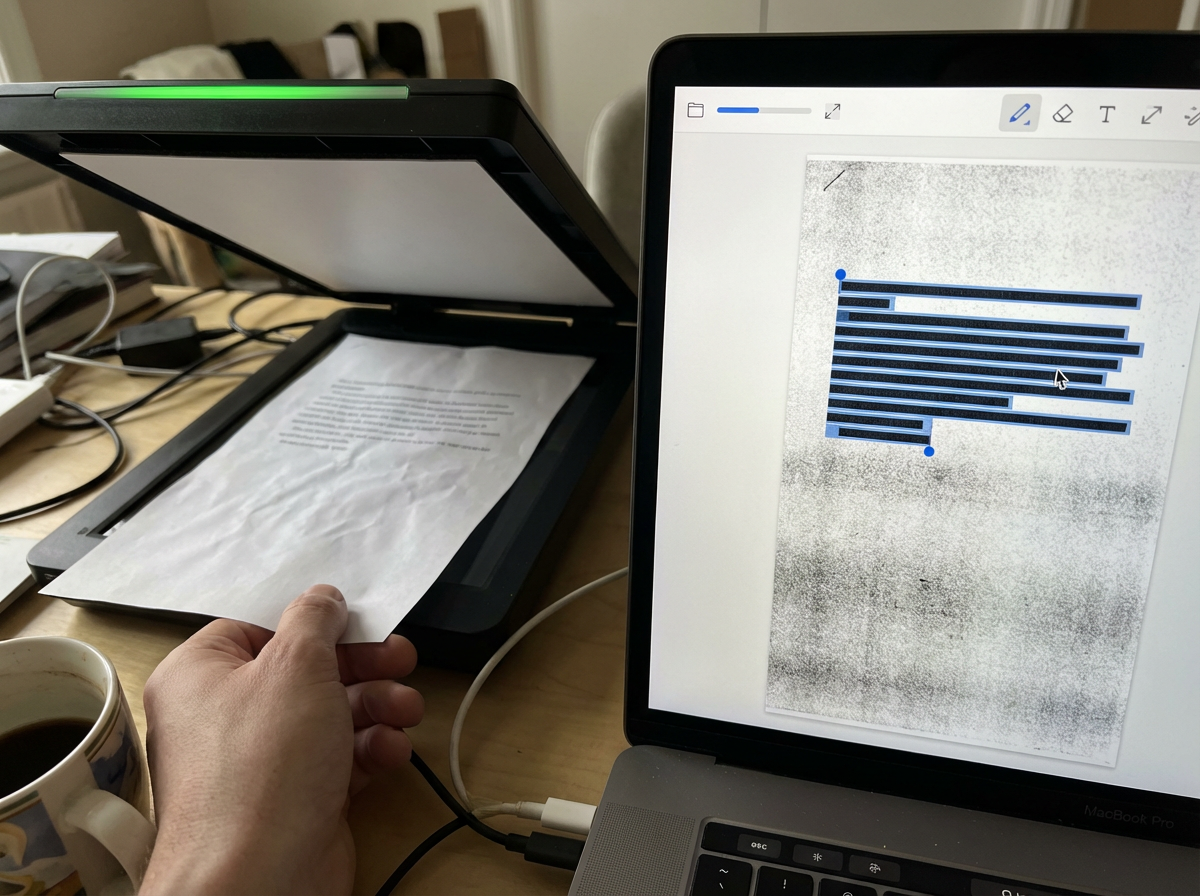
If conversions are part of your “quick fix” routine, you already know the trap: the export looks fine until you scroll and spot shifted bullets, broken tables, or a header that moved. That’s where subscription savings can disappear—because you’re not paying for the export button, you’re paying to avoid a 15-minute cleanup loop.
Test PDFGear with the files that usually break: a proposal with bullet lists and headings, an invoice with a table, and a one-page Excel-style grid with tight columns. Export to Word and Excel, make one small edit, then export back to PDF and compare side-by-side. Watch what changes: line breaks, column widths, and font substitutions are the usual tells. For images, convert a scan to an editable file and check whether text becomes selectable, or just stays as a picture.
The trade-off is accuracy versus control. If you can’t trust the first pass, you’ll either rebuild in Word or stop offering “quick edits” on converted docs—both hit your margin. That’s when hidden deal-breakers like security settings and client compatibility start to matter.
Reason 6: The hidden deal-breakers—security, compatibility, and “can I still deliver?”
Those “hidden deal-breakers” usually don’t show up while you’re editing—they show up when you try to deliver the file the way the client expects. A portal rejects the upload. A client asks for a password-protected PDF. Someone wants redaction that holds up if the file gets copied into another system. These are the moments where a cheaper tool can turn into a delay you can’t bill for.
Do a quick compatibility sweep on one real deliverable. Add a password, set printing/copying limits if you ever do, and reopen it in Acrobat or a browser viewer to confirm the restrictions behave the same way. If your clients send “secured” PDFs, test whether PDFGear can open them, edit what you need, and re-save without stripping settings or breaking form fields. Also watch for the friction you only notice late: missing fonts on the client’s machine, flattened layers, or a file that balloons in size after a simple edit.
If any of that fails, the savings won’t matter—because you’ll keep Acrobat “just in case.” That’s why the safest move is a short side-by-side test that forces the decision fast.
A low-risk next step: a 30-minute side-by-side test that makes the decision obvious
That “just in case” copy of Acrobat is exactly what you’re trying to avoid, so force the question with a timed, side-by-side run on real client files. Set a 30-minute timer and pick three PDFs: one clean, one “ugly” (scan, odd fonts, mixed sources), and one that involves signing or forms. Open each in Acrobat and PDFGear and do the same six moves: tiny text edit, page insert/reorder, rotate, compress, export to Word/Excel, then save and reopen in a different viewer.
Track two things only: minutes lost to fixes, and whether the output passes a “client wouldn’t notice” check. If PDFGear clears all three files without a workaround, cancel with confidence. If you hit one repeatable failure that affects paid work, keep Acrobat and stop chasing the cheaper option.