You keep meaning to automate it (but don’t want to break anything)
You’ve probably done the same little “morning” routine a hundred times: open the same folders, kick off a backup, clear a temp folder, or run a quick scan—then one busy day you skip it and pay for it later. Task Scheduler can stop the forgetting, but the worry is real: one wrong setting and the task runs at the worst time, prompts for permissions, or fails silently.
The good news is you don’t need risky, system-level automation to get value. The safest wins are small, reversible tasks that run in your own account, don’t touch Windows Update, and don’t depend on a network drive being awake. If you can describe the job as “run this program or command, then I’m done,” it’s usually a strong candidate. The next step is choosing the kind of task that stays low-risk even when your PC is asleep, locked, or offline.
Before you schedule anything: the three choices that make it “low-risk”
Most Task Scheduler “horror stories” come from perfectly reasonable tasks paired with the wrong three choices: when it triggers, what it runs under, and what it does when conditions aren’t perfect. Get those right and even boring automation stays boring—in a good way.
Choice one is the trigger. Prefer “At log on” or “On a schedule” over anything tied to Windows events you don’t fully control. If you only need it once a day, schedule it for a time you’re usually signed in, not 3:00 AM, unless you’re sure the PC will be awake. Choice two is the security context. Run it as your own user, and avoid “Run with highest privileges” unless the task truly needs admin access (many don’t). That one checkbox is the difference between a quiet background run and a surprise prompt or failure.
Choice three is the safety net in Settings/Conditions. If the task depends on the internet or a USB drive, don’t force it—let it skip and retry later. Turn on “Stop the task if it runs longer than…” for anything that could hang, like a copy or scan. Then you can automate without creating a new problem to babysit.
Your PC feels slow in the morning—should cleanup run automatically?
That “slow in the morning” feeling usually leads to the same instinct: clean something up. A one-time cleanup can help, but scheduling it daily can also backfire if it fights with startup apps, a browser restore, or a big sync that’s already using the disk. So the question isn’t “should I automate cleanup,” it’s “what kind of cleanup is safe to automate.”
Low-risk cleanup focuses on things that are disposable and local: your own temp folders, a Downloads subfolder you control, or a quick built-in maintenance command that doesn’t prompt. If you schedule anything that can delete broadly (like emptying the whole Downloads folder), add friction on purpose: run it weekly, and start with a “list only” or log output so you can confirm what it would touch. The trade-off is obvious—less clutter removed each day—but you avoid the nightmare of deleting something you meant to keep.
For timing, “At log on” is usually kinder than “every day at 7:00 AM” because it waits until the PC is actually in use. If you do schedule a fixed time, set it for mid-morning and enable a missed-run catch-up so it runs once when you’re signed in. That same trigger logic is what makes backups and other “must happen” tasks reliable.
A daily file backup that actually happens (without extra software)
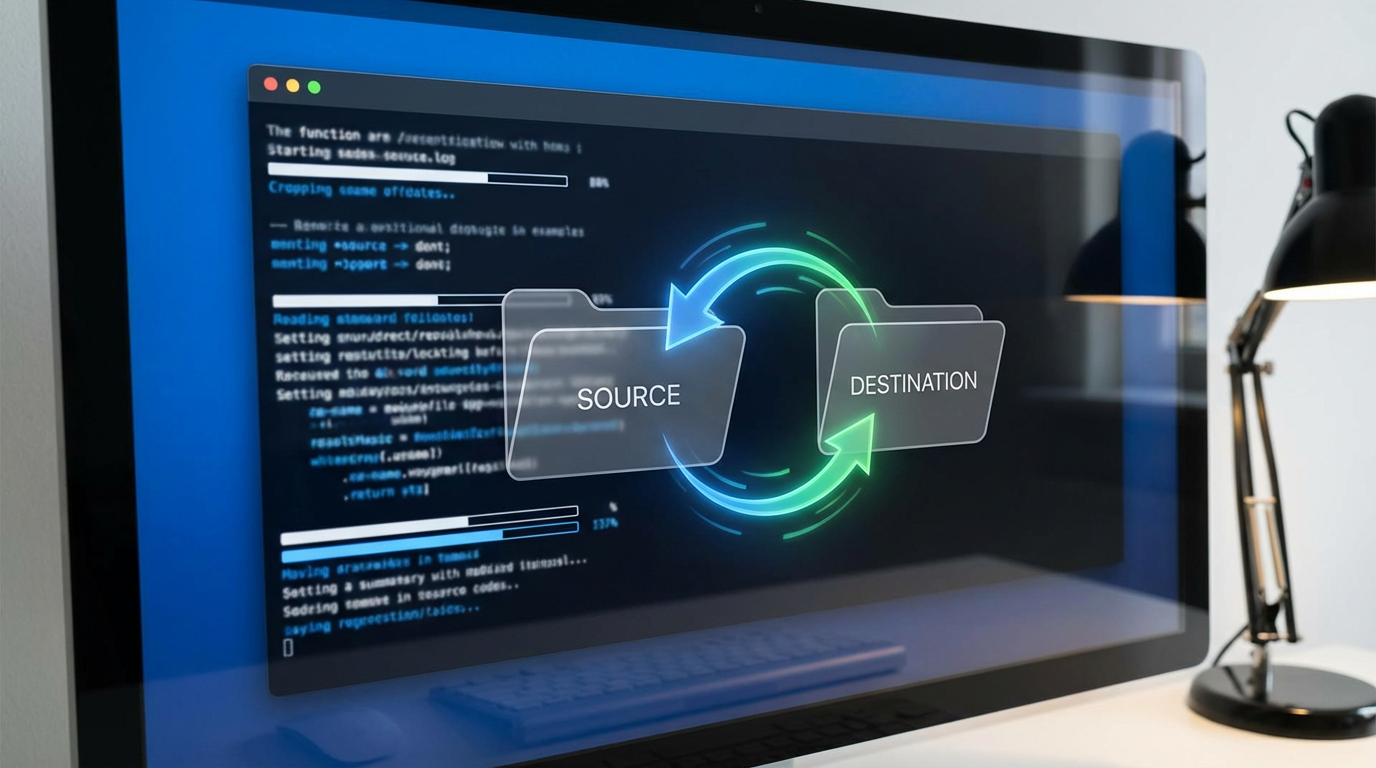
That same trigger logic is what keeps a backup from turning into “I’ll do it later.” Most people start with good intent, then miss a day because the USB drive isn’t plugged in or the PC was asleep at the scheduled time. The fix is to back up to a place that’s usually available (a second internal drive, or a specific folder on the same PC), and to run it when you’re actually signed in.
The simplest built-in option is Robocopy. Create a “Backup” folder on the destination, then schedule an action like: Program/script: robocopy Arguments: "C:\Users\You\Documents" "D:\Backup\Documents" /MIR /R:1 /W:5 /XJ. /MIR keeps the destination matching the source; the trade-off is it will delete files in the backup if you delete them in the source, so start with a test folder until you trust it.
In Task Scheduler, use At log on, uncheck “Start the task only if the computer is on AC power” for laptops you use unplugged, and set “If the task fails, restart every…” so a temporarily missing drive doesn’t mean a missed backup. Next, make your “work set” open itself the same way every morning.
When you sign in, open the same work set every time
That “work set” is usually the same few things: a project folder, a spreadsheet, a browser page you always check, maybe an app like Outlook or Teams. On a busy morning you open two of them, get pulled into a message, and the rest never happens. Scheduling the open is low-risk because it doesn’t change files—it just starts what you would start anyway.
Keep it simple: make a dedicated shortcut folder like C:\Workset and drop shortcuts to the folders and apps you want. Then schedule one task with the trigger At log on and an action of Program/script: explorer.exe Arguments: "C:\Workset". Explorer will open the folder, and you can launch what you need from one place. The trade-off is it’s one extra click for each app, but you avoid a task that tries to launch five apps at once and slows sign-in.
If you do auto-launch an app, set the task to Delay task for 30–60 seconds so it doesn’t fight startup. This same “delay and bundle” approach is also how you can make Windows go quiet during your focus hours.
Turn on ‘quiet mode’ automatically during focus hours
That startup delay trick matters even more when what you want is less noise. You sit down to focus, then Outlook, Teams, and a few background apps start throwing banners and sounds. You can toggle Focus assist (Windows 10) or Do not disturb (Windows 11) by hand, but the whole point is to stop relying on willpower at 9:07 AM.
The low-risk way to schedule “quiet mode” is to call the built-in settings switch, not to kill apps. In Task Scheduler, make two tasks: one to turn it on at the start of your focus block, and one to turn it off after. For the action, use a command that flips the mode (for example via PowerShell using a small script you keep in Documents). Keep the trigger simple: “On a schedule” at 9:00 AM and 1:00 PM, weekdays.
The friction is that Windows updates can change how these toggles behave. So set “If the task fails, restart every…” and add a local notification when it runs, so you notice a break before you miss an important alert.
Get reminded—locally—when a task finishes or fails
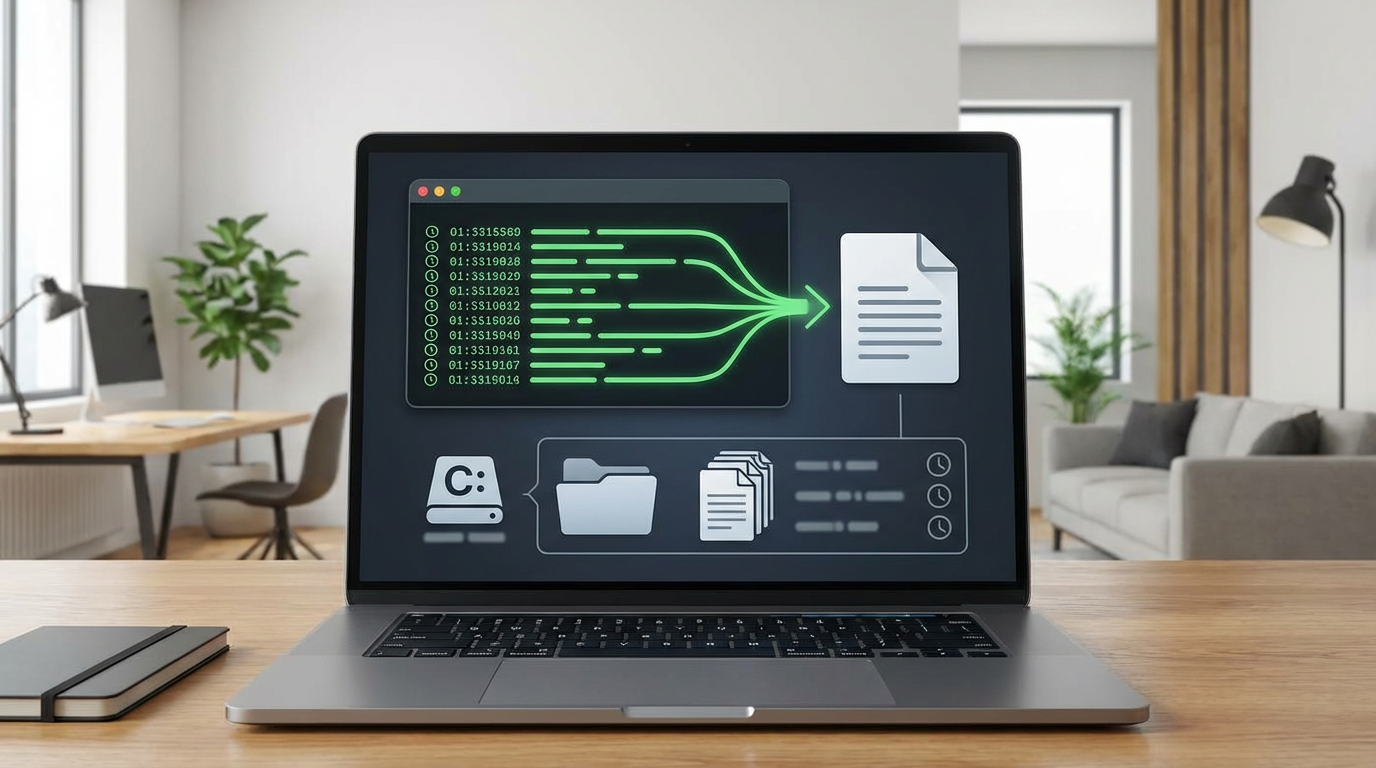
That local notification is what keeps automation from turning into “set it and forget it” until something quietly stops working. Most of the time you don’t need a fancy alert—you just need a clear signal when a task succeeds, and a louder one when it fails.
Start with the built-in basics: in Task Scheduler, turn on History (right pane) so you can see what happened, then check Last Run Result on the task itself. If you want something you’ll actually notice, add a second Action that runs only after your main command and writes a timestamped line to a local file (for example, a PowerShell one-liner that appends to C:\Logs\Tasks.txt). It’s boring, but it’s reliable.
The trade-off: pop-ups (like msg.exe or a PowerShell message box) won’t show if the task runs while you’re signed out or set to “Run whether user is logged on or not.” That’s why a local log file is the safety net—then you’re ready to pick one task and schedule it without surprises.
Pick one task for this week and schedule it safely
Without that safety net, most people either overbuild the first task—or never click “Create Task” at all. So pick one job that’s useful even if it runs imperfectly: open your workset at log on, run a Robocopy backup to a local drive, or write a “cleanup list” log once a week. Avoid anything that needs admin rights or a network share for your first run.
Keep the setup boring. Trigger: At log on (optionally Delay task 30–60 seconds). Action: one command or one script. Settings: enable “Run task as soon as possible after a scheduled start is missed,” set “Stop the task if it runs longer than…” and turn on a retry. Then run it manually once, confirm the log, and leave it alone for a week.