You’re using OneDrive… but it still feels like a risk
You open a file on your laptop, make a quick change, and close it—then later on your phone or a coworker’s version, the update isn’t there. Or a folder suddenly shows two copies with “(1)” tacked onto the name. None of it feels dramatic in the moment, but it’s enough to make you hesitate before you move “real work” into OneDrive.
That hesitation usually comes from a few predictable pain points: what should sync versus stay local, what a clean folder setup actually looks like, and what happens when sharing links spread further than you meant. OneDrive can be steady, but only if you decide a few rules up front—starting with what belongs there in the first place.
what should live in OneDrive vs stay local?
That “what belongs there” question usually shows up when you try to save something quickly and you pause at the folder list. If everything goes into OneDrive, you worry about sync delays or strange duplicates. If nothing does, you lose the whole point of having your files follow you.
A simple rule: put anything you’d be upset to lose, need on more than one device, or might have to hand to someone else into OneDrive. Think class papers, work docs, spreadsheets you edit weekly, and anything tied to a team. Keep things local when they’re huge, replaceable, or tied to one machine—like raw video projects, game installs, temporary downloads, or cache folders that apps rebuild anyway.
The trade-off is speed versus reach. OneDrive gives you backup and access, but large folders can slow sync and create conflicts if you open the same file in two places while you’re offline. Once you pick your “cloud by default” folders, the next problem is making them feel navigable instead of chaotic.
When your folders feel out of control, where do you start?
Chaotic is usually what it looks like after a few weeks of saving fast: “New folder,” “Final,” “Final2,” and a desktop full of shortcuts that point to who-knows-where. In OneDrive, that mess has a cost. When you can’t tell where something lives, you’re more likely to create duplicates, share the wrong copy, or edit an older version without noticing.
Start by picking one “home” folder for active work—something like Work or School—and move only your current projects into it. Don’t reorganize everything at once. If a folder hasn’t been touched in a while, leave it for an “Archive” pass later. Inside that home folder, keep the structure shallow: project folders at the top, then a small set of predictable subfolders like Docs, Notes, and Exports.
The friction: moving folders can trigger a big sync, and it can take time before every device catches up. Once the layout is stable, the next win comes from sync settings that stop OneDrive from doing “helpful” things you didn’t ask for.
Sync settings that prevent surprises (and what to leave alone)
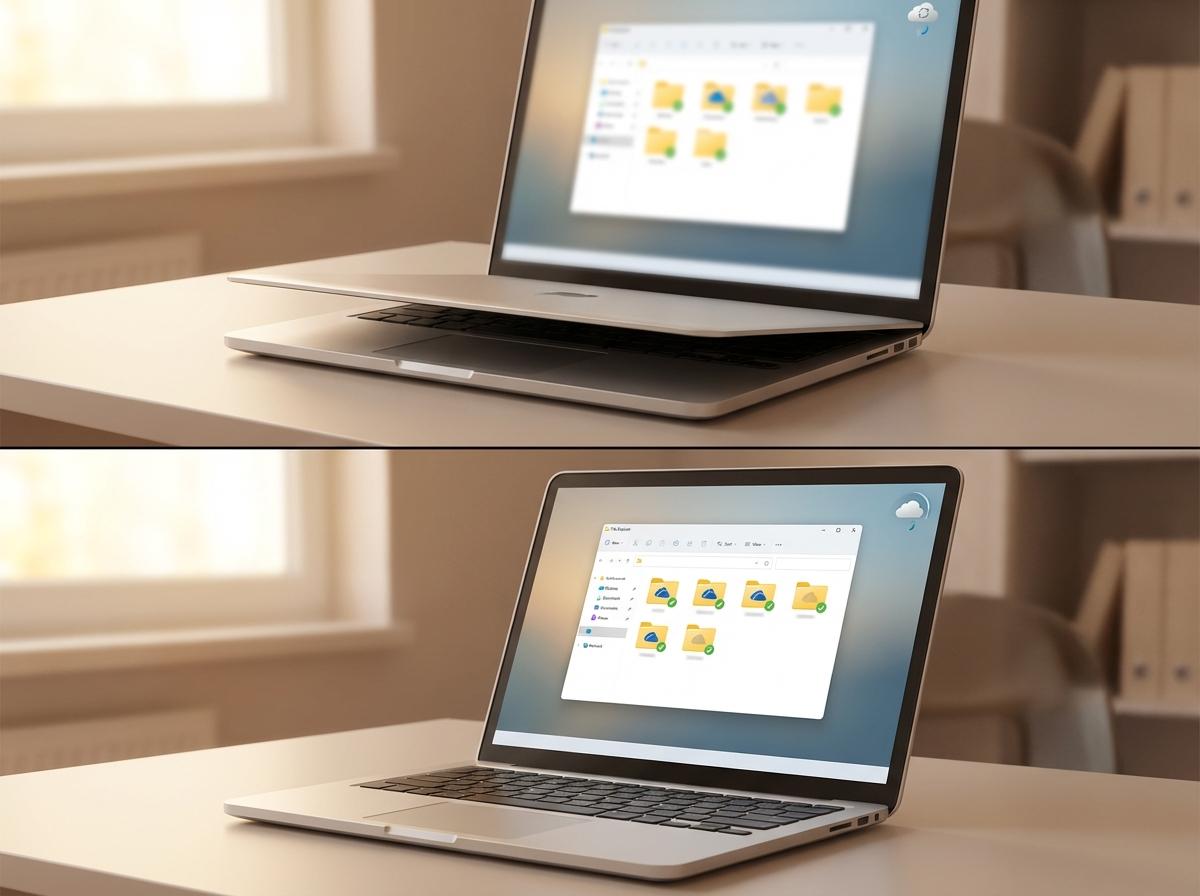
That “helpful” behavior usually shows up when you’re in a rush: you save a file, shut the lid, and later notice the cloud icon is still spinning—or you reopen the laptop to a burst of “syncing…” and a duplicate folder. The goal with settings isn’t to make OneDrive faster. It’s to make it predictable.
Start with a small set of choices. Turn on Files On-Demand so rarely used folders don’t eat your drive, then right-click only the folders you truly need offline and choose Always keep on this device (like “Current Projects”). If your internet is spotty, pause syncing before a meeting instead of working “offline by accident,” then resume when you’re back on stable Wi‑Fi. And if you use Known Folder Move (Desktop/Documents/Pictures), either commit to it or turn it off—half-moving those folders is how people end up with two “Documents” in different places.
What to leave alone: don’t change the OneDrive folder location, and don’t bounce between personal and work accounts for the same files. Those two moves create the most confusing “where did it go?” moments—right before sharing starts to matter.
Sharing: the moment people accidentally get the wrong access
That “where did it go?” moment often turns into “who can see it?” the first time you send a link. You mean to share a draft with one person, but the link is set to “Anyone with the link,” it gets forwarded, and now you’re relying on luck that nobody opens it. Or you share from the wrong folder and someone ends up editing a copy you didn’t even know existed.
Before you click Send, treat sharing like choosing a door, not tossing a key in the air. For most day-to-day work, start with Specific people (or your org’s equivalent) and only widen access when you have a reason. If it’s a view-only handoff—like a syllabus, a status spreadsheet, or a PDF—turn off Allow editing. If you’re sharing a whole folder, pause and ask: “Would I be okay if everything added here became visible later?” That’s the trade-off with folders: less re-sharing, bigger blast radius.
Then do a quick check in the file’s Manage access list and remove old links you don’t need. Once access is right, the next risk is two people changing the same file without realizing it.
Working together without overwriting: versions, coauthoring, and conflicts
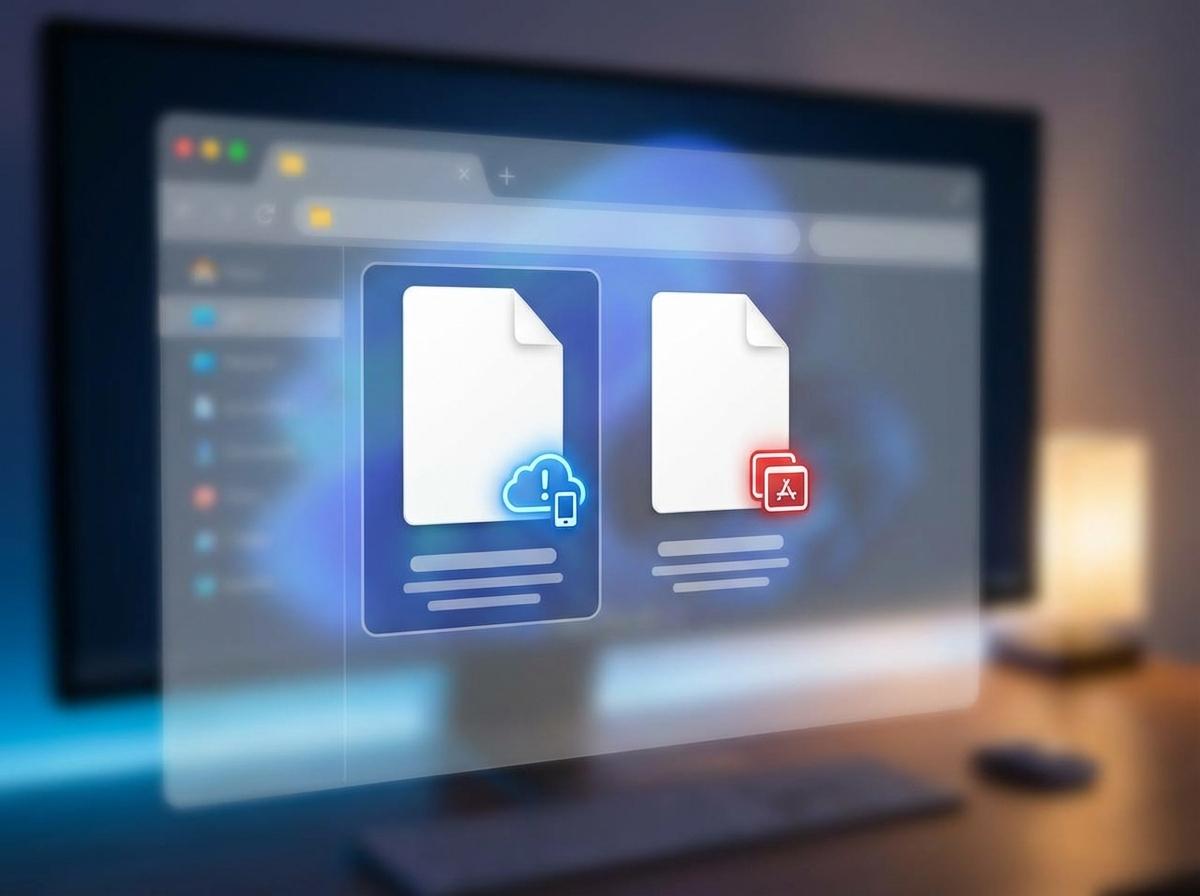
That risk shows up in a familiar way: you open a doc to “fix one line,” someone else is already editing, and you both hit save. In Office files stored in OneDrive (Word, Excel, PowerPoint), coauthoring usually prevents disasters because changes merge as you type, and you can see who’s in the file. The catch is that coauthoring works best when everyone edits the same file through Office apps while they’re online, not a downloaded copy or an attachment.
When things do go sideways, OneDrive tends to create conflict copies—often with a device name or your account added—because it can’t safely merge two offline edits. That’s the trade-off: working “anywhere” can cost you cleanup later. If you notice duplicates, stop editing, open both files, and copy the needed changes into one “real” version.
Your safety net is version history. If someone overwrites a section or a spreadsheet goes weird after an edit, restore the earlier version instead of trying to rebuild it from memory. The next step is knowing what to do when the file is gone entirely.
You deleted it—or it changed—now what?
When a file is truly gone, it usually looks like a quiet “wait, where did it go?” You search, you check the folder, and you start wondering whether you deleted it, moved it on another device, or whether sync just hasn’t caught up yet. Before you do anything else, stop editing anything related to that folder. More changes can create conflict copies or overwrite the version you actually want.
Start in the right place: check Recycle bin in OneDrive on the web (not just your PC’s Recycle Bin). If it’s there, restore it and give sync a minute to settle across devices. If the file exists but looks wrong, use Version history from OneDrive (or inside Office) and restore the last good version. That’s faster than trying to “undo” hours later.
The trade-off: restores can bring back a file, but they can also surprise teammates who were working in the “new” copy. After you recover it, open Manage access and make sure people are pointed at the right file before the confusion spreads.
A quick “trust check” you can repeat across devices
Pointing people at the right file is easier when you run the same quick check every time you switch devices. Open OneDrive on the web and find the file you care about. If it looks correct there, you’re working with the “source of truth,” not a stray local copy.
On each device, look at the file’s status icon before you edit: you want a green check (synced) or the cloud (online-only), not the spinning arrows. If it’s spinning, wait—or pause and resume sync once you’re back on stable Wi‑Fi. Then spot-check Manage access and Version history. If both look sane, it’s safe to keep going.