You just want one Android app on a bigger screen—what’s the simplest path?
You usually don’t want “Android on PC.” You want one specific app to open in a window, stay signed in, and not lag when you click or type. That’s the right way to frame the choice, because the simplest option depends less on the app category and more on what your PC can comfortably run and what the app requires.
If it’s a popular game, the lowest-effort route is often a mainstream emulator or Google’s own PC option, installed like any other Windows program. If it’s a niche app, you may need to install an APK, which changes which tools even qualify. Either way, there’s a quick checkpoint before you download anything: whether your PC will cooperate with virtualization, graphics support, and basic memory headroom.
First checkpoint: will your PC cooperate (virtualization, GPU, RAM, and Windows version)?
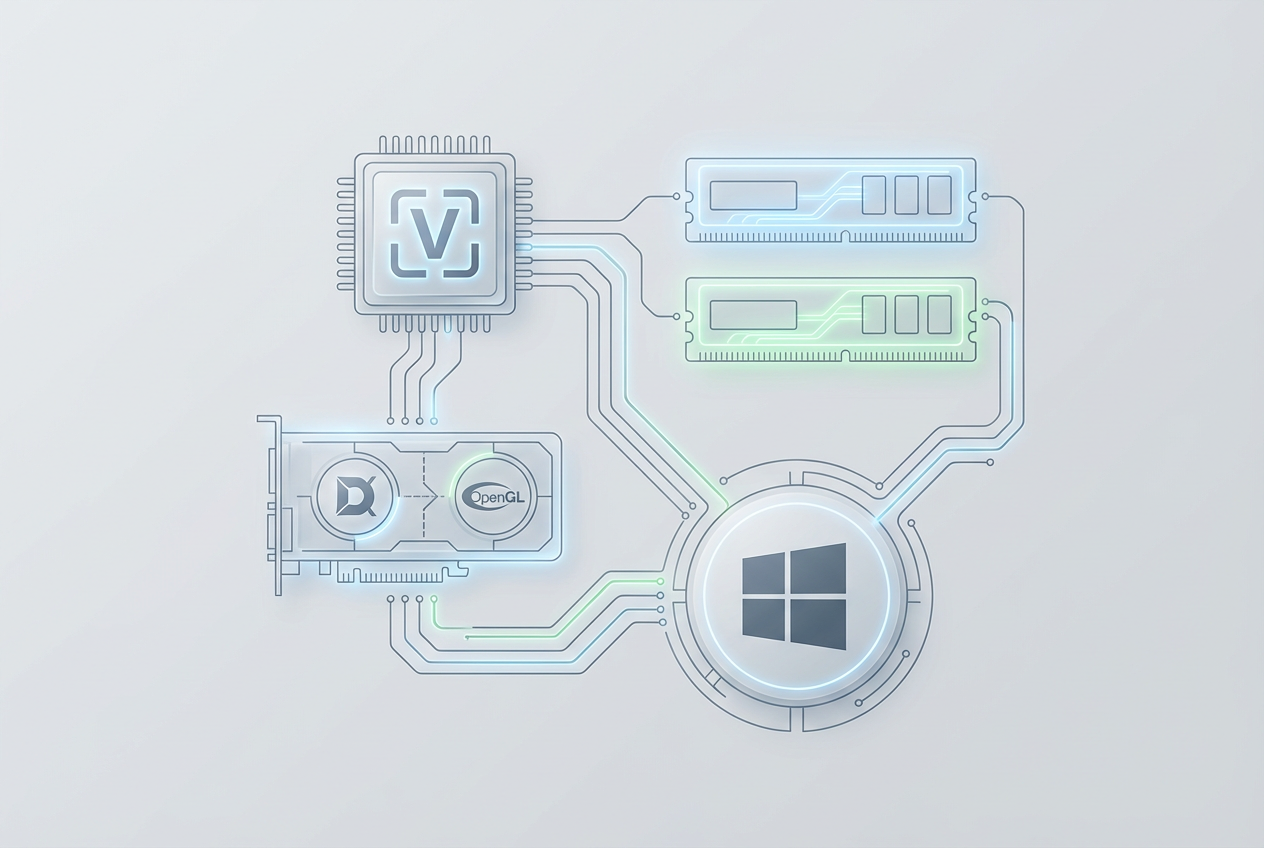
That “will your PC cooperate” checkpoint usually shows up as an emulator that won’t start, runs like sludge, or flashes a warning about virtualization. Most Android-on-PC tools lean on hardware virtualization (Intel VT-x or AMD-V). If it’s off in BIOS/UEFI, you’ll feel it immediately: long load times, stuttery scrolling, and games that never reach stable frame rates. A quick sanity test is Windows Task Manager → Performance → CPU; if it says “Virtualization: Disabled,” expect to do one reboot into firmware settings.
Next is graphics. Even if you’re not gaming, these apps draw through DirectX/OpenGL layers; older integrated GPUs can work, but they often struggle with higher resolutions or 120Hz monitors. Memory matters too: 8GB RAM is workable for one app, but if you also keep Chrome and Discord open, you’ll hit swapping and everything slows down.
Finally, your Windows version narrows the field, especially for the more “native” options. Before picking a tool, decide whether you can meet these basics without turning your PC into a project.
Do you need Google Play login, or are APKs fine?
That “turn your PC into a project” feeling often starts when the app asks for Google Play Services. If you need to sign in with a Google account, use in-app purchases, restore a game save, or rely on push notifications, you want a setup with a working Play Store/Play Services layer. Without it, some apps open but fail at the exact moment you try to log in, verify a purchase, or load your profile.
If APKs are fine, you have more flexibility and less account surface area. This is common for single-purpose apps, older game versions, or region-limited apps you already have the installer for. The trade-off is updates and trust: you’ll need to re-install new versions yourself, and you’ll be deciding which APK source is safe. A practical friction is that “APK-only” installs can also break on apps that check for Play Services in the background.
Make this decision first, because it cleanly splits the field: tools built around Google login versus tools that mainly act as fast APK runners.
Option 1–2 for most people: BlueStacks vs Google Play Games for PC
Once you’ve decided you do (or don’t) need Google login, the “default picks” narrow to two names most Windows users can install and understand quickly: BlueStacks and Google Play Games for PC. In day-to-day use, this is the difference between a general-purpose Android environment versus a focused launcher that only runs what Google has approved for PC.
BlueStacks is usually the broadest answer. If you need to run a specific app, try different Android versions, or sideload an APK when the Play Store listing isn’t available, it tends to be flexible. The friction is that it can feel heavy: higher RAM/CPU use on midrange laptops, plus upsells or extra offers during install if you click too fast. You’ll want to pay attention to installer screens and initial settings.
Google Play Games for PC is simpler when it works: sign in, install from Google Play, and it behaves more like a PC game client. The trade-off is compatibility. If your app isn’t in its catalog, there’s no “just add APK” workaround, which is why performance-focused emulators still matter.
When you care most about FPS and keymapping: LDPlayer and NoxPlayer
When your game isn’t in Google Play Games for PC, you usually end up caring about two things fast: steady FPS and controls that don’t fight you. That’s where performance-first emulators like LDPlayer and NoxPlayer tend to land. They’re built around playing, not just “running Android,” so you’ll see more toggles for CPU cores, RAM allocation, graphics mode (DirectX vs OpenGL), and preset keymaps for popular titles.
LDPlayer often appeals if you want a clean loop: install, pick a game profile, map keys, and chase smoother frame pacing with fewer surprises. NoxPlayer can be strong if you like deeper control—macros, multi-instance setups, and fine-grained input tweaks—especially for grindy games where repetition matters. The trade-off is friction: these tools can ship with bundled offers, extra services, or aggressive defaults. Plan to use a custom install, review permissions, and expect a bit of trial-and-error to stop a game from stuttering on your specific GPU.
If that sounds like work, the “more native” route is the next fork.
If you want Android to feel “built in” to Windows: Windows Subsystem for Android (WSA)
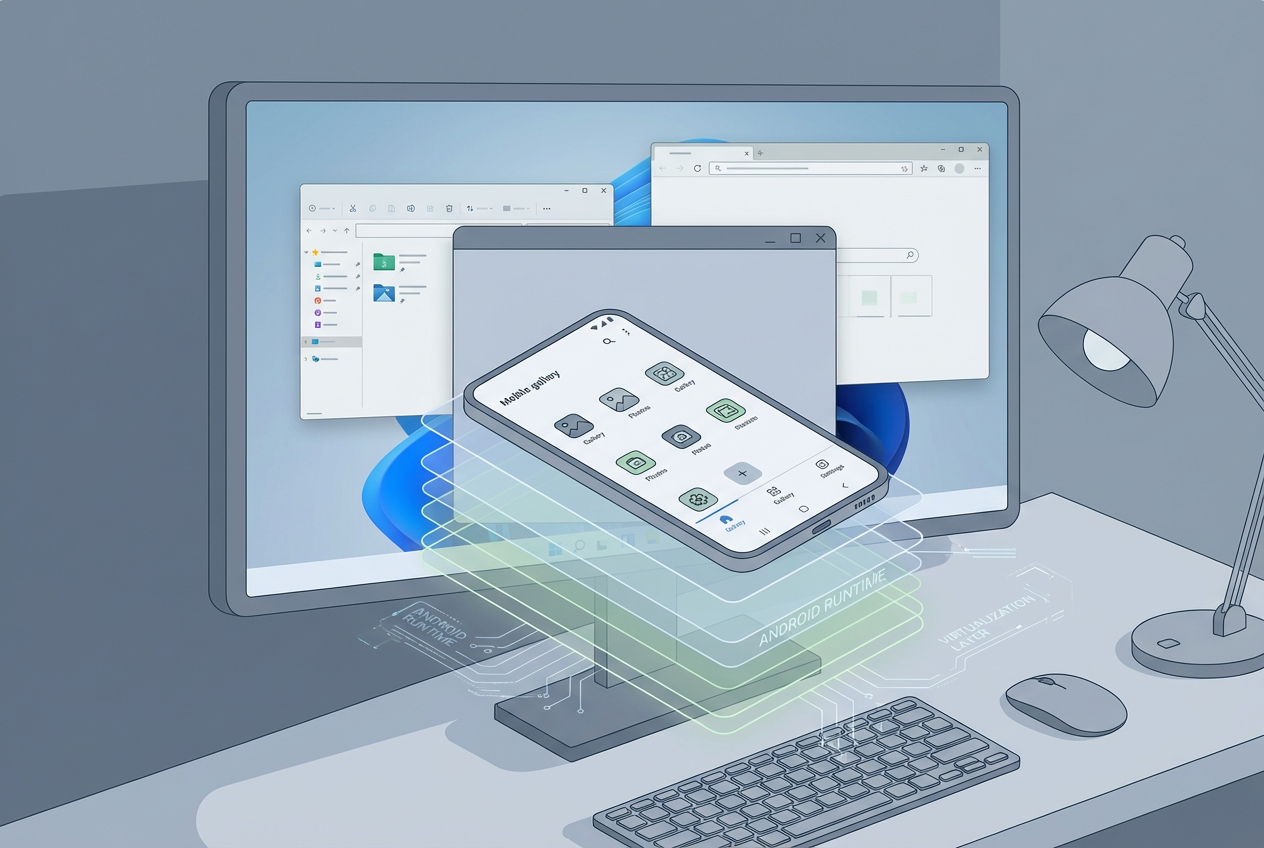
That “more native” route usually shows up when you don’t want an emulator dashboard at all—you want an Android app to sit on the taskbar, use normal window controls, and behave like any other Windows app. That’s the promise of Windows Subsystem for Android (WSA): Android runs as a Windows component, and apps open in their own windows instead of inside a full Android “phone screen.”
The catch is that WSA has been a moving target, and for many people it’s no longer a simple, officially supported install. Even when you can get it running, you’ll often hit practical friction fast: app selection can be limited, Google Play services typically aren’t there by default, and “just install this APK” can turn into a weekend of guides, version matching, and breakage after Windows updates. If your goal is one app that must stay logged in, those gaps matter.
WSA makes sense when your app is known to work without Play services and you value a clean Windows feel over game-first features like keymapping. Otherwise, the best choice is the one you can keep stable after the first install.
Make your choice stick: a quick “best fit” recap and what to expect after install
That “keep stable after the first install” part is where most people end up re-installing and switching tools. If your app is in Google Play Games for PC, pick it and stop there: the login flow is clean and updates are handled for you. If you need one specific app (or APK flexibility), BlueStacks is usually the safest “works on most PCs” bet—just watch the installer screens and expect higher RAM use. If you’re chasing FPS, keymapping, or multi-instance play, LDPlayer or NoxPlayer fit better, with more tuning and more cleanup of bundled extras. WSA only sticks if your app runs well without Play Services.
After install, expect three ongoing chores: keeping Windows GPU drivers current (it prevents odd stutter), adjusting CPU/RAM allocation when your laptop starts to heat up, and deciding how you’ll handle updates (Play Store vs manual APK). If you want a setup you’ll still like in a month, pick the option that matches your update path and tolerance for fiddling.