Why SIM swaps feel “random” until they happen to you
You hear about SIM swaps like they’re freak accidents—until your phone suddenly shows “No Service” in the middle of a normal day. Texts stop. Calls don’t come through. You assume it’s a carrier outage, reboot, and wait. Meanwhile, someone else may have convinced support to move your number to their SIM or eSIM, which lets them receive login codes and trigger password resets for banks, email, and crypto exchanges.
It feels random because the weak point isn’t your phone—it’s the carrier’s account-change process, and you rarely see it until it fails. The hard part is knowing which “security” options actually block a transfer and which ones just slow you down at the wrong time.
First decision: do you need to treat your number like a high-value key?
That difference between “blocks a transfer” and “just slows you down” starts with one blunt question: if someone got your number for an hour, what could they unlock? For many people, the answer is “more than I’d like,” because the number is the shortcut into email resets, bank logins, and exchange withdrawals—even if you don’t think of it that way day to day.
A quick test: open your password manager or notes and list the accounts that can send a login code or reset link to your phone number. If your primary email, a main bank, or your biggest exchange is on that list, treat the number like a high-value key. If it’s mostly delivery texts and low-stakes apps, you still want basic carrier protections, but you can accept a little less friction.
The trade-off is real: tighter carrier locks can make it harder to fix problems fast when you legitimately need support. That’s why the next step is being specific about which locks you turn on—and which “security” features are just theater.
When you contact your carrier, what exactly should you ask to be turned on?
“Be specific” usually means a short list you can read to a rep without getting pulled into vague “we have extra security” talk. Start by asking to put a passcode (or account PIN) on the wireless account, and confirm it’s required for any SIM change, eSIM activation, device swap, or number transfer. If the rep says “we already have your SSN or security questions,” treat that as a no and ask for the passcode anyway.
Then ask for a port-out/number transfer lock (often called “Number Lock” or “Port Freeze”) so your number can’t be moved to another carrier without a separate unlock step. This is different from a device payment lock. While you’re there, confirm the email and billing address on file, remove any old authorized users, and ask to turn on alerts for SIM changes, port-out requests, and login attempts on the carrier account.
The friction: these settings can block you when you truly need to swap phones. Decide now who can unlock it, and where that passcode lives.
Your number is ‘locked’—but can support still override it?
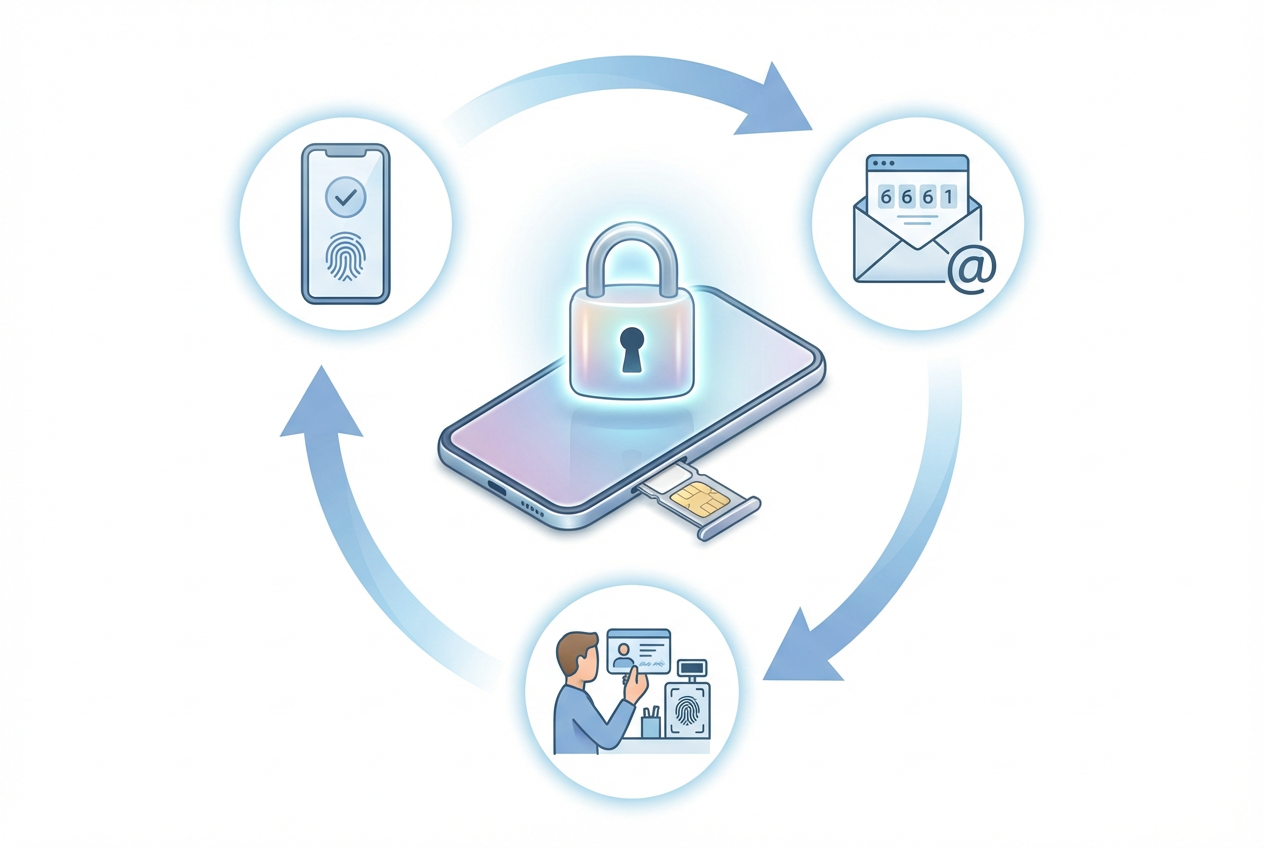
That passcode “lives” at the carrier, which means the next surprise is learning what a lock actually blocks in practice. Some locks stop self-serve actions in the app but still let a support rep complete a SIM change after “verifying” you. That’s not automatically bad—carriers need a recovery path when people lose phones—but it’s the gap attackers try to use.
So ask one pointed question: “With Number Lock/port-out lock and an account passcode on file, can any employee override it, and under what conditions?” If the answer is yes, ask what extra step is required to unlock (in-app approval, a one-time code to a verified email, in-store ID check), and ask support to note your account: “No SIM/eSIM change without passcode and in-store ID.”
In-store ID checks can save you from a takeover, but they also turn a simple phone upgrade into an errand—especially when you’re traveling.
The uncomfortable part: untangling SMS from banking and crypto logins
That travel-day errand gets a lot worse if your bank or exchange still treats your phone number like the master key. In practice, SMS isn’t just “2FA.” It’s often the recovery path: “Forgot password,” “new device,” “turn off 2FA,” and sometimes “confirm withdrawal” can all route through a text message. If someone grabs your number for an hour, they don’t need to crack a password manager—they just need the right reset screen.
The uncomfortable work is to list, one by one, where SMS is doing recovery and where it’s doing sign-in. Start with your primary email, then banks, then crypto exchanges and wallets. For each one, change two things: move sign-in to an authenticator app or security key, and move recovery to something that doesn’t depend on your number (backup codes stored offline, verified email that’s protected with a security key, or in-app prompts).
The friction is real: some banks won’t let you remove SMS, and some exchanges make the “secure” path slower. That’s exactly why your next move is to make account takeovers noisy.
Make takeovers noisy: alerts, contact hygiene, and device-level hardening
Most people only realize something’s wrong when the texts stop, but you want earlier signals than “No Service.” Turn on every carrier alert you can: SIM/eSIM change, port-out request, password or PIN changes, and new login notifications. Then route those alerts somewhere you’ll still see if your number gets grabbed—email to a secured inbox, plus push notifications inside the carrier app. If the carrier offers a recovery contact or secondary email, set it now, and delete any old numbers or emails you no longer control.
Clean up who can touch the account. Remove “authorized users” you don’t need, and don’t leave store reps as managers on a family plan. The trade-off is convenience: shared plans get messy fast, and the wrong “helpful” person can become the easiest path in.
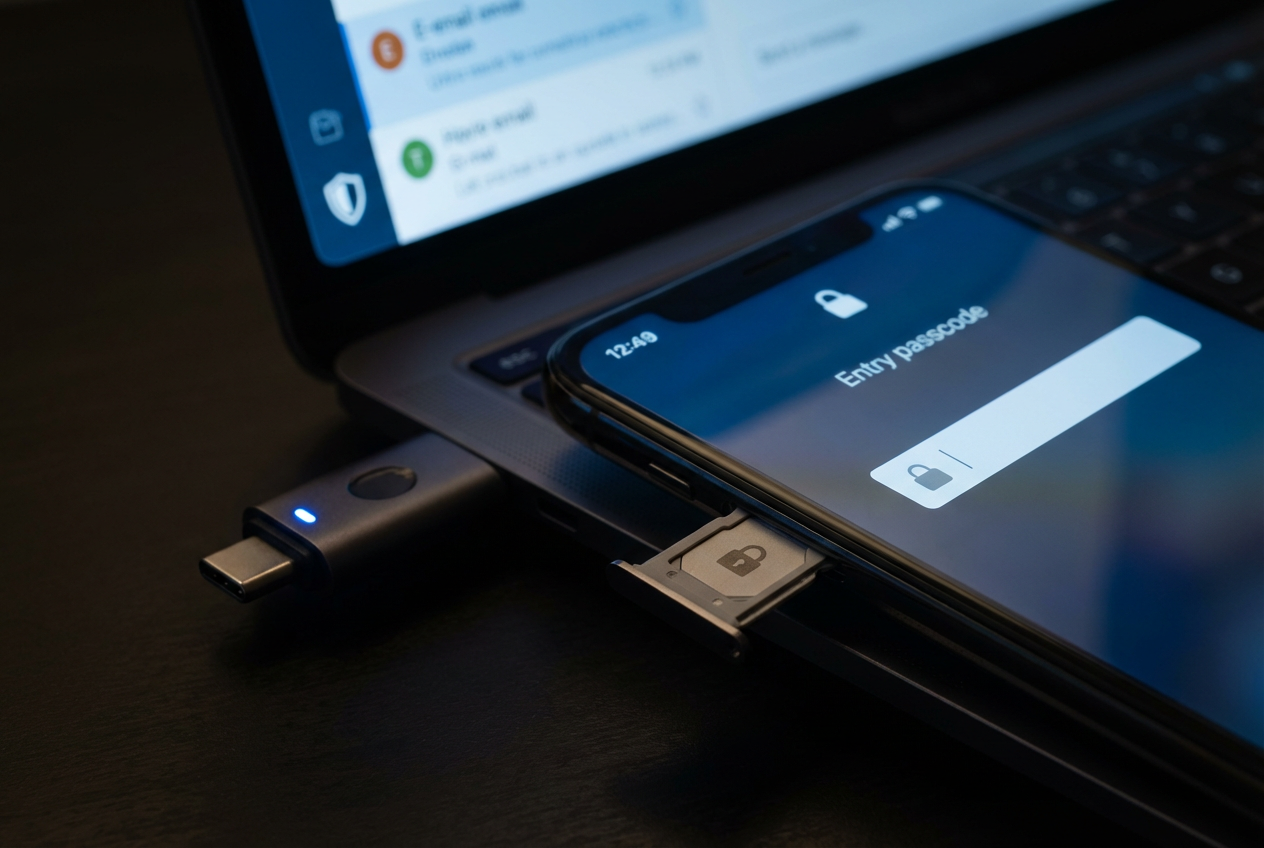
On the device side, lock down what an attacker would use next. Use a strong device passcode (not 4 digits), enable SIM PIN if you use a physical SIM, and protect your primary email with a security key so a stolen number can’t turn into a stolen inbox. The next step is knowing what to say the minute service drops.
If service suddenly drops, what to check and what to say (so you regain control fast)
The moment your phone flips to “No Service,” most people restart and wait for bars to come back. Don’t. Put the phone on Wi‑Fi, check your carrier account app and email for “SIM change,” “eSIM activated,” “Number Lock disabled,” or “port-out requested” alerts, and ask a friend to call your number—if they reach someone else or it goes straight to voicemail, treat it as a takeover.
Call the carrier from a different line (or use in-app chat) and use blunt language: “My number was moved without my consent. I need an immediate fraud/SIM-swap hold, reverse the SIM/eSIM change, re-enable Number Lock/port-out lock, and reset my account PIN.” Ask the rep to read back the last change (time, channel, store or employee ID) and add a note: “No SIM/eSIM changes without in-store ID.”
Then assume texts are compromised. Change passwords for primary email, banks, and exchanges, disable SMS where possible, and watch for new device logins or withdrawal attempts.
A realistic ‘7 tips’ checklist you can finish this week
Once you assume texts are compromised, the only useful next step is a checklist you can actually finish. (1) Set a carrier account PIN/passcode and confirm it’s required for SIM/eSIM and device swaps. (2) Turn on port-out/Number Lock and learn the exact unlock path. (3) Turn on carrier alerts and route them to a secured email plus app push. (4) Remove old authorized users and outdated contact info. (5) Move primary email to a security key (or authenticator) and lock down recovery. (6) For banks/exchanges, switch sign-in from SMS to authenticator/security key and store backup codes offline. (7) Write a “No Service” script and keep it in your password manager.