You want free Photoshop plugins—without burning a Saturday on dead downloads
You open a “best free Photoshop plugins” list, click three links, and one is a 404, one installs a panel that won’t load, and the last one is “free” until the export button. That’s the hidden cost: time, plus the risk of dropping unknown code into the same machine you send client files from. Even legit plugins break when Photoshop updates, or when Apple/Windows security rules tighten.
The goal here isn’t to collect plugins. It’s to pick a small set that reliably speeds up work you already do—retouching, clean exports, odd file formats—then prove each install is safe and reversible.
That starts with a quick safety check before you download anything.
The 3-minute safety check before you install any “free” plugin
That “free” download usually starts the same way: a random ZIP, a vague installer, and no clear way to undo it if Photoshop starts acting weird. Before you touch the file, do three fast checks that prevent most wasted installs.
Check 1: confirm it matches your Photoshop version and chip (Windows vs macOS, Apple Silicon vs Intel). If the download page doesn’t say, treat it as unmaintained. Check 2: scan the source, not just the file. Prefer a developer’s site, GitHub release page, or an Adobe Exchange listing over link-shorteners and “plugin bundle” blogs. Check 3: look for signs you can roll back—versioned releases, a changelog, and install instructions that say where files go.
The trade-off: you’ll skip some “cool” tools. You’ll also stop installing surprises—and that makes testing the good ones fast.
Retouching feels like Groundhog Day: G’MIC gives you hundreds of usable fixes (and a few traps)
Once you stop installing surprises, the next time sink is retouching: the same dodge-and-burn tweaks, local contrast nudges, denoise passes, and “can you make it pop?” requests on repeat. G’MIC is a free filter suite that drops a huge menu of corrections and creative looks into your workflow, which makes it useful when you want options without building five adjustment stacks from scratch.
In practice, it shines for fast batchable fixes: denoise variants, sharpening, micro-contrast, film-like grain, and targeted smoothing that can get you to a reviewable draft in minutes. If you’re bouncing between product shots or event selects, that speed matters.
The traps are real. Many filters are aggressive, some defaults clip highlights or oversoften skin, and the sheer list makes it easy to “demo-scroll” instead of finishing. Treat it like a small toolbox: bookmark a handful of filters you trust, run them on a duplicate layer or smart object, and save the rest for exploration time—not client time.
When you need clean exports, not another ‘Save As’ ritual: SuperPNG + WebPFormat
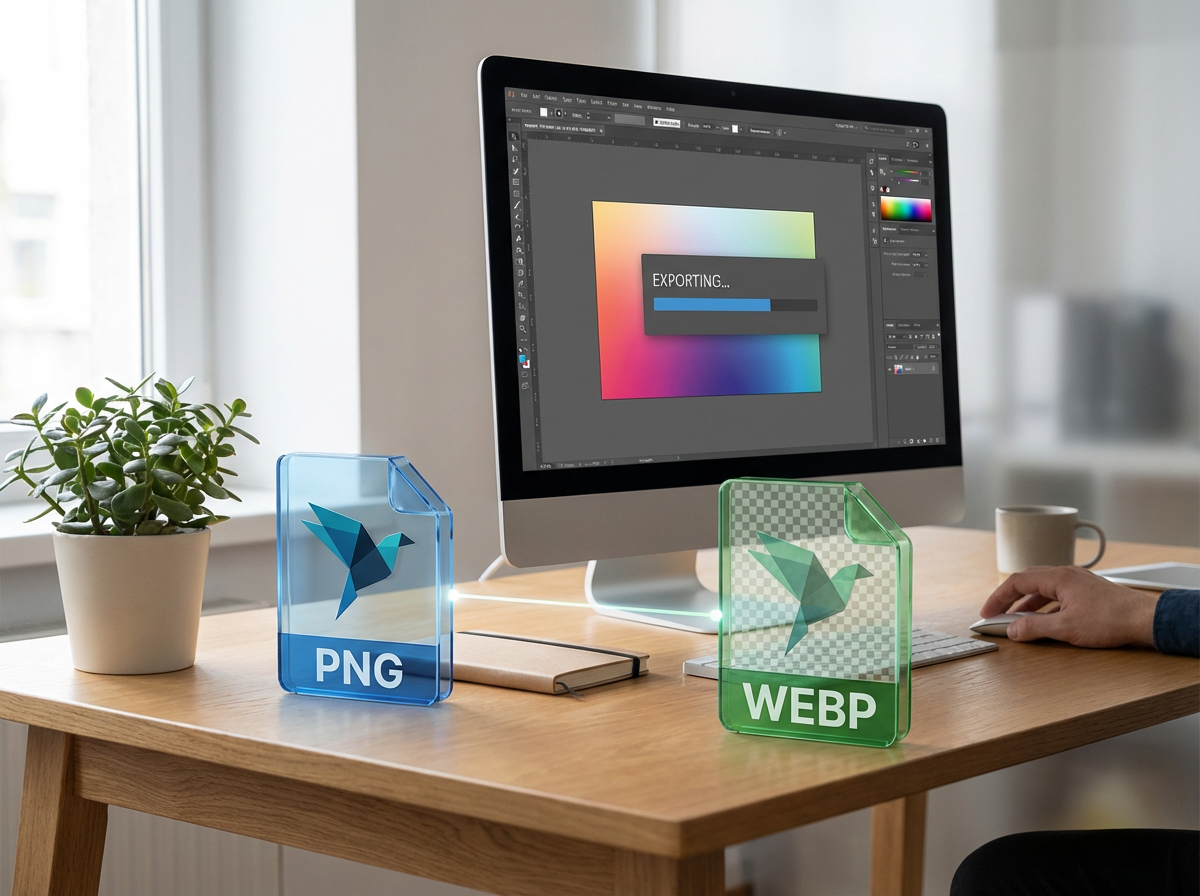
That “duplicate layer or smart object” habit pays off again when you export, because exports are where tiny mistakes turn into client-visible artifacts. The usual loop is familiar: Save As, tweak a few PNG options, realize the file is bigger than it should be, then do it again. SuperPNG tightens that routine by giving you more direct control over PNG output (bit depth, alpha handling, interlace/compression choices), which helps when you need clean edges on logos, UI, or cutouts without mystery halos.
WebPFormat covers the other common ask: “Can you send WebP too?” Without it, you’re bouncing through another app or a web converter, then hoping color and transparency survived. The trade-off is maintenance risk—export plugins can lag behind Photoshop updates—so treat them as “if they work, they save real time,” and keep a fallback path (Save for Web or an external converter) for the day they don’t.
Sometimes, though, the export problem isn’t size or format—it’s that the client wants a file Photoshop can’t natively handle well.
A client asks for EXR or game-ready textures—suddenly Photoshop isn’t enough: ProEXR + NVIDIA Texture Tools Exporter
That moment usually lands as a one-line request: “Can you deliver EXR?” or “We need BC7 textures for the build.” Photoshop can open some high-bit files, but it’s not built to be your HDR hub or your texture export pipeline, and that’s when two free add-ons save you a detour.
ProEXR makes EXR feel like a normal client format instead of a science project. You can inspect channels, handle alpha cleanly, and keep high dynamic range data intact when you round-trip comps for VFX or 3D. The friction is file weight and expectations: EXRs get big fast, and clients may expect specific channel names or premultiplication behavior, so test one file before you commit a whole batch.
NVIDIA Texture Tools Exporter covers the other side: DDS and block-compressed outputs (like BC formats) that engines actually want. The trade-off is that compression can introduce banding or edge artifacts, so you’ll want a quick visual check at 100% before you send finals.
Need an ICO or CUR file right now? ICOFormat is the ‘weird client request’ insurance policy
That quick 100% check becomes even more important when the request is oddly specific: “We need an .ICO for Windows” or “Can you send a .CUR by EOD?” Photoshop can fake it with workarounds, but you’ll usually lose control of the sizes or end up in a converter you don’t trust. ICOFormat is the simple fix: it adds proper ICO/CUR read and write so you can build the file from your clean master and move on.
In practice, the value is multi-size output. A usable icon file often needs several square sizes (and sometimes 32-bit with alpha), and doing that by hand is where mistakes sneak in—wrong dimension, blurry resample, or jagged transparency. The trade-off: it won’t make your icon design better, and you still need to preview the result on Windows if that’s the target. After that, the real win is having a repeatable install/test/rollback routine so “weird request” tools don’t turn into permanent clutter.
Your 15-minute install/test/rollback plan (so you can try 2–3 plugins safely)
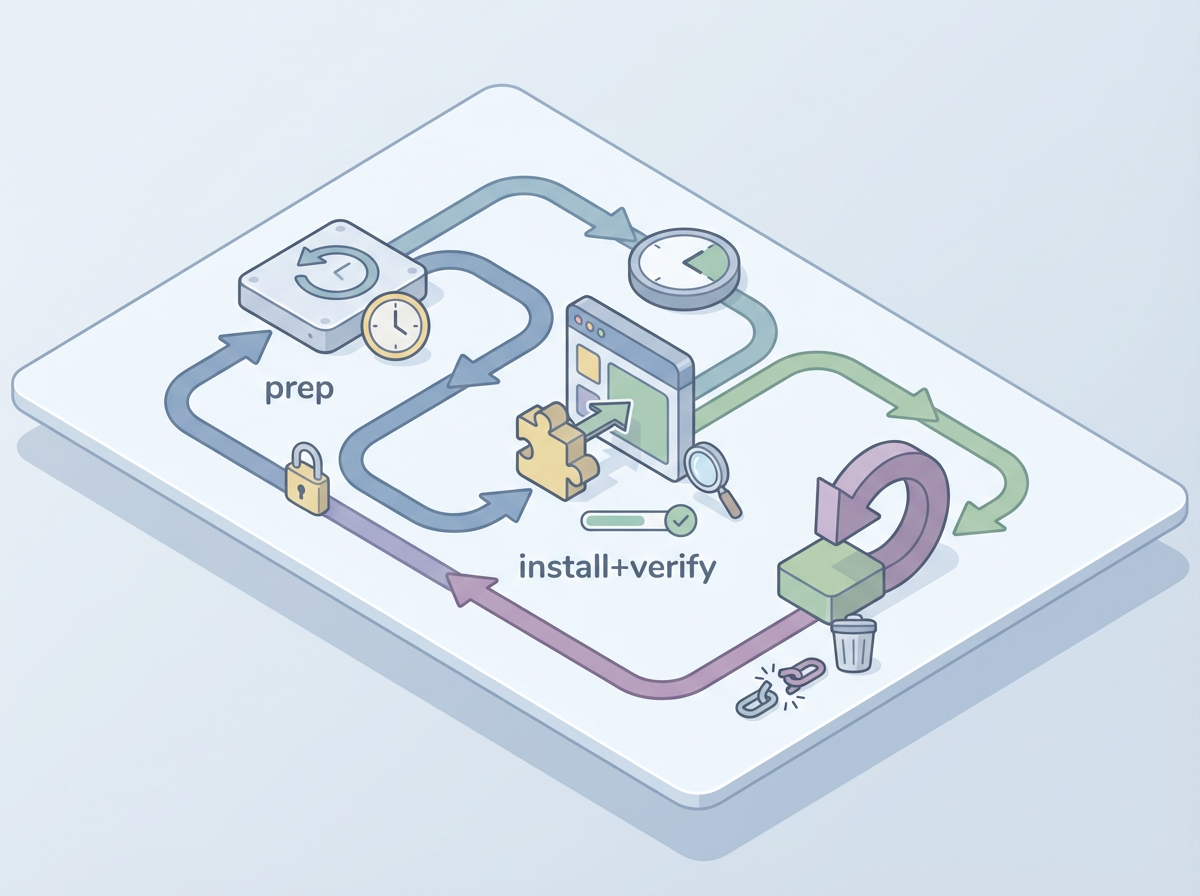
Permanent clutter usually happens when you install a plugin “just to try it,” then can’t remember what changed when Photoshop starts lagging or a menu goes missing. A 15-minute plan keeps the experiment small and reversible.
Minute 0–3: prep. Quit Photoshop. Create a “Plugin Tests” folder with the installer/ZIP and a text file for notes (plugin name, version, download source, install path). On Windows, set a System Restore point; on macOS, make sure Time Machine is current. Also take a quick screenshot of Help > System Info so you can compare later.
Minute 3–10: install + verify. Install one plugin at a time. Reopen Photoshop and run a boring test: open a known PSD, run the plugin once, then export a PNG/WebP/whatever that plugin touches. Watch for new panels that fail to load, missing menus, or error popups.
Minute 10–15: rollback. If anything feels off, uninstall immediately (or remove the added files), reboot Photoshop, and confirm the problem is gone. If it passes, keep it—and stop at two or three before you stack variables.
Pick your 2–3 and stop there: a workflow match-up for freelancers
Stopping at two or three plugins is what keeps your setup stable—and keeps you from debugging instead of billing. If you retouch people or events, start with G’MIC and commit to 5–10 bookmarked filters you’ll actually reuse. If you ship lots of web assets, pair SuperPNG with WebPFormat, but keep one non-Photoshop fallback for the week an update breaks exports. If you touch VFX or game work even occasionally, ProEXR plus NVIDIA Texture Tools Exporter covers the “weird file” days fast. Add ICOFormat only when clients ask for it twice.