When Windows Search keeps missing files, what are you actually trying to find?
You type a name you’re sure exists, hit Enter, and Windows Search shows something else—or nothing. Then you try a different folder, wait for indexing to “catch up,” and still end up opening three versions of the same file to find the right one. That’s the real pain: not just speed, but broken trust.
Before you swap tools, pin down what you’re actually searching for. Are you trying to recall the filename (or part of it), like “Q4 budget” or “invoice_1043”? Or do you remember a line inside the document, like a sentence from a PDF or a phrase from meeting notes?
That one detail decides whether you need instant filename lookup or true content search.
The first decision: do you need instant filename results or true content search?
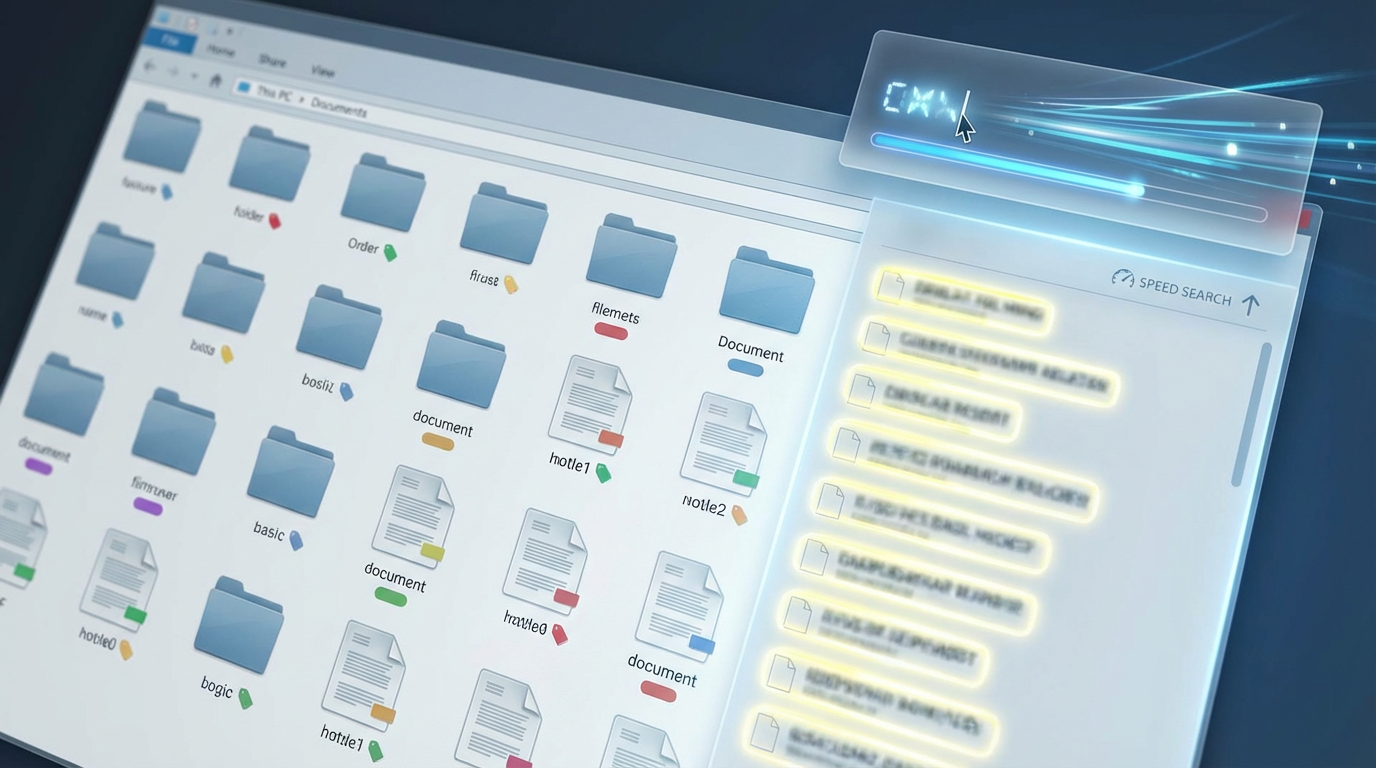
That split—filename versus a line inside the file—maps to two very different kinds of search. In a typical workday, you’ll bounce between them without noticing: you’re hunting “Client_Onboarding_Checklist.xlsx” one minute, then trying to find the doc that contains “net 30 upon receipt” the next.
If you mostly remember filenames (even partial ones), you want a tool that reads the file system directly and returns matches as you type. These feel instant because they don’t need to fully index document contents, and they tend to behave better when Windows Search is “catching up.” The trade-off is obvious the first time you only remember the idea, not the name: no filename, no result.
If you often remember a phrase inside the document, you need full-text content search that can read PDFs, Office files, and text notes. This is slower to set up and can miss formats it can’t parse, but it’s the only approach that finds “the right file” when the name tells you nothing.
If you mostly remember filenames: Everything vs WizFile vs Listary (which feels fastest in real life?)
When you mostly remember the name (or even two words from it), the “fast” tools all feel the same at first: you type, results appear, you hit Enter. The difference shows up the moment you’re under time pressure and you’re bouncing between drives, long paths, and thousands of small files.
Everything is the default pick for a reason: it’s consistently quick, lightweight, and flexible once you learn a few filters (like limiting to a folder or filetype). It also depends on an index of filenames, so the first run and any “non-standard” locations can still create a short gap between expectation and results. WizFile often feels even more “instant” on the first scan, especially when you just want to blast through a local drive and locate by name. The trade-off is fewer power-user controls and a workflow that can feel more like “find it now” than “stay organized.”
Listary earns its place if you live in File Explorer: it brings search to where you already navigate, with quick open and app-launch habits that cut clicks. The friction is trust and consistency—Explorer integration means you’ll notice conflicts faster if something feels off—so it’s worth testing on a normal workday before you commit.
When you remember a sentence inside the document: DocFetcher vs Agent Ransack (FileLocator Lite)
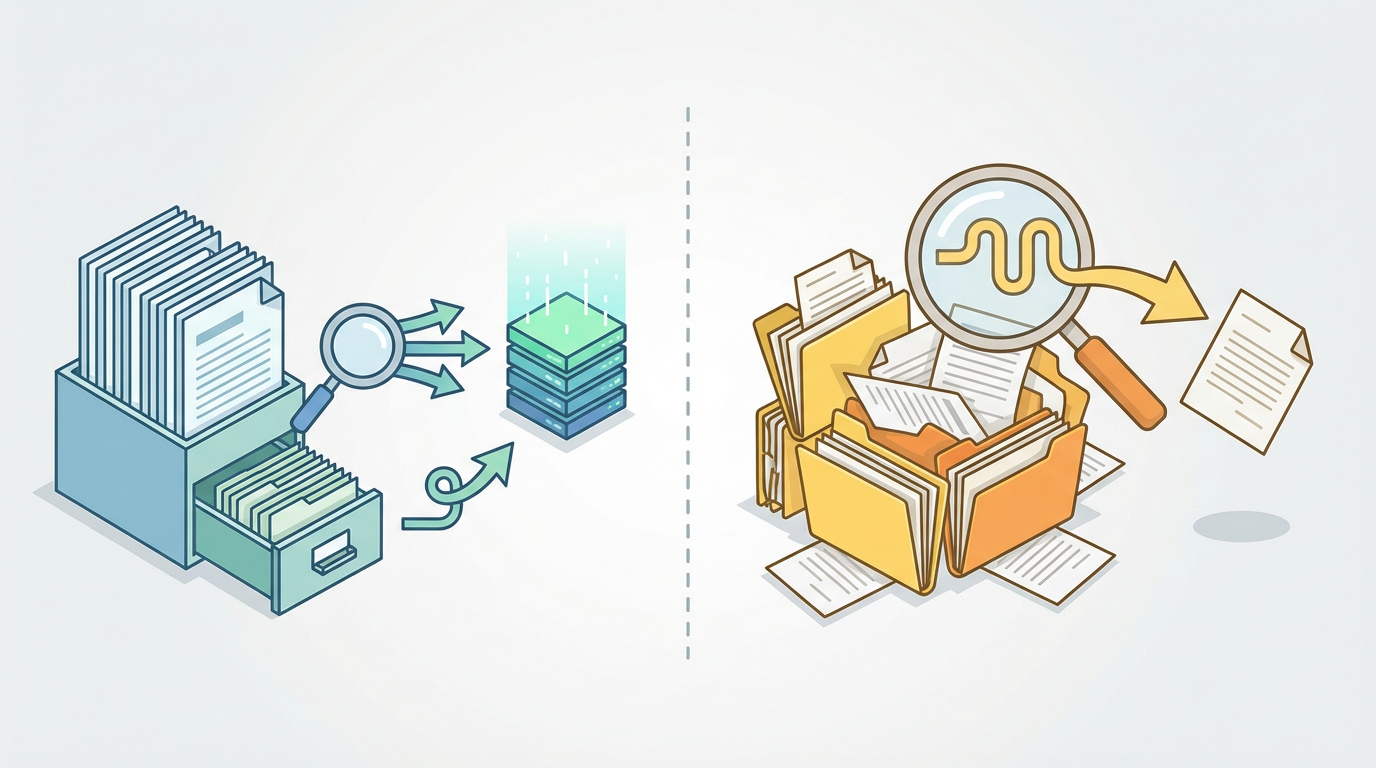
That trade-off gets painful when the filename is useless and all you have is a line like “net 30 upon receipt” or a project code buried in meeting notes. At that point you need content search, which means building and maintaining an index or scanning files on demand. Both approaches work, but they fail in different ways when you’re in a hurry.
DocFetcher fits when you have a stable set of folders (like Documents, a project archive, or synced work folders) and you want repeated searches to stay fast. You point it at locations, let it index, and then phrase searches feel quick. The friction is setup and upkeep: if you forget to add a new folder, or a sync client moves paths, you’ll think it “missed” files.
Agent Ransack (FileLocator Lite) fits when you need to search “right now” across a folder tree without committing to indexing first. It’s straightforward for targeted hunts, but it can feel slower on big drives, and content matching depends on what file types it can actually read.
External drives, shared folders, and ‘why won’t it search here?’ moments
That “search right now” need usually gets messy the moment the file isn’t on your C: drive. You plug in an external SSD, open a shared team folder, or jump into a NAS path, and suddenly the tool that felt instant goes quiet—or only finds half of what you know is there.
Filename tools behave differently here. Everything can be great on local NTFS drives, but network shares and some removable drives won’t show up unless you add them on purpose (and in some cases, it can’t index them the same way at all). WizFile is usually strongest when it can scan a local disk directly; point it at a mapped drive and the speed advantage can shrink fast. Listary follows Explorer’s context, which is convenient, but it can inherit the same “this location isn’t searchable” limits you were trying to escape.
Content tools have a different trade-off. DocFetcher only finds what you’ve indexed, so a new drive or share is invisible until you add it. Agent Ransack can still crawl a network folder on demand, but expect slower scans and occasional access-denied misses—especially on locked-down shared drives.
Trust and safety check before you install anything free
Those “access denied” misses are also a reminder: file-search tools need broad access to your drives, and that makes trust part of performance. In real life, you’ll install one because it’s “free,” grant it permissions, and only later notice it added a background service, a startup item, or an Explorer add-in you didn’t ask for.
Before you click Install, do a quick safety pass. Get the download from the developer’s site (or a well-known store), not a re-hosting page that bundles “extras.” On the installer screens, choose a custom/advanced option if it exists and uncheck toolbars, browser changes, or “recommended” apps. Then confirm what you just installed: look in Task Manager’s Startup tab, Windows “Apps & features,” and Explorer context menus.
The trade-off is time: five minutes of checking now saves you weeks of slow Explorer behavior or noisy pop-ups later. With that out of the way, you can set the one or two settings that actually make results reliable.
Your first 10 minutes: settings that make results reliable (not just fast)
Those one or two settings are usually where “fast” becomes “I trust it.” Start by choosing what locations count as your truth. In Everything, add any removable or network folders you actually work from (and check that new and changed files appear within a few seconds). In DocFetcher, create an index for your real work folders and schedule a refresh habit—manual refresh weekly beats assuming it “just knows” about a new project directory.
Then make your searches less fragile. Set a default filter you’ll actually use (for example: “only Office + PDF,” or “exclude node_modules and .git”), so a search for “invoice” doesn’t drown you in junk. In Agent Ransack, turn on “Look in: subfolders” and save a favorite search rooted at your shared drive, so you don’t accidentally search only the top level.
The trade-off is a little upfront constraint: you’re deciding what matters. Once you do, picking the one tool you’ll open by reflex gets easier.
Pick one tool today—and keep Windows Search as a backup, not your main plan
That “open by reflex” moment is the goal, because switching tools mid-hunt is where time disappears. Pick the tool that matches your most common recall: if you usually know the name, install Everything (or WizFile if you want the simplest, fastest-feeling scan). If you usually remember a phrase, install DocFetcher for repeatable searches in stable folders, or Agent Ransack when you need ad-hoc scans across messy trees and shares.
Then leave Windows Search alone. Keep it as a fallback for the odd Start-menu app or a one-off Explorer query, but don’t wait for it to regain your trust. One dependable tool, one habit, fewer “I know it’s here” loops.