You don’t need “Adobe,” you need a dependable workflow
You open a file, make a quick fix, export, send it, and move on. That’s the job. The problem with “find a free Adobe alternative” is that it often turns into tool-hopping—one app can’t open a format, another can’t export the right PDF, and suddenly “free” costs you a night of rework.
A dependable workflow is simpler: one or two tools you can trust for your weekly deliverables, plus a clear fallback when something gets weird (fonts, color profiles, print settings, codecs). If you pick based on what you actually ship—social images, product photos, logos, pitch decks, print PDFs, short videos—you’ll avoid most surprises. That’s the filter to use before you download anything.
Before you switch: what are you actually shipping this week?
That filter gets real the moment you think about the files you have to deliver before Friday. Not the ideal projects—your current ones. A “Photoshop replacement” means something different if you’re resizing 20 product shots for Shopify than if you’re retouching portraits, batching exports, and handing off layered files to a client.
Make a two-column list: what you’re shipping, and what could break. “Instagram carousel (1080x1350) + PNG export” is low-risk. “Print brochure: CMYK, bleed, embedded fonts, PDF/X-1a” is not. Same with video: “30-second Reels edit” is forgiving; “client needs ProRes, clean audio, and captions” is where tools and codecs start to matter.
Then note your constraints: can you install apps, or do you need browser-based? Do you need to open PSD/AI/INDD, or can you start fresh? The trade-off is simple: the closer you stay to Adobe formats, the more you’ll care about import/export quirks. That’s what should drive your first test.
Need Photoshop-like edits in minutes (and you can’t install anything)? Try Photopea
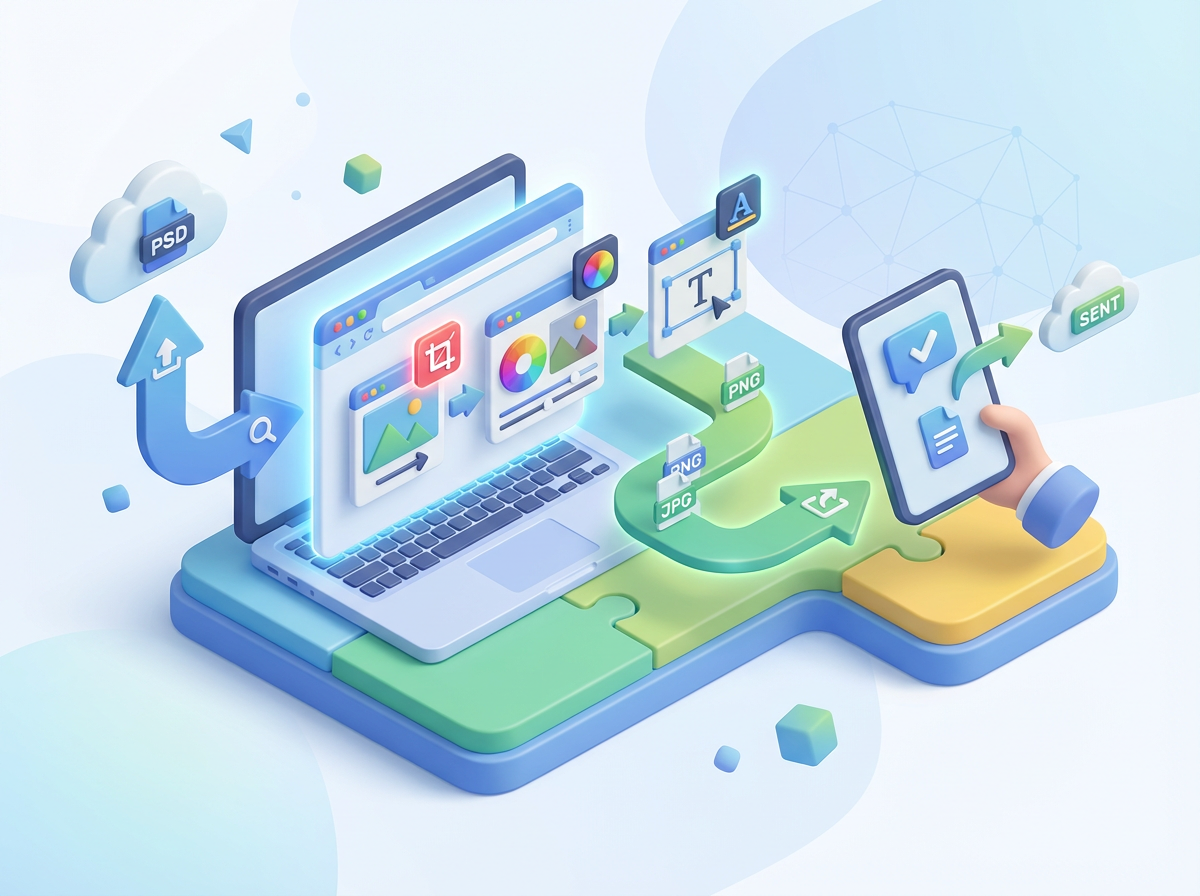
If you’re stuck on a school computer, a client’s locked-down laptop, or a Chromebook, “just install GIMP” isn’t a real option. In that case, the fastest path is usually a browser editor that can open the file you already have, make the fix, and export without breaking the layout.
Photopea is built for that exact moment. It runs in your browser and feels close enough to Photoshop that common tasks—cropping, masking, spot fixes, text tweaks, layer comps, quick color adjustments—translate with minimal relearning. The practical win is PSD handling: you can often open a layered PSD, change a headline, swap an image, and export a PNG/JPG or even a PSD back to a teammate without rebuilding everything.
The trade-off is reliability under pressure. Big PSDs, lots of smart objects, and heavy fonts can lag or load weird, and you’re still depending on a browser session. If you need repeatable, offline work, that’s where an installed app starts to earn its keep.
When you want a real, installable Photoshop replacement: GIMP’s the workhorse
Offline work is where the “browser session” trade-off stops being cute. If you need to open the same files every day, keep assets on disk, and know the app will run even when Wi‑Fi drops, GIMP is the dependable choice in the free Photoshop-replacement lane.
GIMP covers the daily core: layers, masks, selections, retouching, color fixes, compositing, and exporting clean JPG/PNG/TIFF. It also handles practical production tasks like batch renaming/exporting and repetitive edits via scripts, which matters when you’re pushing a week’s worth of product photos or thumbnails. The friction is format expectations: PSD import is workable for many files, but don’t assume smart objects, adjustment layers, or layer effects will survive perfectly. Plan a quick “round-trip” test before you promise a client you can deliver layered PSDs back.
If your work includes heavy typography, brand layouts, or vector shapes, the next decision is whether you need a vector tool alongside it.
Logos, icons, and clean illustrations without Illustrator: Inkscape
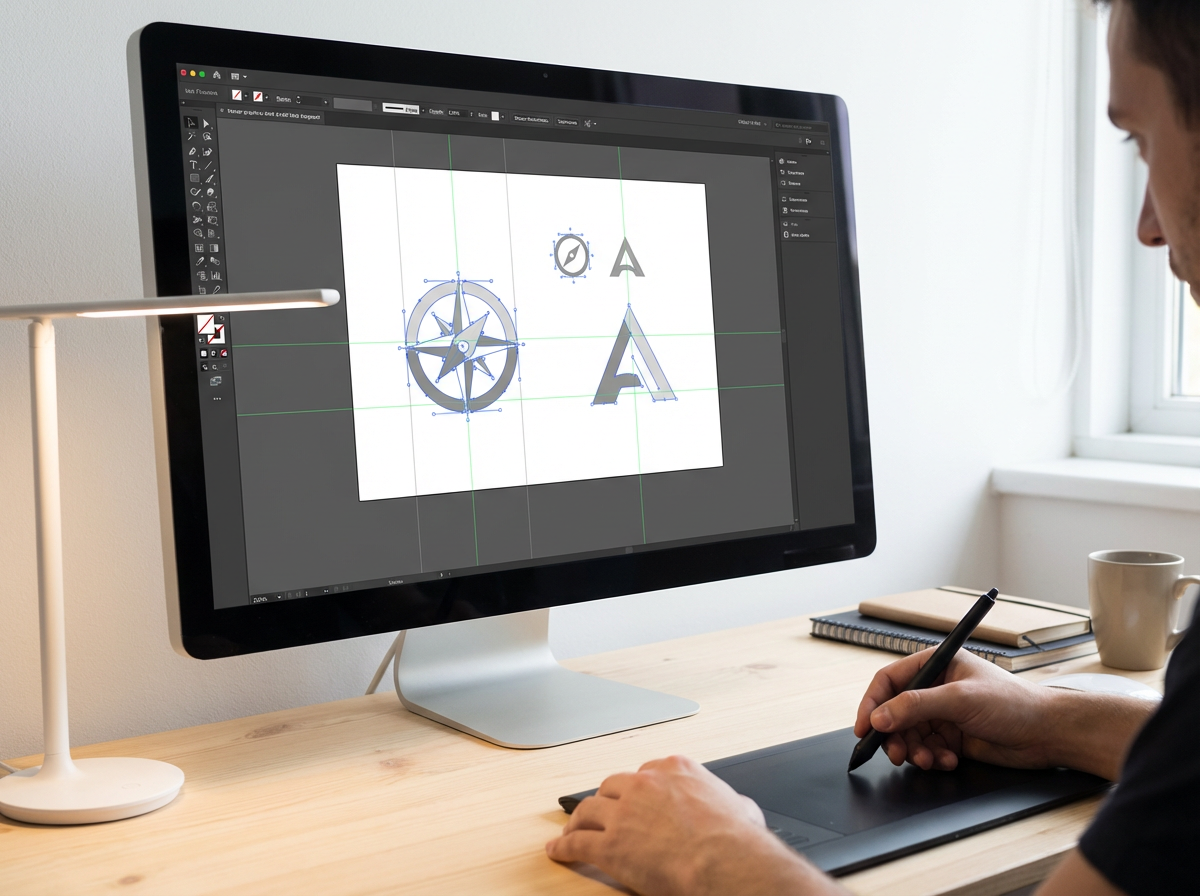
That “vector tool alongside it” usually shows up when someone asks for a logo refresh, a set of app icons, or a simple illustration that has to scale cleanly from a favicon to a banner. If you try to fake that in a raster editor, you’ll feel it fast: edges get soft, exports look inconsistent, and you end up redoing sizes instead of reusing a master file.
Inkscape is the dependable free Illustrator lane for this kind of work. You build with shapes and paths, edit nodes, align and distribute elements, and keep everything crisp at any size. For real deliverables, SVG is the home format, and you can export solid PNGs for web and basic PDFs for sharing or proofing. The trade-off is compatibility: opening complex AI files or matching Illustrator’s exact text and effects can get messy, especially with fonts. If a client hands you an AI, ask for an SVG or a PDF, then do a quick test export before you commit.
When the output shifts from “a logo file” to “a print-ready, client-approved PDF,” you’ll want a layout tool built for that last mile.
If a client needs a print-ready PDF, Scribus is the free InDesign lane
That “last mile” is where things usually break: a client wants a brochure or one-pager, and suddenly it’s about margins, facing pages, styles, and a PDF that a printer won’t reject. If you try to assemble that in a photo editor or a slide deck, you’ll spend your time fighting text reflow and guessing at export settings.
Scribus is the free lane that matches the job InDesign normally does: page layout with master pages, consistent typography, image placement, and export controls aimed at print. The practical win is packaging a real print-ready PDF: you can set document size and bleed, manage linked images, and export with embedded fonts so a printer sees what you see.
The trade-off is polish and predictability. Scribus can feel less smooth than paid layout tools, and font handling can surprise you. Before you promise delivery, do a “printer test” early: export a PDF, open it in a separate viewer, and confirm bleed, fonts, and image sharpness. If you also need video this week, the tool choice shifts again.
Video editing that doesn’t feel like a compromise: DaVinci Resolve (Free)
If you’re also cutting video this week, the first “surprise” is usually export settings, not editing. A tool can feel fine for trims and music, then fall apart when a client asks for 4K, clean audio, captions, and a file that uploads without weird banding or sync issues.
DaVinci Resolve (Free) is the closest thing to a real Premiere replacement without paying monthly. You get a serious timeline, strong color tools, solid audio controls, and built-in options for titles and basic motion graphics. For common deliverables—YouTube edits, short ads, talking-head content with light grading—it can look and feel like a professional setup once you learn its layout.
The trade-off is weight. Resolve wants a decent GPU, fast storage, and some patience up front. Plan for a quick “codec test” early: import your camera files, try a 30-second edit, and export the exact format your client needs before you commit to it as your default.
Your ‘free Adobe alternative’ short list—pick one to test today
That “codec test” idea is the right ending move for every tool here: pick one app for the job you’re shipping and run a 30-minute round trip today. Need a fast PSD tweak on a locked-down machine? Use Photopea. Need dependable offline photo work and exports? Use GIMP. Need logos, icons, or clean vector files? Use Inkscape. Need a print-ready PDF with bleed and embedded fonts? Use Scribus. Need real video edits with client-friendly exports? Use DaVinci Resolve (Free).
The friction to expect is handoff: Adobe-native files won’t always round-trip cleanly. So your test isn’t “can I edit?” It’s “can I deliver?” Start with one real client file, export the exact format they asked for, then decide if you need a fallback tool in your workflow.