You sit down to answer one email, then a pop-up steals focus, a window snaps somewhere you didn’t intend, and the Start menu hides the thing you open ten times a day. Nothing is “broken,” but the small stalls stack up. That’s the moment Windows 11 starts feeling like it’s in the way.
Fix the repeat offenders first: how you switch and place windows, how you launch your common apps, and what interrupts you. Skip deep tweaks until you’ve tightened those basics. The trade-off is real: the more you “customize,” the harder it is to use someone else’s PC—or explain your setup later. Start with fast, built-in shortcuts you can keep anywhere.
Before you hunt for hacks: 6 shortcuts that stop the daily friction immediately
When you’re on a different laptop, or you’re screen-sharing and don’t want to fumble through menus, muscle memory matters. These built-in shortcuts travel with you, so you get speed without “customizing yourself into a corner.”
Win + V opens clipboard history, so you can paste the thing you copied two minutes ago. Win + Shift + S starts a snip without hunting for the tool. Win + . pulls up emoji and symbols (useful for checkmarks, arrows, and quick notes). Win + L locks instantly when you step away. Alt + Tab switches apps fast; add Alt + Shift + Tab to go backward. Win + Ctrl + D makes a new desktop for “one more task” without mixing everything.
The friction: too many desktops or clipboard items can feel messy. Use them as “temporary bins,” then close what you started—because layout is where the real speed sticks.
Your desktop isn’t the problem—your window layout is
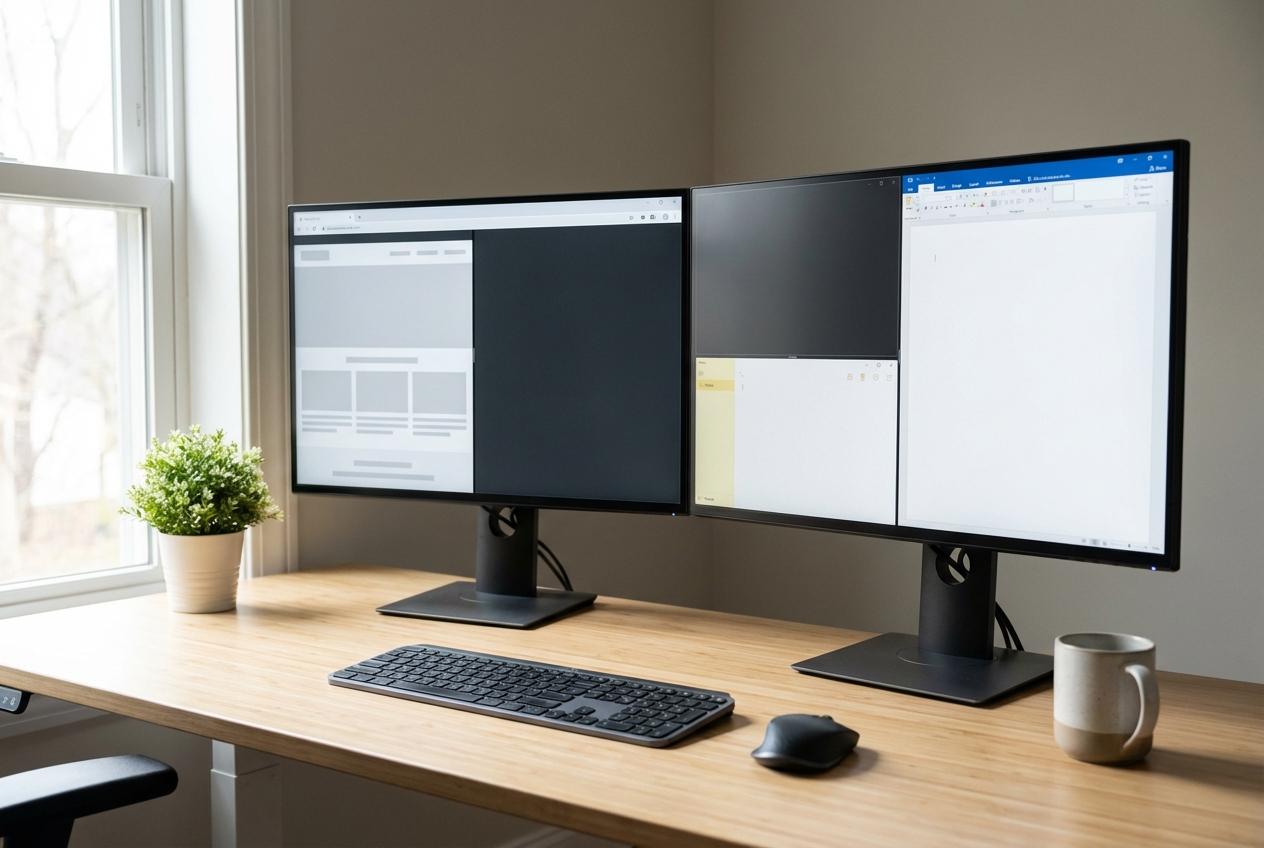
Layout is where the real speed sticks because you usually lose time in the tiny moments: hunting for the right window, resizing “just a bit,” then doing it again five minutes later. A cluttered desktop looks guilty, but most delays come from overlapping windows and awkward splits, not the icons.
Use Win + Z to open Snap layouts, then pick a pattern that matches what you’re doing: browser + doc, slides + notes, or two references side by side. If you already have a window where you want it, hold Win and tap the arrow keys to snap it left, right, or maximize without dragging. Then use Win + Left/Right again to move it across monitors.
The trade-off is friction when you need an “odd” size, like lining up two PDFs. Don’t fight it. Snap for the common case, then save the fine-tuning for the few times it matters—because the next wins come from settings that stop multitasking from slowing down.
When multitasking slows down: which 5 settings are actually worth touching?
You snap two windows, start switching, and suddenly everything feels a beat late: animations lag, the cursor stutters, and Alt+Tab shows too many “almost the same” choices. It’s rarely one big problem. It’s small defaults that add extra work while your PC is already busy.
Start with five settings that pay off fast. (1) Turn off “Shake to minimize” so you don’t accidentally dump your workspace: Settings > System > Multitasking. (2) In the same spot, set Snap to stop suggesting what to snap next if it distracts you. (3) Reduce animations for snappier switching: Settings > Accessibility > Visual effects, then turn off Animation effects. (4) Make the power mode match your day: Settings > System > Power & battery, choose Best performance when plugged in. (5) Limit what runs at sign-in: Settings > Apps > Startup.
The friction is that “lean” can feel too plain—fewer animations, fewer suggestions, fewer background helpers. That’s why the next choice is visual: what the Start menu, taskbar, and widgets should stop competing for.
Start menu, taskbar, and widgets: what to keep, what to remove, what to ignore
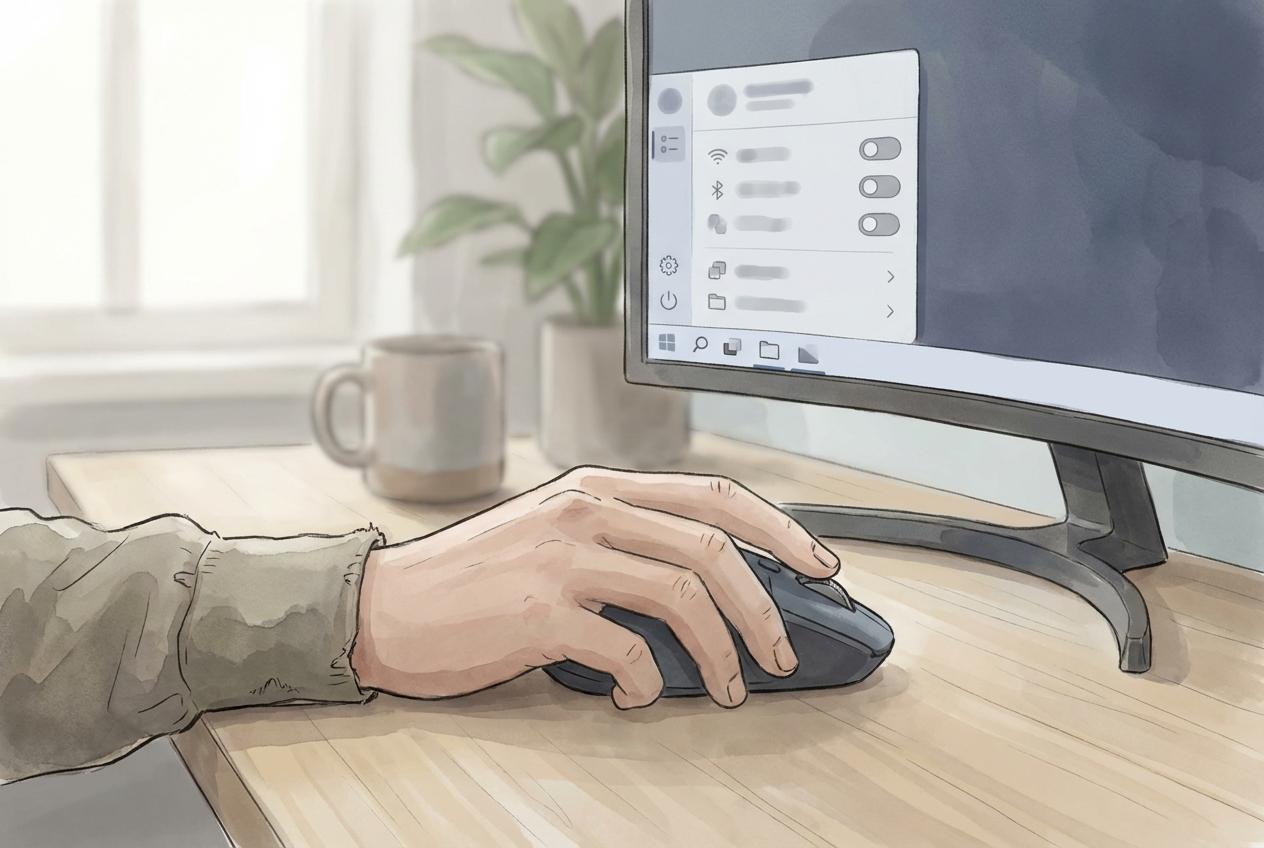
You go to open one app, and the taskbar flashes badges, the Start menu shows “recommended” items you don’t want, and Widgets tries to pull you into headlines. None of it is dramatic. It just adds decisions to actions that should be automatic.
Start with the taskbar, because it’s always on-screen. Right-click the taskbar > Taskbar settings, then turn off what you never touch (Widgets is a common win). If Chat or Copilot buttons don’t help your day, hide them too. The trade-off: you lose quick access to weather, news, or a one-click panel, so you’ll open those things on purpose instead of “by accident.”
Then tame Start. Settings > Personalization > Start: turn off the suggestions you don’t use, and pin only the apps you open daily. Ignore the rest. If it’s not used every day, Search will usually beat scrolling—so the next step is making Search and File Explorer feel instant.
Search and File Explorer: 6 moves that make finding stuff faster than browsing
If you still find yourself scrolling through Start or clicking folder after folder, it’s usually because Search and File Explorer aren’t set up for how you actually work. You want the file, the setting, or the app in two keystrokes—not a mini scavenger hunt.
Use Win and type to launch apps or jump to settings without opening Start first. In File Explorer, hit Ctrl + L to jump to the address bar, type a path or paste a location, and press Enter. Use Alt + Left to go back (it’s faster than hunting for the arrow). Turn on file extensions (View > Show) so “report.docx” and “report.pdf” don’t blur together. Pin your real daily folders to Quick access (right-click > Pin), not the ones you “should” use.
The friction: broader search means more results. When it gets noisy, sort by date and keep your naming consistent—because interruptions are the next thing that quietly breaks momentum.
Notifications, focus, and meetings: stop Windows from interrupting your train of thought
That “noisy” search feeling gets worse when a banner cuts across your screen mid-thought, especially in meetings or when you’re typing. Most people try to ignore it. It works until a notification grabs the keyboard focus or you click it “just to clear it,” and your train of thought snaps.
Use Do not disturb as your default during deep work: Settings > System > Notifications, then turn it on (or use the bell icon in Quick Settings). Turn on Focus and set a short session, like 25–45 minutes, so the quiet mode ends automatically. For meetings, open the Clock app’s Focus settings and allow only the apps you truly need (Teams/Zoom, calendar) and silence everything else.
The trade-off: you might miss a time-sensitive ping. Add a short “check messages” slot between blocks, then keep going into the final cheat sheet.
Your “31 tricks” cheat sheet: pick 5 to lock in this week
That “check messages” slot is also where you decide what stays. Pick five moves you’ll actually repeat: Win + V for clipboard history, Win + Shift + S for fast snips, Win + Z (or Win + arrows) for consistent window splits, Win then type to launch or jump to settings, and Do not disturb during focus blocks.
Run them for one workweek, then keep only what feels automatic. The friction is real: every extra trick is another thing to remember. If one doesn’t “pay rent” daily, drop it and simplify.