Stop inbox clutter with Gmail filters
You know the feeling: you open Gmail to answer one message, and you’re immediately buried under receipts, notifications, meeting tools, and “quick updates” that aren’t actually urgent. Gmail filters are the simplest way to stop that pileup because they apply your rules the moment an email arrives—before it becomes another decision you have to make.
A filter can add a label, archive it, star it, forward it, or keep it out of your inbox entirely. The trade-off is real: the more aggressive you get (like “Skip the Inbox”), the more you need a safe place to review those messages later. Done carefully, filters turn your inbox into a short list of items that truly need you.
Decide what “sorted” should look like
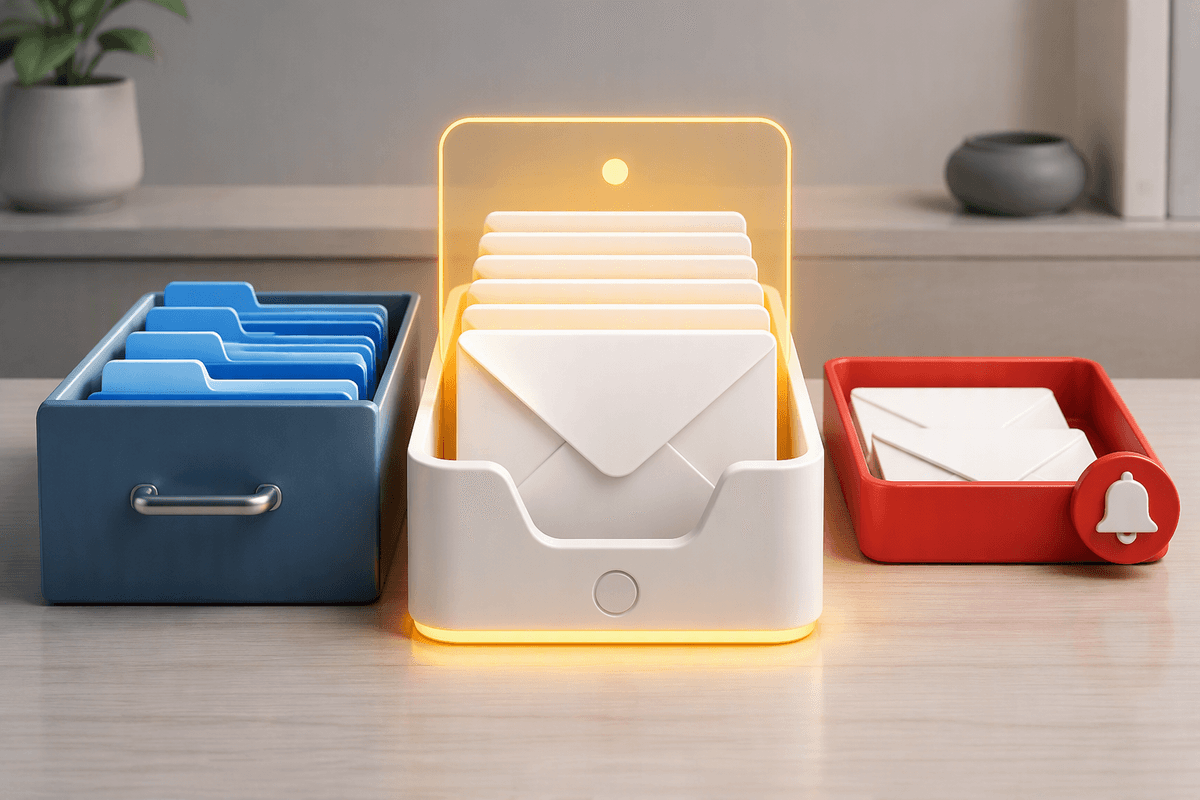
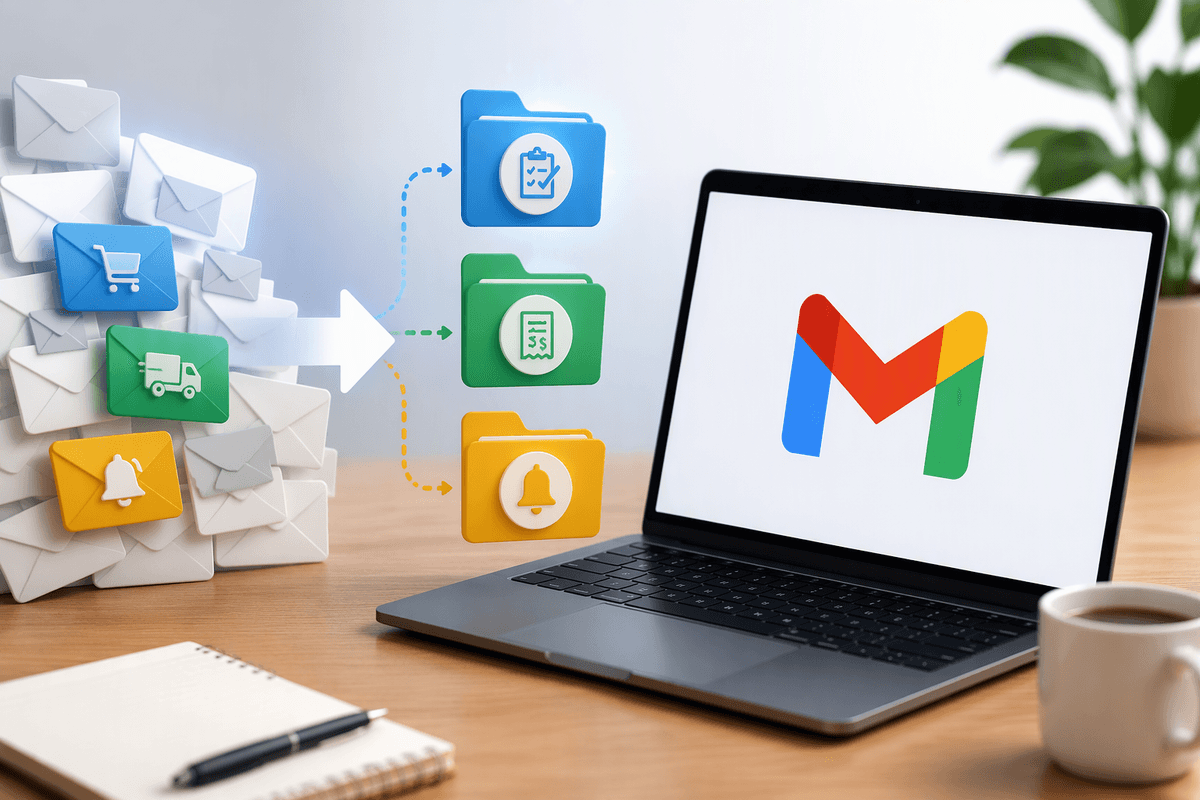
“Sorted” isn’t one universal setup—it’s whatever keeps your inbox trustworthy. Start with a quick gut-check: when you see a new email, do you want it to land front-and-center, or do you mostly want it filed so you can find it later? Many people do best with three buckets: action-needed (things you must reply to or do), reference (receipts, confirmations, newsletters you might search for), and alerts (shipping updates, monitoring tools, calendar noise).
Then decide where each bucket should live. Action-needed stays in the inbox, usually with a clear label. Reference can be labeled and archived so it’s searchable without adding clutter. Alerts are the risky one: skipping the inbox is great for peace of mind, but it costs you a reliable “new mail” signal unless you also commit to checking that label daily or weekly. Pick a review habit you’ll actually keep.
Create a filter from an existing email
When you’re not sure what to type into Gmail’s search bar, start from a real message you want to control. Open the email, click the three-dot menu (More), then choose “Filter messages like these.” Gmail will prefill a few fields—usually the sender address, and sometimes the subject line—based on what’s in front of you.
Before you click “Create filter,” look at what Gmail guessed. If the sender is a company, check whether it’s coming from a consistent address (like billing@ or no-reply@) or a rotating one. For receipts and confirmations, it’s often safer to filter on something stable like the “From” domain plus a keyword in the subject (for example, “receipt” or an order number pattern) than to match the entire subject exactly.
Use the “Search” button in that popup to preview what would be caught. If it pulls in messages you’d hate to miss, that’s your cue to loosen or tighten the rule now—because once you start skipping the inbox, the cost of a mistake is out-of-sight email.
Build a filter from the search bar
Sometimes you don’t have a perfect example email, or you want one rule to catch a whole category. That’s where the search bar shines. In Gmail, type what you want to match—try from: (sender), to: (aliases you use), subject:, or just a keyword like “invoice” or “shipping.” You can also use has:attachment to corral documents, or older_than: for cleanup projects. Once the search results look right, click the small sliders icon at the end of the search bar to open the filter box with your query prefilled.
Preview matters here because search can be broader than you expect. A rule like from:amazon might catch customer support you actually need, while from:@amazon.com subject:(order OR receipt) is usually safer. If you can’t describe the mail without catching “good” messages too, split it into two filters and keep the higher-risk one in the inbox.
Pick actions that match your risk tolerance
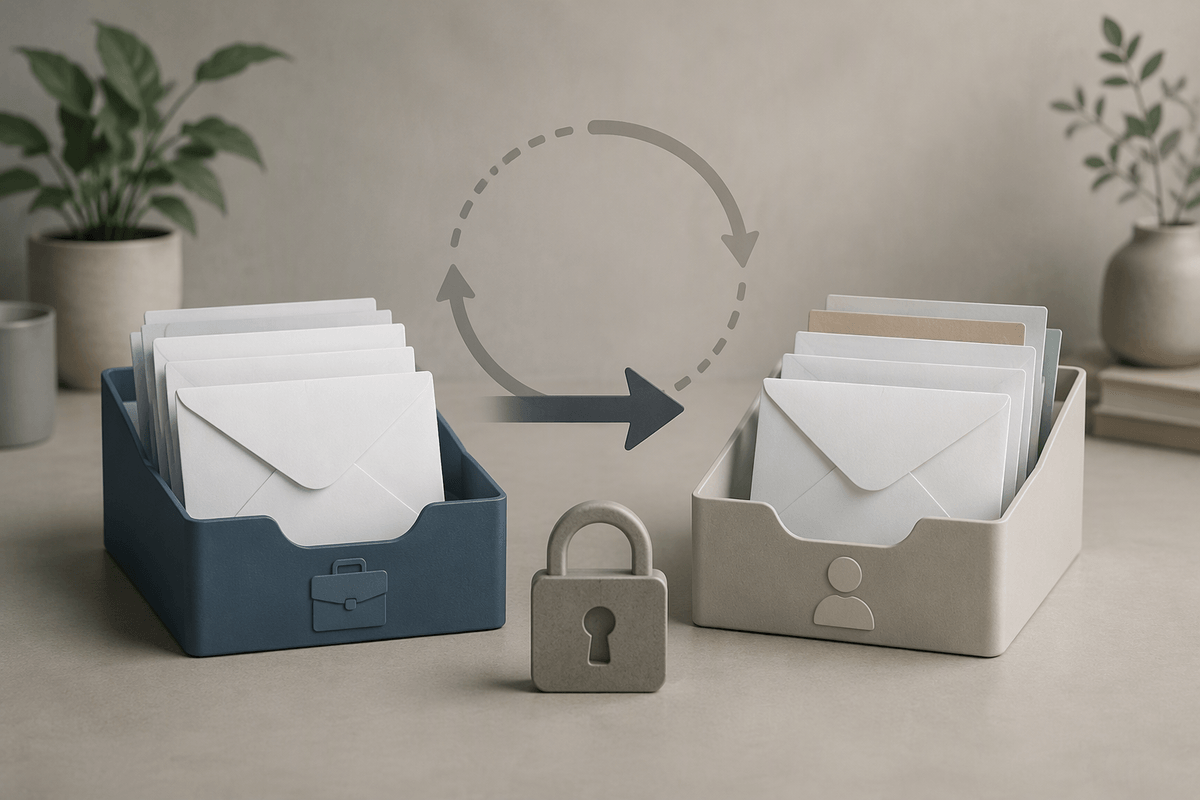
You’ll feel the biggest payoff when you start choosing actions, but this is also where people accidentally hide something important. Low-risk actions are anything that still keeps the email visible: apply a label, star it, or mark it as important. A good first move is “Apply the label” plus “Categorize as” (if you use tabs), because you can still scan new mail normally while building trust in your rules.
Medium-risk is “Archive it” (or “Skip the Inbox”), because now the message can arrive quietly unless you regularly check the label. Use this for true reference mail—receipts, routine confirmations, newsletter issues you’d rather read later—ideally from senders that don’t also handle urgent account problems. High-risk actions are “Delete it” and “Forward it.” Deleting is hard to undo once you realize you filtered too broadly, and forwarding can create privacy issues or accidental loops if you forward between work and personal accounts. When in doubt, label first, then get more aggressive after a week of clean results.
Test it, then tighten the rule
You’ll notice the first few days are where filters earn trust. After you create one, leave it in “label only” mode for a bit, then click into that label once a day and scan what it caught. If anything important shows up there, don’t scrap the whole idea—adjust the match. Narrow a broad sender match (use the full domain like from:(*@vendor.com) instead of a name), add a subject keyword, or exclude a term with -subject: or -{keyword}.
When results look consistently correct, turn up the automation in small steps: add “Archive it,” and only later consider “Skip the Inbox.” If you want extra safety, keep Gmail’s “Star it” or “Mark as important” for borderline mail so it stands out during review. The practical cost is time: testing means a minute of checking labels every day, but it’s far cheaper than missing a deadline because a filter got overconfident.
A simple starter set you can copy
Start with three low-drama filters and let them run in “label only” mode for a few days: (1) Receipts: subject:(receipt OR invoice OR order) plus from:(*@paypal.com OR *@stripe.com OR *@amazon.com) → Apply label “Receipts.” (2) Shipping: subject:(shipped OR delivery OR tracking) → Label “Shipping,” optionally Star. (3) Newsletters: unsubscribe OR subject:(newsletter OR digest) → Label “Read later.” After they look clean, add Archive to Receipts/Newsletters. Keep Shipping in the inbox unless you’re truly checking that label daily.