You hit “This PC can’t run Windows 11”—what that message is really asking you to decide
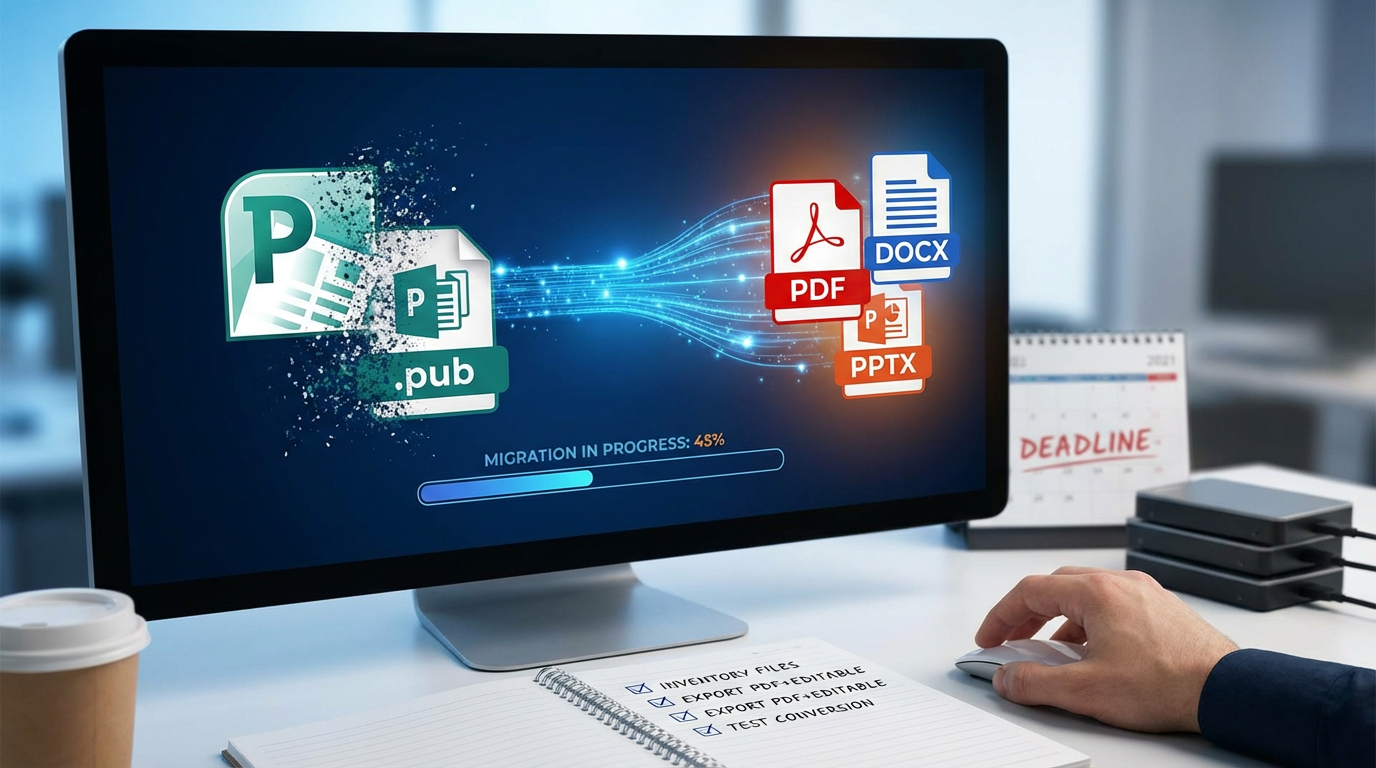
You click the Windows 11 upgrade button, expect a progress bar, and instead get “This PC can’t run Windows 11.” Most people read that as a dead end. It’s not. It’s a fork in the road.
The message is really asking whether you want to make your PC meet Microsoft’s requirements the normal way, or whether you’re willing to work around them. Those two choices look similar at first, but they play out differently when you hit firmware settings, driver quirks, BitLocker prompts, or a rollback that suddenly matters.
Before you change anything, you need to know exactly what your PC failed and why.
Find the exact fail reason (TPM, Secure Boot, CPU, or something else) before you change anything

That “failed” label usually hides one simple detail: Windows 11 is rejecting your PC for a specific check, and the fix depends on which one. If you start flipping BIOS settings or downloading bypass scripts without knowing the exact reason, you can create new problems—like triggering BitLocker recovery, breaking an older boot setup, or wasting time on a setting your board doesn’t even have.
Start by getting a clear readout. Run Microsoft’s PC Health Check, then click the details view so you see the exact item(s) that failed. For a second opinion, open System Information (msinfo32): check whether BIOS Mode is UEFI and whether Secure Boot State is On/Off. For TPM, open tpm.msc and confirm you have a TPM present and what version it reports. For CPU, look at Settings > System > About and note the exact model.
Once you can name the failing requirement, you can decide whether it’s a simple switch—or a real trade-off.
If it’s just a BIOS/UEFI switch, is this the moment to fix it the “official” way?
If your readout says TPM is “not enabled” or Secure Boot is “off,” you may be one reboot away from passing. On a lot of home PCs, the hardware is there; it’s just disabled in UEFI or set up for an older boot style. That’s the cleanest path because you’re not fighting Windows setup or relying on a workaround that could break later.
Go into UEFI/BIOS and look for TPM (often called Intel PTT or AMD fTPM) and turn it on. Then check Secure Boot. If Secure Boot won’t enable, the usual reason is the drive is using Legacy/CSM boot or an MBR partition style. Converting to UEFI/GPT can be straightforward, but it’s the moment where mistakes turn into a “won’t boot” morning.
The practical friction: enabling TPM or Secure Boot can trigger BitLocker recovery or force you to re-enter keys if encryption is already in play. If you’re okay with that risk and you want the least drama later, fix it “officially” now—then retest and see what still fails.
Your CPU is “unsupported”: do you want Windows 11 enough to accept the trade-offs?
When TPM and Secure Boot are on and the tool still says “can’t run Windows 11,” it’s often the CPU line item that’s blocking you. That’s different from a simple switch. You’re deciding whether to stay inside Microsoft’s supported path, or install Windows 11 knowing you may be on your own when something breaks.
In practice, an “unsupported CPU” PC can run Windows 11 fine for everyday stuff—browsing, Office, light photo work. The trade-off shows up later: Microsoft has said these devices may not be entitled to updates, and while many people still receive them today, you can’t plan your security around “probably.” You’re also more likely to hit driver gaps on older chipsets, Wi‑Fi, or graphics, where Windows 10 had years to mature.
If you want Windows 11 mainly for the look and a few features, staying on Windows 10 (and keeping it fully updated) is a reasonable call. If you still want to push ahead, treat the upgrade like a change that might require a rollback, not a routine update.
Backups that actually save you when the upgrade goes sideways (and the 15-minute preflight)
That rollback only helps if you can get back to a working Windows in the first place. Before you touch setup, make one backup that survives a bad driver, a broken bootloader, or a BitLocker surprise: a full system image to an external drive (Macrium Reflect, Veeam Agent, or Windows “Backup and Restore (Windows 7)” still works for this). Then also copy your irreplaceables—Documents/Desktop, photos, browser exports, and any game saves—to the same drive or cloud.
Now do a 15-minute preflight. Check you have at least 30–40GB free on C:, run Windows Update once, and uninstall third-party antivirus or “tune-up” tools that hook deep into the system. If BitLocker or Device Encryption is on, save the recovery key to your Microsoft account or print it. Finally, confirm you can boot your backup tool’s rescue USB and see your C: drive. Then you can choose how to install.
Pick your route: in-place upgrade that keeps your stuff, or a clean install that keeps your sanity
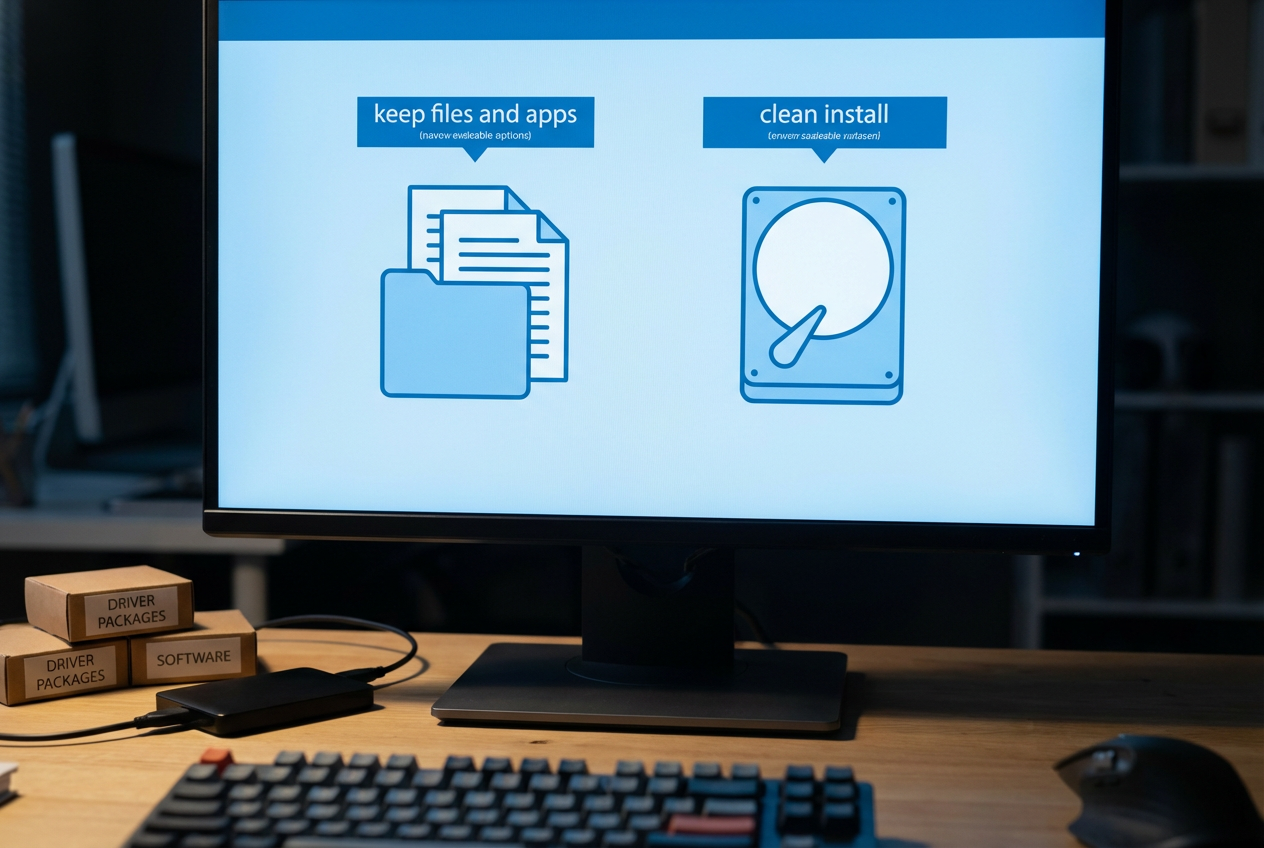
Once you can boot the rescue USB and see your C: drive, you’re choosing between two kinds of pain: setup time now, or troubleshooting later. An in-place upgrade (run Windows 11 Setup from inside Windows 10) usually keeps your apps, files, and settings, which is why people prefer it. The friction is that it also keeps old drivers, OEM utilities, and “mystery” startup items—the same stuff that can cause black screens, broken audio, or random sleep issues after the jump.
A clean install (boot from a Windows 11 USB, delete the Windows partition, install fresh) takes longer up front because you reinstall apps and restore data. But it’s the better route if the PC has years of accumulated software, if you’re already fighting stability problems, or if you’re bypassing requirements and want the simplest baseline. Either way, grab current chipset/Wi‑Fi/GPU drivers first and keep them on the external drive.
The route you pick should match how much you trust the current Windows 10 install to behave under stress.
After Windows 11 boots: how to confirm you’re stable, updated, and not quietly less secure
Once Windows 11 finally lands you on the desktop, the real question is whether it will stay boring. First, open Settings > Windows Update and run updates until there are none left, then reboot and repeat once. If you bypassed checks, note whether updates actually install; if they fail or pause, that’s your first long-term trade-off.
Now confirm the basics that keep you out of recovery mode: Device Manager should have no unknown devices, and Event Viewer shouldn’t be filling with new critical errors after a normal restart. If you use sleep, test it twice.
Finally, check security didn’t quietly slide backward: in Windows Security, confirm Core isolation/Memory integrity status, and in msinfo32 verify Secure Boot is On if your hardware supports it.