Before you touch settings: a 3‑minute “what am I protecting?” check
You open Facebook’s settings because something feels off—an ex is snooping, a stranger keeps messaging, or you just saw a login alert that made your stomach drop. The fastest way to avoid random toggling is a three‑minute check: what’s the most likely problem, and what would it cost you if it happened?
Pick your top two risks: (1) someone logging in as you, (2) people watching your posts or photos, (3) people finding you too easily (search, friend requests, lookups). Then choose your “acceptable friction”: are you willing to use an authenticator app, review tags before they appear, or make your profile harder to find even if friends struggle to add you? With that decided, locking things down gets simple.
Step 1: Can someone log in as you? (Password + 2FA without the headache)
That “acceptable friction” choice shows up immediately when you harden your login. Most people only change a password after a scare, then stop—while old passwords, reused passwords, and forgotten devices stay in play. Fix the weak points in one pass: set a long, unique password (a password manager makes this painless), then turn on two-factor authentication (2FA).
For 2FA, an authenticator app is usually the best balance: quick to use, harder to intercept than text codes, and it works even if your phone has no signal. If you’ll actually stick with SMS, use it—it’s still better than nothing, but it can be less reliable when you travel or change numbers. Save your backup codes somewhere you can reach without Facebook (notes app with a lock, password manager, or printed and stored).
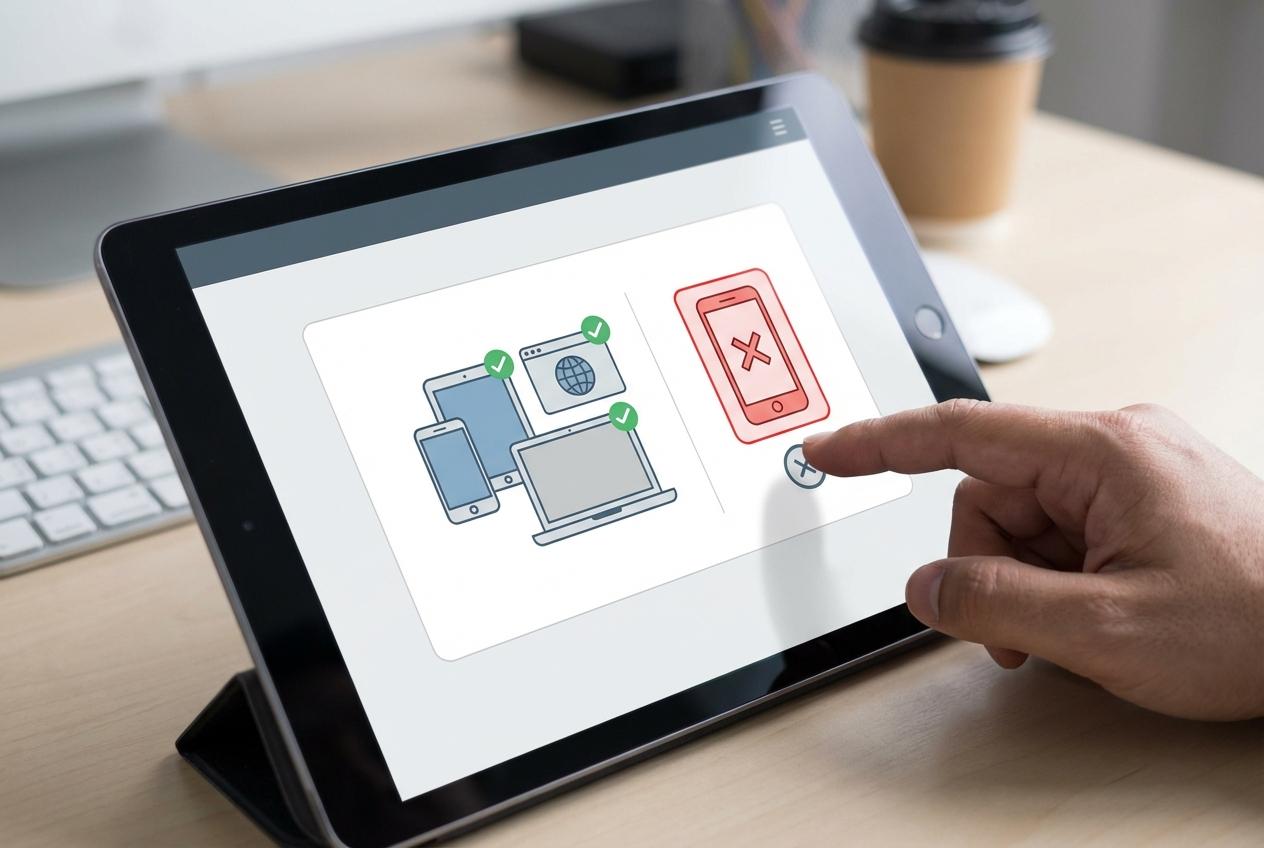
Then check where you’re already logged in: log out of devices you don’t recognize, and remove old phones or browsers you no longer use. This is the trade-off: a few extra seconds at login, in exchange for shutting the door on the most common takeover path.
Step 2: If your account gets poked, will you know fast enough?
Those extra seconds at login only help if you hear about the next weird thing quickly. What usually happens is simple: someone tries your password on and off for days, adds a new email, or logs in from a new device, and you don’t notice until friends get spammy messages—or your profile details have changed.
Go to Facebook’s security alerts and turn on notifications for unrecognized logins and important security changes. Send them to at least two places: Facebook notifications and email (or SMS if that’s what you’ll see fastest). Then verify your contact info is current—old email you never check is basically no alert at all.
The trade-off is noise. If you travel, switch phones a lot, you’ll get more alerts. Don’t turn them off—train yourself to treat any “new login” notice as a quick check, not a panic.
Step 3: The “Who can see this?” moment—lock down future posts and your profile surface area
That quick check instead of panic matters even more when the “weird thing” is visibility, not a login. Most people discover it after the fact: a coworker comments on an old photo, a friend-of-a-friend shares a post, or a tag pulls your name into someone else’s audience.
Start with future posts. In Privacy settings, set “Who can see your future posts?” to Friends (or Only me if you’re in a high-drama moment). Then tighten the profile surface area: limit who can see your friends list, phone number, and email on your profile, and set old posts to “Friends” if you previously posted publicly.
Now stop surprise exposure through tags. Turn on timeline review and tag review so posts you’re tagged in don’t auto-appear. The trade-off is you’ll approve more stuff manually, and some harmless tags will sit in limbo—but you won’t wake up to your name attached to someone else’s messy thread.
Step 4: People you didn’t intend can still find you—search, friend requests, and lookups
That same “surprise exposure” often comes from people finding your profile, not from what you posted. Someone searches your name, types your phone number into Facebook, or uses “People You May Know,” and suddenly you’re getting friend requests from strangers, coworkers, or someone you’d rather not re-open contact with.
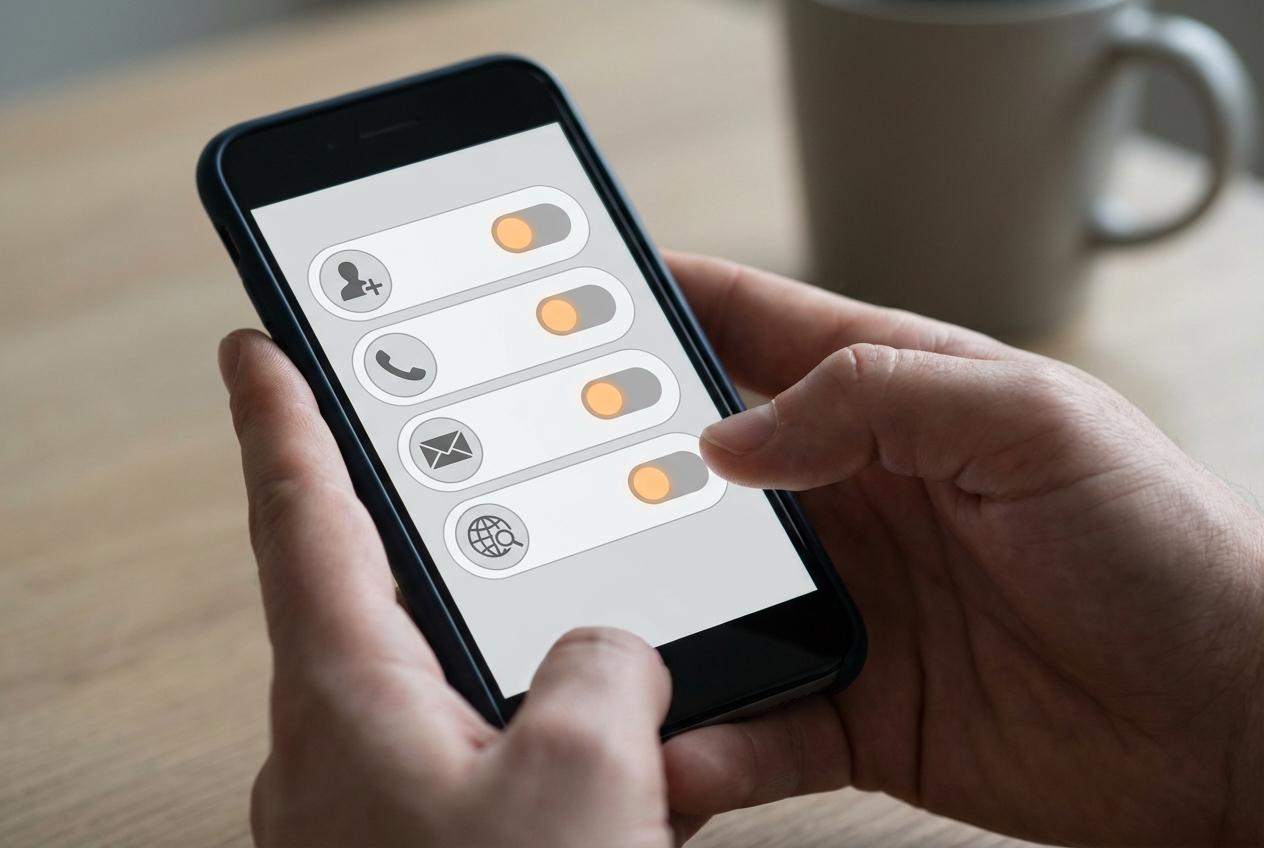
In Privacy settings, tighten the “How people can find and contact you” area. Set who can send you friend requests to Friends of friends. Limit who can look you up using the email address or phone number you provided to Friends (or Only me if you’re dealing with stalking). Then turn off search-engine linking so your profile is less likely to show up when someone Googles you.
The trade-off is real: legitimate people will have a harder time finding you, and you may need to share your profile link directly. If that’s acceptable, you’ve cut off a common “low-effort” path to unwanted attention.
Step 5: What’s already public or widely visible—and how to shrink it quickly
That “low-effort path” works best when your older stuff is still sitting in Public, even if you post privately today. The usual pattern: a few public profile details, some old “Public” posts from years ago, and a handful of photos that were shared wider than you meant—enough for someone to build a quick picture of your life.
Do a fast shrink pass. In Privacy settings, use Limit Past Posts to flip older Public posts to Friends in one move. Then open your profile and tap View As (or “View as public”) to see what a stranger sees, and remove or tighten anything that jumps out: workplace, hometown, relationship status, featured photos, and public albums.
Friction: some posts were shared into groups or by friends, and your change won’t pull those copies back. If you find a few high-risk items, delete them instead of just changing the audience.
Step 6: The hidden risk: connected apps, devices, and old logins you forgot about
Deleting a few high-risk items helps, but people also get into accounts through the side doors you stopped thinking about years ago. The common one is “Logged in with Facebook”: a quiz, a shopping app, a game, or a random site you tried once, still holding access. Another is an old phone, tablet, or work laptop that never got logged out.
Do one cleanup sweep. In Settings, find where Facebook lists Where you’re logged in and sign out of anything you don’t recognize (or anything you no longer use). Then open Apps and Websites and remove anything you don’t actively rely on. If an app is worth keeping, check what it can access (profile info, friends list, posting) and downgrade permissions if Facebook offers that option.
The trade-off is convenience: removing apps can break “one-tap login” and force password resets. Accept the hassle once, and your account stays simpler to defend.
Step 7: Make it stick—your 5‑minute monthly reset and the trade-offs you’re choosing
That “accept the hassle once” promise only holds if you revisit it, because devices change, apps creep back in, and your life shifts. Set a monthly 5‑minute reset on your calendar: check Where you’re logged in and sign out of anything you don’t recognize; scan Apps and Websites for anything you don’t use; confirm security alerts still go to an email you actually read; and do a quick “View as public” glance for new profile details.
The trade-offs stay the same, and that’s the point. More prompts at login, fewer easy ways for people to find you, and occasional broken “Log in with Facebook” buttons—paid up front to avoid a bigger mess later.