Why This Home vs. Pro Choice Feels Murky in the First Place
You buy a new laptop, it comes with Windows 11 Home, and everything seems fine—until a store rep, YouTube review, or pop‑up suggests you “really should” be on Pro.
The pitch is fuzzy: Pro is sold as more secure, more business‑ready. But the desktop looks the same, your apps don’t change, and most comparison charts throw around terms like “BitLocker,” “Group Policy,” or “Azure AD” without explaining what that means when you mostly browse, game, or log into work.
So you’re stuck: pay extra and risk not noticing a difference, or skip Pro and worry you’re missing protection or flexibility. To cut through that, you need to see which parts of Windows actually change with Pro—and which stay identical to Home.
What Actually Changes if You Upgrade—and What Stays Exactly the Same
When someone upgrades a Home PC to Pro, the first surprise is how little looks different. Same Start menu, same taskbar, same Settings app. Your browser, Steam library, Office apps, and cloud storage all behave the same. Performance doesn’t jump, games don’t run faster, and basic security like Windows Defender is still there.
The real changes sit under the surface as extra switches and menus. Pro lets you turn on full-disk encryption with BitLocker, host a Remote Desktop connection into your PC, and join business networks or Microsoft’s work accounts more directly. You also get things like Hyper‑V (virtual machines), Group Policy controls, and more precise control over when updates install.
The trade‑off: you’re paying for options you might never open, and some require time and know‑how to set up correctly. So the real question is whether any of those Pro‑only switches actually line up with how you use your PC every day.
Match Your Real Daily Use to the Few Pro Features You Might Feel
Most days on a Home PC look the same: open a browser, a few Office or Google docs, maybe some streaming and a game. If that’s you, upgrading to Pro won’t suddenly feel different. The extra options sit in the background, and unless you turn them on for a reason, your routine stays unchanged.
The picture shifts once your habits hit specific triggers. If you carry your laptop around with tax records, client files, or work documents, full‑disk encryption with BitLocker is a concrete upgrade: lose the device, and your data is still locked. If you often need to reach your main PC from elsewhere, being able to host a Remote Desktop session on Pro can save real time. If you like installing odd utilities or testing software, running them in a virtual machine via Hyper‑V can limit the damage when something is shady.
The catch is that every one of these gains assumes you’ll configure and maintain them, or that your job doesn’t already give you safer alternatives like a company VPN or cloud apps. When your own use and risk match these patterns, that’s when the stronger security and control tools in Pro start to genuinely matter.
When Extra Security, Encryption, and Privacy Controls Justify Paying More

Picture your laptop in a backpack at a café or in a taxi. If losing that machine would expose tax returns, client contracts, medical details, or any data you’re legally or ethically bound to protect, Pro’s security tools can justify the upgrade on their own. BitLocker full‑disk encryption means a thief can wipe the laptop, but can’t read what was on it, and BitLocker To Go can do the same for USB drives.
Privacy worries can also tip the scale. Pro lets you use Group Policy to lock down local accounts, block unwanted apps, and enforce stronger sign‑in rules without extra software. Windows Sandbox lets you open a shady attachment or installer in a disposable test environment. That’s handy if you process lots of unsolicited files, resumes, or project assets from people you don’t know well.
The trade‑off: these defenses are not “set and forget.” You have to store recovery keys safely, understand what you’re locking down, and spend a bit more time on setup. If your main concern is securely reaching work machines or juggling more than one PC from home, then Pro’s remote‑access and management perks become the real deciding factor.
Remote Work, Side Gigs, and Managing More Than One PC from Home
Working from home usually means logging into a company portal, opening Teams or Zoom, and maybe using a VPN that your employer controls. In that setup, Pro doesn’t change much: you’re just using your browser and standard apps, and the company’s servers hold the important data. Where Pro matters is when your own PC becomes the “office server” you need to reach—like a powerful desktop you leave on at home and connect to from a laptop using Remote Desktop, which Home can’t host.
Side gigs and multi‑PC households highlight the same split. If you freelance and keep client files on one main machine, being able to remote into it reliably can save trips and lost time. Pro also gives you more control over updates and policies when you maintain several PCs for work and family. The trade‑off is setup: you’ll need to handle port forwarding, dynamic IPs, or a VPN, unless you lean on simpler third‑party tools—especially if you’re mainly gaming, creating, or helping relatives with tech basics.
Special Cases: Gamers, Creators, Families, and Tinkerers on the Fence
If you mostly game, you open Steam and care about FPS, ping, and load times. Windows 11 Pro doesn’t change those: Game Mode, drivers, and DirectStorage work the same on Home. The gamer who might notice Pro is the one who also streams or records, wants stricter update timing around tournaments, or experiments with risky mods in virtual machines using Hyper‑V.
Creators land in a similar spot. Home already handles fast CPUs, GPUs, and up to 128 GB of RAM, which is enough for most photo, audio, and 4K video work. Pro starts to earn its price if you carry drives full of client projects that you want BitLocker on, or if you remote into a powerful “render box” left at home.
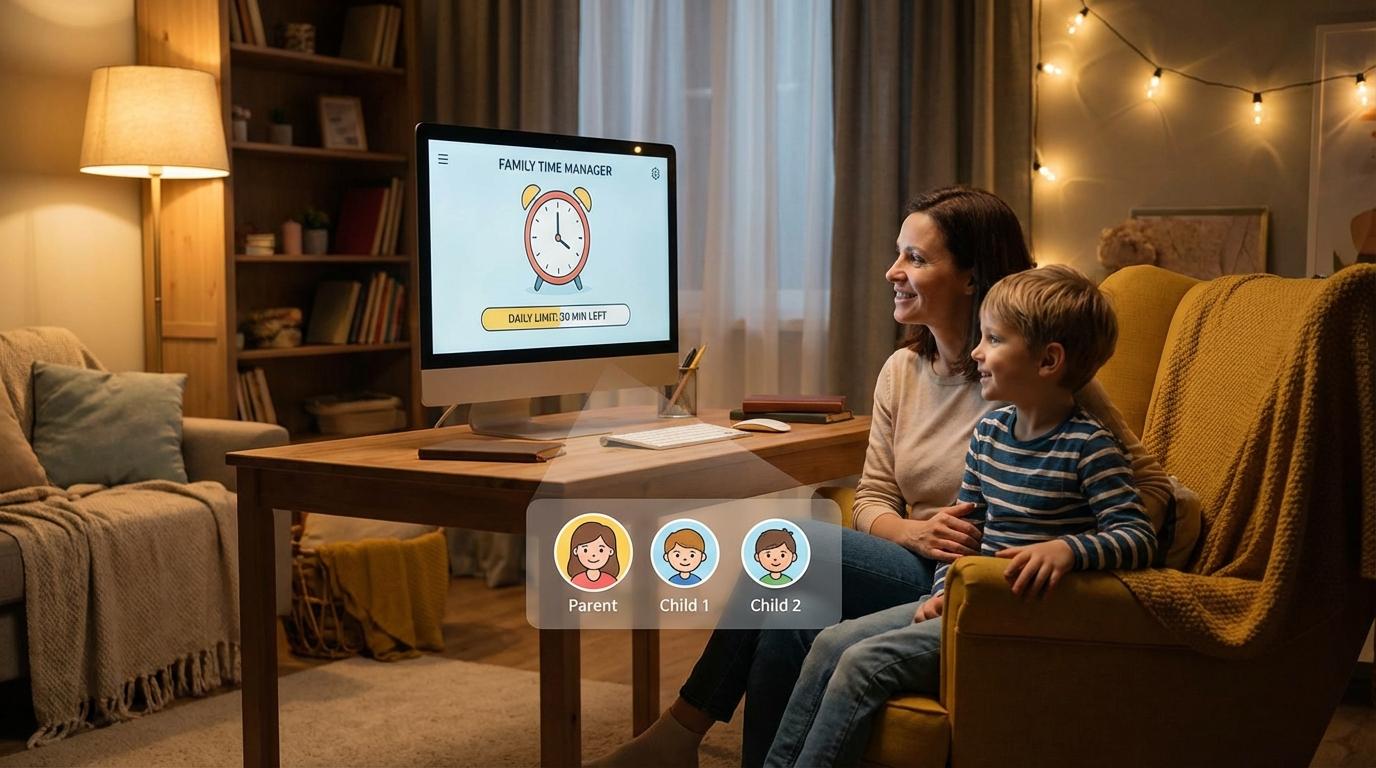
Families and tinkerers sit at the edge. Shared PCs may benefit from Pro’s stricter local policies and encryption, but Home’s Family Safety is simpler—and only real enthusiasts will bother with Group Policy or Sandbox. Most others are fine staying on Home.
So, Should You Pay for Pro or Stay With Home Right Now?
If you recognize yourself in that group—using your PC for everyday work, play, and family stuff without special needs—treat Home as the default. It’s already fast, secure enough for typical use, and doesn’t push you to manage extra settings you’ll never touch.
Pay for Pro only when a clear job demands it: you carry truly sensitive data and want BitLocker, you need to remote into this machine reliably, or you’re ready to manage stricter policies and test apps in isolated environments. If none of those situations apply, the extra cost and setup time simply won’t earn their keep.
The useful question isn’t “Is Pro better?” but “What specific risk, hassle, or workflow would Pro remove for me this year?” If you can name something concrete, upgrade with purpose. If you can’t, stay on Home with confidence and move on to more important choices.