Why “better email” matters more than writing skills
You can be a strong writer and still send emails that create confusion, delays, and extra work. The problem usually isn’t vocabulary or style—it’s that email is an operating system for getting decisions made. When an email doesn’t clearly say what’s needed, who owns it, and when it’s due, people guess, ask follow-up questions, or ignore it until the situation becomes urgent.
“Better email” means reducing interpretation and friction. That saves time on both sides, cuts back-and-forth threads, and protects attention—yours and everyone else’s. The trade-off is you have to be intentional: a few seconds upfront to make the outcome obvious can prevent days of slow, expensive coordination later.
Lead with the ask: make the outcome obvious fast
You’ve seen the thread where everyone responds, but no one answers the real question. It usually starts with a long setup and ends with a vague “Thoughts?” Make the outcome obvious in the first line by leading with the ask: “Can you approve this by Thursday?” “Please choose option A or B.” “I need a 15-minute slot to confirm scope.” Then add one sentence of context that makes the request reasonable, not a full history.
If there are multiple asks, list them clearly and order them by dependency: decision first, inputs second, FYI last. Include the minimum constraints that prevent back-and-forth—deadline, format, and what “done” looks like. The cost is you may need to do a bit more thinking before you hit send, especially when you’re not sure what you want. That extra minute is usually cheaper than five replies and a missed handoff.
Use subject lines that behave like labels, not titles
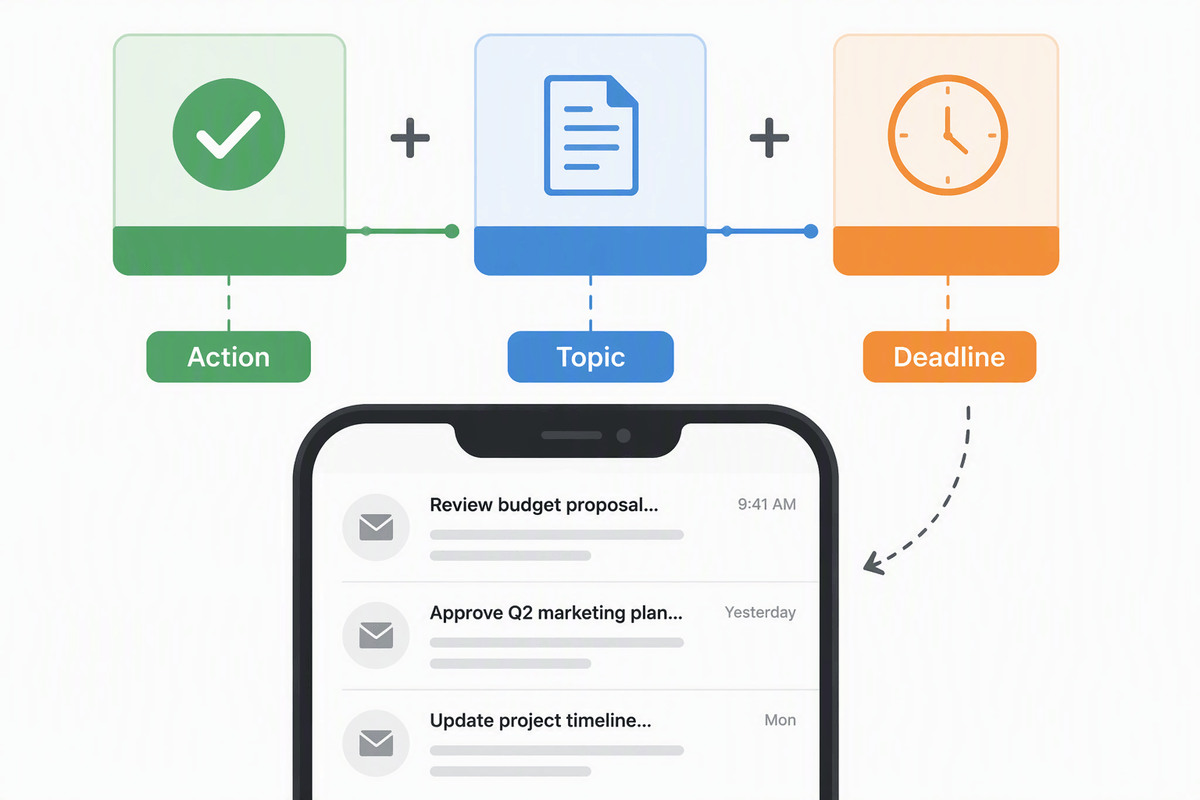
You can often predict whether a thread will be painless or painful from the subject line. Most people write them like titles (“Quick question,” “Update,” “Meeting”), which forces the reader to open the email to learn what category it belongs to. Treat the subject like a label that helps someone triage in two seconds: what this is, who it’s for, and what’s needed.
Use a simple pattern: [Action] + topic + deadline. Examples: “Approve: Q4 budget v3 by Fri 3pm,” “Decide: vendor A vs B (today),” “Review: landing page copy (10 min).” If it’s not for everyone, name the owner: “For Sara: confirm event date.” The practical constraint is that subject lines get truncated on mobile, so put the action and topic first, and keep extra context out of the front.
Structure for skimming: bullets, order, and one screen
Most people read email the way they scan a calendar: fast, while switching contexts, often on a phone. If your message requires careful reading to find the ask, you’ve already lost time. Put the decision or request at the top, then use a short, predictable layout: one line for what you need, 2–3 bullets for the details that make it answerable, and a clear “Options:” or “Proposed plan:” if you’re asking for a choice.
Bullets aren’t decoration; they’re a compression tool. Keep each bullet to one idea, start with the noun or verb (“Deadline:”, “Owner:”, “Risk:”, “Need from you:”), and order them by dependency. Aim for one screen without scrolling: if you can’t, you’re probably mixing two emails, or you should move background into a link or attachment. The constraint is you may need to cut context you personally find “important,” but the reader didn’t ask for it.
Tone without overexplaining: concise, polite, and firm
You’ve probably written the “extra nice” email that still lands wrong: too many qualifiers (“just,” “maybe,” “sorry”), too much justification, and a request that sounds optional. A clean tone is simple: be polite, be direct, and don’t make the reader hunt for the point. “Could you send the signed PDF by 2pm?” reads firm without being harsh. Add “Thanks” and move on.
Overexplaining often comes from trying to pre-empt disagreement. It usually backfires by creating more surface area to debate. If you need to show respect, do it with clarity and reasonable constraints: name the deadline, the format, and what decision you’re asking for. When you can’t be certain, say so once (“My best read is…”) and state what would change your view. The practical cost is you may feel blunt at first, especially with senior stakeholders, but concise emails age better and misfire less.
Close the loop: confirmations, owners, and next steps

You know the thread that “ends” but doesn’t actually end—someone says “Sounds good,” and two weeks later everyone realizes nothing moved. Close the loop by making the last line operational: confirm what was decided, name the owner, and state the next step with a date. “Approved. Jen will submit the order today and reply here once the confirmation number is received.” That one sentence prevents silent ambiguity.
When you’re the one receiving work, don’t assume ownership is obvious. Write it explicitly: “I’ll draft the summary by Wed EOD; you’ll review Thursday morning.” If it’s a group, assign one person, not “anyone.” A real constraint is that people sometimes resist being named; it can feel pushy. Keep it neutral and easy to accept by pairing ownership with a small, clear task and a reasonable deadline. If someone can’t take it, they can say so quickly, before it becomes a surprise.
A simple checklist to improve every email tomorrow
You can improve most emails with a quick pre-send checklist: Subject starts with the action (“Approve/Decide/Review”) and a due time. First line states the ask in one sentence. Context is limited to what makes the ask answerable (2–3 bullets). One email equals one primary outcome; split the rest. Constraints are explicit: deadline, format, and what “done” looks like. Tone is direct with no filler apologies. Final line closes the loop: decision + owner + next step + date. If you can’t do this in two minutes, the real work is clarifying what you want.