The moment you realize it’s not “lack of focus”—it’s browser gravity
You sit down to reply to one email and, fifteen minutes later, you’re staring at a tab you didn’t mean to open. Nothing dramatic happened. A “quick check” turned into three more checks, a search, and a half-read article you’ll never return to.
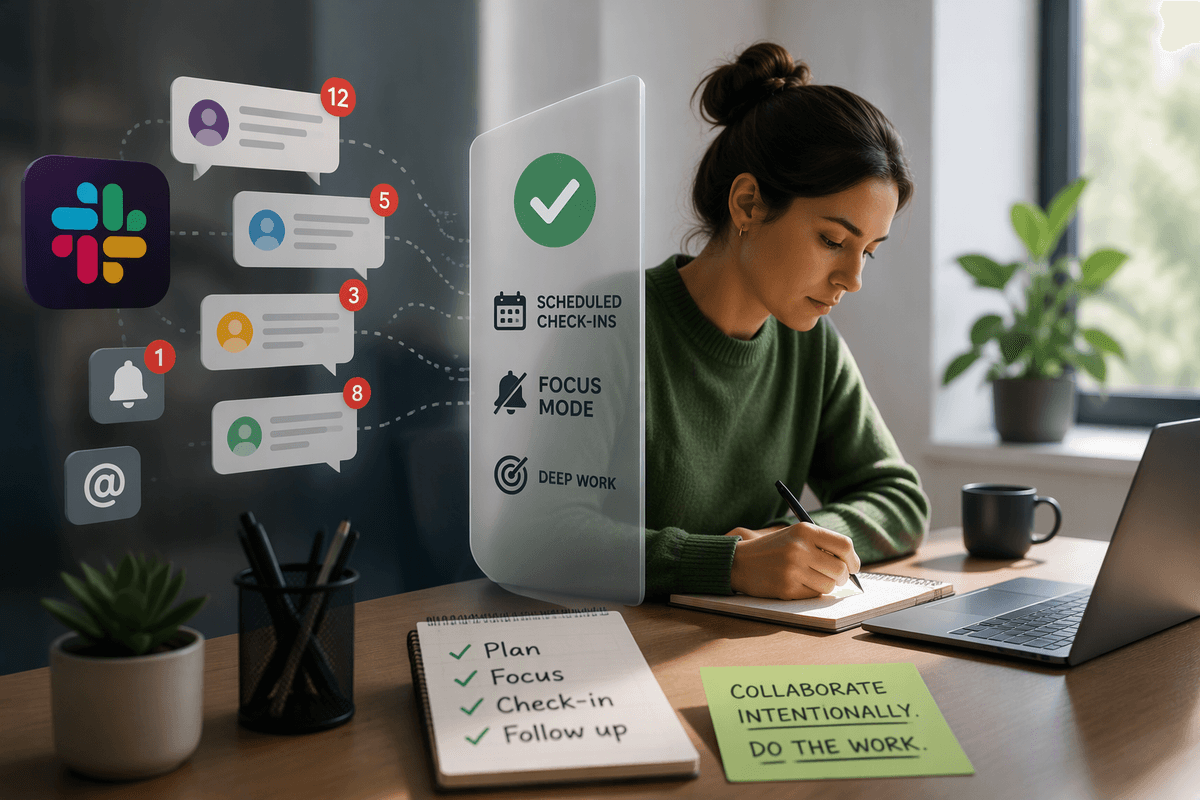
That’s not a character flaw. The browser makes switching feel free, so your brain treats every little pull—notifications, new tabs, suggested links—as low-risk. If your work lives in email, docs, and dashboards, you also can’t just “close everything” without losing your place. The result is browser gravity: small, constant forces that drag you off-task.
The fastest fix isn’t a new productivity system. It’s adding a little friction in the exact moments you usually drift.
Which tabs steal your time without you noticing?
Those “exact moments” usually hide in plain sight: the tab that’s always open, always harmless, and somehow always one click away from your work. It’s rarely one big distraction. It’s the small ones you justify—checking the inbox “just in case,” refreshing a dashboard that won’t change for an hour, opening a search tab for a quick definition and coming back with five unrelated results.
Look for tabs that create loops. If you notice the same site appears in bursts all day (news, social, sports scores, shopping), it’s not information—you’re feeding the urge to check. Another giveaway is the “bridge tab”: You open it to transition between tasks (calendar, Slack web, Gmail), then you don’t return to the original thing.
Pick your top two culprits by frequency, not shame. Those are the first places where a little friction will actually stick.
A plug-in that nags vs. one that blocks: what kind of friction will you tolerate?
Once you’ve named your top two culprits, the real choice is how the extension should interrupt you: a nag or a wall. A “nag” tool shows a reminder, a timer, or a confirm button before it lets you in. It works when you mostly want a speed bump—like stopping the reflex to open news while a report is loading—without breaking legitimate work access.
A “block” tool cuts off the site entirely during work windows, or after you hit a limit. It’s better when you already know you’ll click through any warning. The trade-off is friction when you actually need the site. If your job uses YouTube for training, a hard block can backfire fast unless you whitelist channels or allow short breaks.
Be honest about your override habit. If you’ll dismiss prompts on autopilot, pick blocking. If blocking will cause real work headaches, pick nagging and tighten it later.
The minimum features that matter (so you don’t spend your week configuring)
That “tighten it later” part is where people lose a week. You install an extension, open settings, and suddenly you’re choosing themes, charts, modes, and “focus journeys” instead of stopping the two sites that keep yanking you away.
Keep your bar simple. You need: (1) fast rules you can set in under five minutes (block or limit by site), (2) an override that’s annoying enough to slow you down (a delay, typing a reason, or a timed unlock), and (3) schedules or time budgets that match your day (work hours, lunch, after-hours). If you can’t tell, at a glance, whether you’re blocked right now, you’ll fight it.
One trade-off to accept: fewer knobs usually means fewer edge-case fixes. If your work legitimately uses a “problem” site sometimes, make sure there’s a quick whitelist or an allow-for-10-minutes button, or you’ll disable the tool the first time it gets in your way.
Pick one extension in 10 minutes: a short list and how to choose among them
That “allow for 10 minutes” button is also your shortcut for choosing a tool: pick the extension that matches how you want to escape a block when work actually needs it. If you can decide that in two minutes, you can install something today instead of shopping forever.
Here’s a short list that covers most people. LeechBlock NG is the clean, flexible pick when you want simple schedules, time budgets (like “10 minutes per hour”), and a lockdown mode without a bunch of extras. StayFocusd is better when you know you’ll bargain with yourself; its stricter options and “make it hard to change settings” approach help when nags don’t. Freedom fits when you need blocking to follow you across devices, but it often works best when paired with their apps, so expect more setup.
One practical trade-off: the more powerful the enforcement, the more likely you’ll hit a legitimate-work exception (training videos, a client’s social link) and feel tempted to disable the tool. Solve that upfront with rules that behave like a seatbelt—tight enough to matter, quick to unclip when necessary.
Set your first rules like a seatbelt, not a prison
“Seatbelt” rules mean you can still do your job, but you can’t drift without noticing. Start by blocking only your two culprits during your highest-leverage hours (for most people, the first 2–4 hours of the day). If you picked a nag tool, add a 10–20 second delay plus “type a reason.” If you picked a blocker, use a short timed unlock (5–10 minutes), not a full-day exception.
Make the rules boring. One schedule (work hours), one limit (a small daily budget for each site), and one escape hatch (timed unlock). The trade-off is real: too strict and you’ll disable the extension the first time you need a client link or a training video. Too loose and you’ll keep paying the tax in tiny “quick checks.”
Your goal isn’t perfect control. It’s a setup you’ll leave on long enough to measure, which is exactly what you’ll do next.
Run a one-week test that proves it’s working (or tells you what to tweak)
Leave it on for seven workdays, even if day two feels “off.” Each day, jot two numbers: how many timed unlocks you used, and how many times you caught yourself trying to open a blocked site. Those are the moments the tool is buying back. If you use an unlock more than 3–5 times a day, your rules are too strict for real work or your escape hatch is too easy.
Do one quick review on Friday: did you finish more deep-work blocks, or did you just find new detours (Reddit instead of news, phone instead of browser)? Tweak one thing only—either tighten the top culprit’s window, or add a second delay/typing step—then run the same test again.