A faster, cleaner way to work in Word
You’ve probably spent more time than you want nudging headings, fixing random spacing, or hunting for the one paragraph that “won’t behave.” A faster, cleaner workflow in Word starts with one shift: stop formatting as you go and start using a few repeatable controls. Use Styles for anything that repeats (headings, body text, quotes), and use the Navigation Pane to move around without scrolling. Keep the Format Painter for quick cleanup, but treat it as a shortcut, not a strategy. The constraint is real: setting up Styles takes a few minutes upfront, but it saves hours across longer documents.
Stop fighting formatting: make changes that actually stick
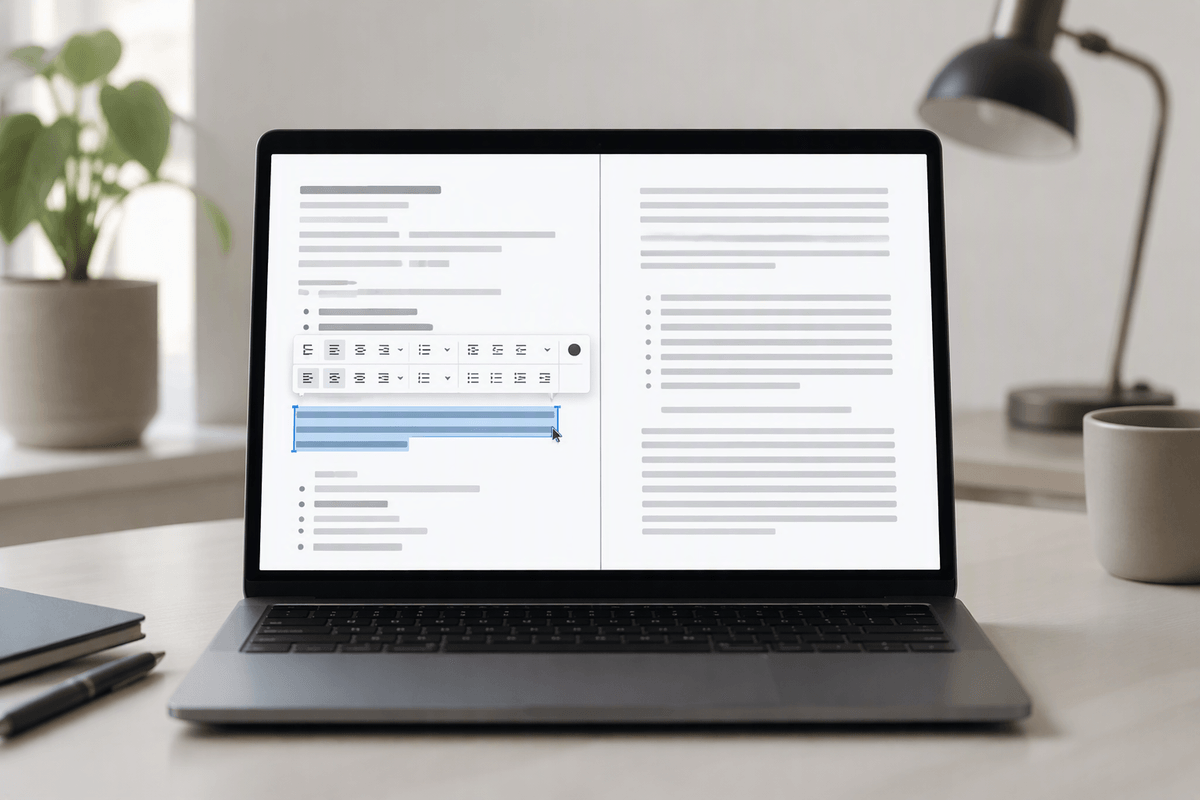
You’ve seen this: you change a heading’s font, and the next heading ignores it. Or you fix spacing in one place, and it comes back the moment you paste new text. That’s usually direct formatting fighting the document’s underlying rules. Pick the Style you actually want (like Heading 1 or Normal), then update it so future text follows the same pattern. In Word, right-click the Style in the Styles gallery and choose Modify, or use “Update to Match Selection” when you’ve already corrected one example.
Keep one practical habit: use “Clear All Formatting” when something looks cursed, then reapply the right Style. It feels slower the first few times, but it prevents the “mystery mix” of fonts and spacing that spreads through a document. The trade-off is you may need to re-check a few special cases, like pasted tables or block quotes, where a separate Style is worth creating.
Find what you need without endless scrolling
You’re halfway through a 20-page document, and you vaguely remember the section you need starts with “Customer Responsibilities.” Scrolling feels safe, but it’s slow and you’ll overshoot it twice. Open the Navigation Pane (View > Navigation Pane) and click Headings to jump by section, or type a keyword in the search box to see every match as a clickable list. This works best when your headings actually use Heading styles, so it’s another payoff of consistent Styles.
For longer reports, add a few bookmarks for places you return to (a key table, an appendix, a signature block). Select the text, go to Insert > Bookmark, name it clearly, then use Find (Ctrl+F) to jump to it later. The practical constraint: bookmarks and headings need a little upkeep—rename them if sections move, and don’t expect them to fix a document that’s mostly manual formatting.
Search and replace like a pro, not a gambler
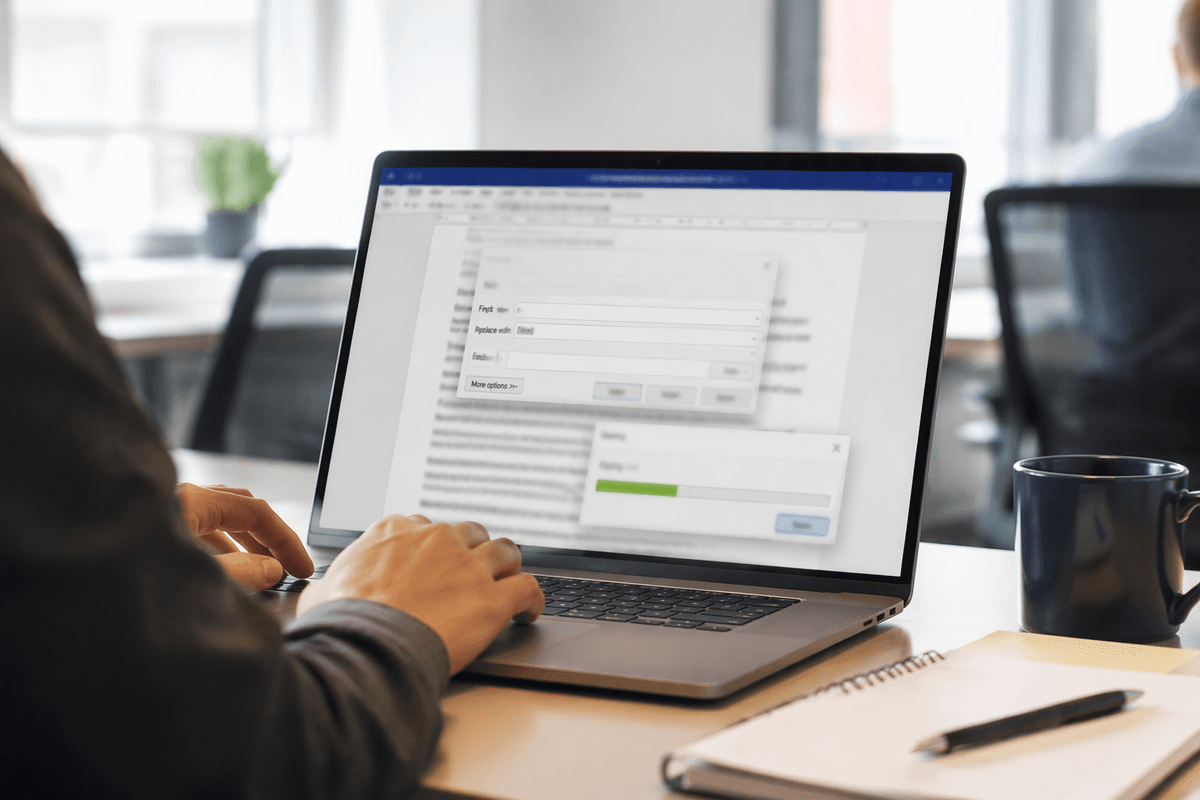
You’ve probably done a basic Find and Replace, hit “Replace All,” and then spent the next ten minutes fixing what it broke. The safer approach is to treat Replace as a controlled edit. Open the full dialog (Ctrl+H), use Find Next, and replace one-by-one when the word could appear in different contexts (like “client” inside “clientele”). If you need more control, click More >> and use options like “Find whole words only” and “Match case” so you’re not cleaning up accidental hits.
When the problem is inconsistent formatting, don’t search for text—search for the formatting itself. In the same dialog, use Format to find bold, a specific font, or extra paragraph spacing, then replace it with the style or formatting you actually want. This is how you clean up a document that has three “almost identical” headings without hunting manually. The constraint: Word won’t always preview every impact, so save first and test on a small section before you commit.
Page layout problems usually come from the wrong break
You insert a page break to “make it look right,” then a week later you edit one paragraph and everything after it jumps. That’s usually a break problem, not a margin problem. Word has three common culprits: a manual Page Break, a Section Break, or extra empty paragraphs pretending to be spacing. Turn on Show/Hide (Home > ¶) so you can see what’s really there. If you just need a new page, use a Page Break (Ctrl+Enter). If you need different headers/footers, page numbering, columns, or orientation, that’s a Section Break—and it changes Word’s rules from that point forward.
The fastest fix when a document “suddenly” starts behaving differently is to click in the first paragraph that looks wrong and check what break is immediately before it. Remove the break and reinsert the correct one. The practical constraint: section breaks can be fragile in long documents, so expect a few minutes of testing after you change them, especially if you have different headers, footers, or numbering schemes.
Reviewing with others without losing your original text
You make a few careful edits, send the file out for feedback, and it comes back with changes you don’t recognize and comments that don’t match what you meant. Don’t review by manually comparing versions. Turn on Track Changes before you share (Review > Track Changes), and ask others to use it too. When the file returns, use the Reviewing view to focus on edits without getting distracted by markup, then step through changes with Accept/Reject so you stay in control of what actually lands in the document.
For extra safety, lock your starting point: save a clean copy or export a PDF for reference before review begins. If you’re combining feedback from multiple people, make sure each person’s changes are clearly labeled (Review > Show Markup > Specific People). The practical cost is time—real review means working through changes one-by-one—but it’s still faster than fixing a “final_final2” document where nobody knows what changed.
Keep Word working for you after these tips
You’ll keep the speed gains if you turn these fixes into defaults. Start every new document from one solid template that already has your Styles, margins, and heading levels set, even if it’s just a cleaned-up “starter” file you copy. Keep AutoCorrect doing small cleanup for you (common typos, smart quotes rules), but don’t let it surprise you—scan the settings once and adjust them to match how you write.
When Word starts acting odd, don’t wrestle the page. Turn on ¶, check Styles, then check breaks. The practical reality is maintenance: templates and custom styles need occasional updates, and a shared office template can take coordination to keep consistent.