When Slack notifications stop, what’s actually broken?
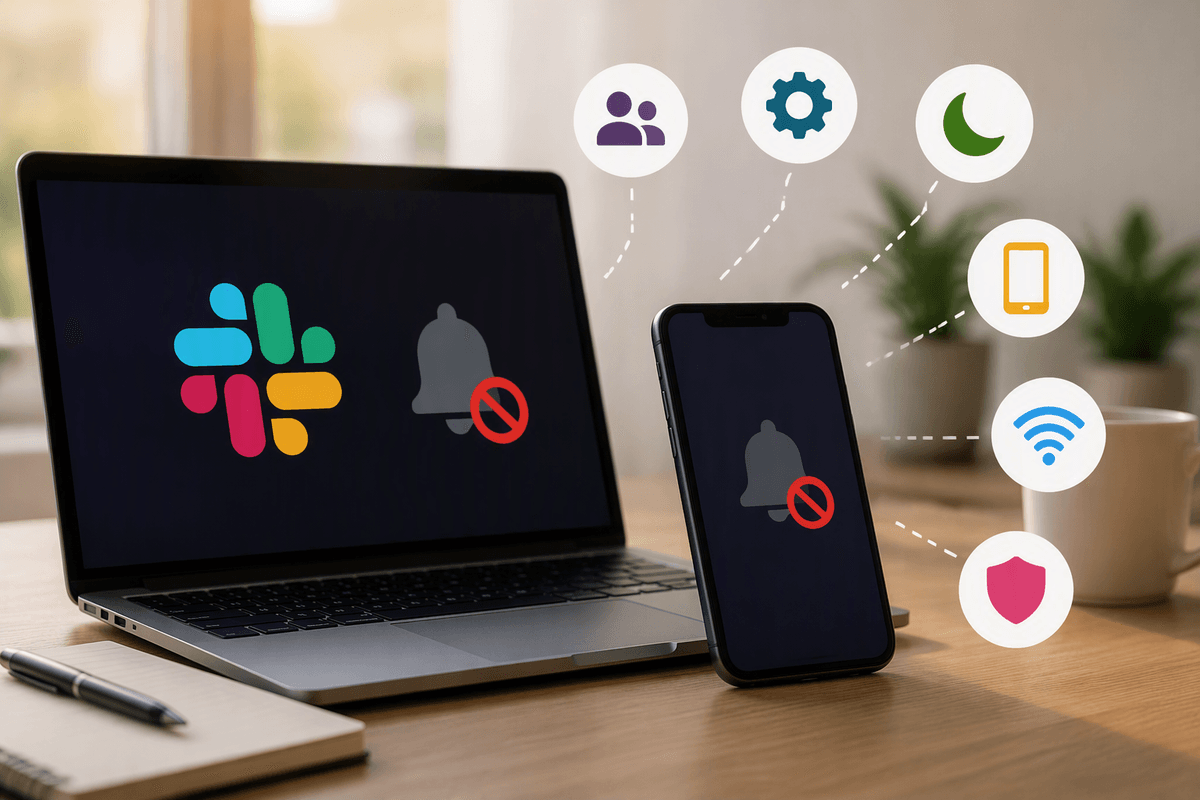
You notice it first when a message is already “old” by the time you open Slack. The key thing to understand is that Slack notifications are a chain: Slack has to decide a message should alert you (based on your settings), your device has to allow that alert (based on OS permissions and Focus/Do Not Disturb), and the Slack app has to be running well enough to deliver it (logged in, connected, and not blocked in the background). When notifications stop, only one link has to fail. The tricky part is that Slack often still shows unread badges, so it feels random—even when it’s a predictable setting or device block.
Confirm it’s not just a channel or conversation setting
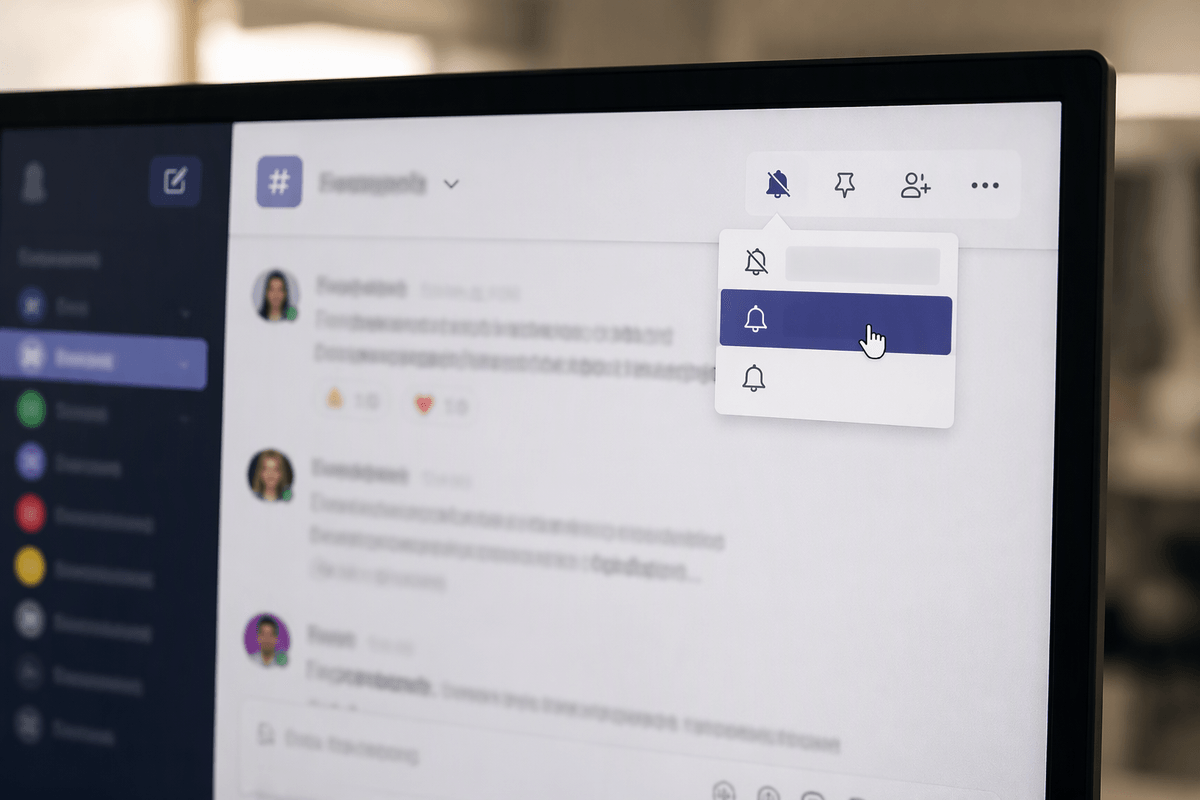
A common “it suddenly stopped” case is that notifications are working—just not for the place you’re watching. Open the channel or DM that should have alerted you and check the header: if you see a muted indicator, unmute it. Also open the channel name menu and look for notification overrides (for example, “Mute channel” or “Only @mentions”); a channel-level override will quietly win even when your global settings look fine.
In DMs, the same thing happens when a conversation is set to only notify on mentions, or when you’ve hidden the conversation and rely on a ping that never comes. As a quick test, have a teammate @mention you in that exact channel. If that mention notifies but normal messages do not, you’re dealing with a per-channel/per-DM setting—not an app or device failure.
Check Slack’s global notification preferences and quiet hours
If the channel looks fine, go to your workspace notification preferences and confirm Slack is still allowed to alert you at all. In Slack, open Preferences (or Settings) and find Notifications. First look for anything that silences everything: “Pause notifications,” “Snooze,” or “Do Not Disturb.” It’s easy to set a snooze for “30 minutes” during a meeting and forget it, or to have an automatic schedule that now overlaps your workday.
Then check the global delivery choice: are you set to get notifications for “All new messages” or only “Direct messages, mentions, and keywords”? If you recently switched roles or joined noisier channels, you may have tightened this setting and now feel like Slack is “missing” messages. Also confirm the schedule and time zone for notification hours, since a laptop travel day or a new phone can shift these and make Slack quiet when you need it loud.
Desktop: system notification permissions and Focus modes
You’ll often find Slack is “doing its part,” but your computer is refusing to show the alert. On Windows, open Settings → System → Notifications and make sure notifications are on, then confirm Slack is allowed and not set to “silent” behavior. On macOS, go to System Settings → Notifications → Slack and verify alerts are allowed, the alert style isn’t set to “None,” and badges/sounds are enabled if you rely on them. If you use Slack in a browser, check the browser’s site permissions too; a blocked permission can kill pop-ups even while the app looks connected.
Focus modes can override everything without feeling like “Do Not Disturb.” Check Windows Focus assist/Do not disturb, or macOS Focus, and confirm Slack is allowed as an exception. A practical gotcha: company-managed devices sometimes enforce Focus profiles or notification restrictions, so you may be able to toggle settings but not keep them—note what changes don’t “stick” before escalating.
Mobile: push notifications, battery limits, and background refresh
On mobile, the most common failure is that Slack can’t deliver a push notification because the phone is blocking it, even though Slack itself is configured correctly. Start with the basics: on iPhone, go to Settings → Notifications → Slack and confirm notifications are allowed, Lock Screen/Banners are enabled, and sounds/badges match how you notice alerts. On Android, check Settings → Notifications → Slack, then open Slack’s notification categories (Android can quietly disable “Direct messages” while leaving other types on). Also confirm you’re signed into the right workspace on the phone—people often test on desktop but forget mobile is still on a different workspace or account.
If permissions look fine, check the “silent killers”: Low Power Mode (iOS) and Battery Saver / adaptive battery (Android) can delay or suppress background delivery. On iOS, enable Background App Refresh for Slack and allow Cellular Data if you’re often off Wi‑Fi. On Android, set Slack’s battery usage to Unrestricted/Not optimized and allow background data. If your device is company-managed, some of these settings may be locked or revert after a restart.
Account and device conflicts: multiple workspaces, logins, and active sessions
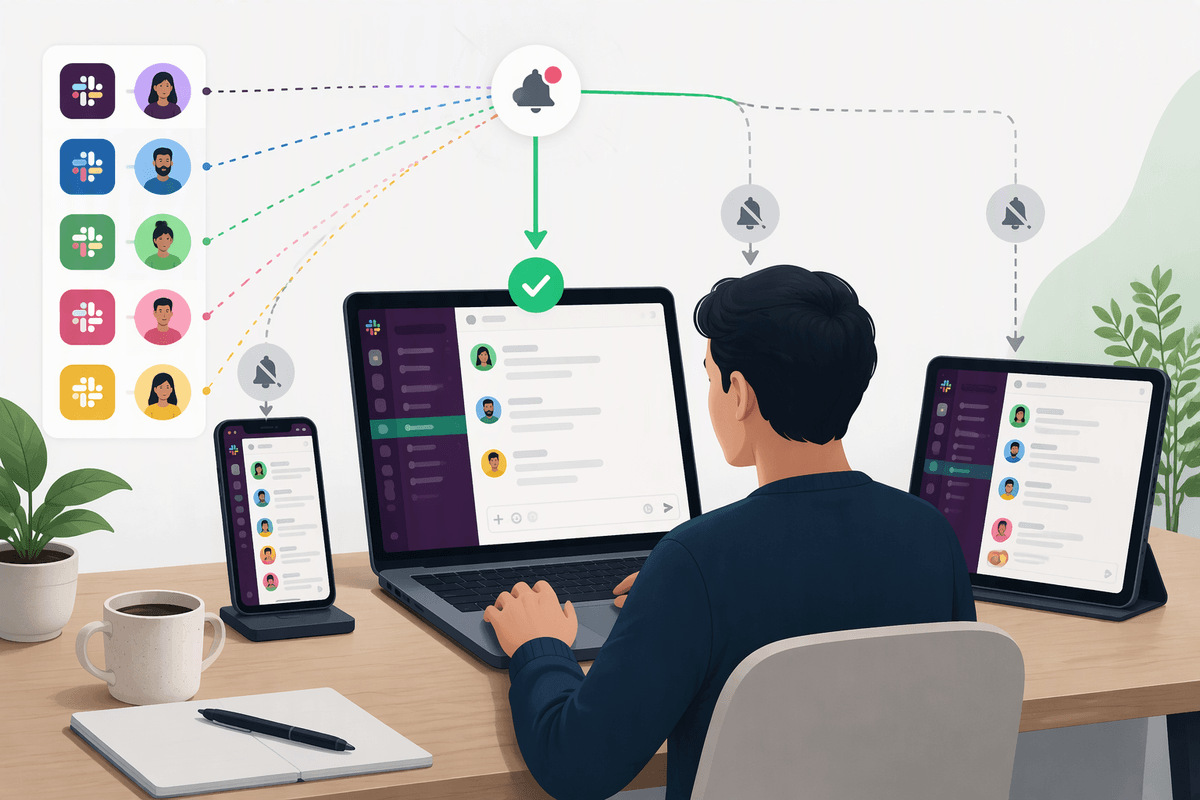
If you use Slack in more than one place (two laptops, a phone, or multiple workspaces), notification “silence” is often just notifications going somewhere else. Slack tries to avoid double-alerting, so if you’re actively using Slack on one device, another device may not push as aggressively. A quick reality check: send yourself a test DM, then see which device shows it first and whether the other stays quiet until you go idle.
Also confirm you’re logged into the same workspace and the same account everywhere. It’s common to have a personal Slack account and a work SSO account that look nearly identical, especially on mobile. In Slack’s Preferences/Settings, look for “signed in” and “active sessions” (or device list) and sign out of old browsers, retired phones, or duplicate desktop installs. If clearing extra sessions fixes it, you’ve found a routing conflict—but the trade-off is you’ll need to re-authenticate on the devices you actually use.
Network, and app issues that silently break alerts
It’s also possible Slack is configured correctly, but your connection path makes notifications unreliable. “Always-on” security tools can interfere with Slack’s real-time connection, especially if they block websocket traffic, strip background connectivity, or force Slack through a proxy that times out. A quick test is to switch networks (home Wi‑Fi vs phone hotspot), then watch whether new messages suddenly start alerting. If that fixes it, you’ve learned it’s not a Slack preference—it’s the route your traffic is taking.
App glitches can look the same. On desktop, fully quit Slack (not just close the window), reopen it, and check for updates; on mobile, restart the app and confirm it isn’t stuck “connecting.” If you’re in a browser, try the desktop app (or a different browser) to isolate an extension, cookie issue, or blocked notification permission. The practical cost: these tests often require a reconnect and re-login, so do them when you can afford a brief interruption.
A fast checklist—and when to involve your Slack admin
If you need a quick reset, run this checklist in order: (1) In Slack, confirm you’re not snoozed/Do Not Disturb and your notification schedule/time zone is correct. (2) In the problem channel/DM, confirm it isn’t muted or set to “only mentions.” (3) Verify OS notifications and Focus/Do Not Disturb allow Slack (and your browser permission if you use web Slack). (4) On mobile, confirm push is allowed, Background App Refresh/background data is on, and battery optimization isn’t restricting Slack. (5) Restart Slack, check for updates, and test briefly off/on another network.
Involve your Slack admin if settings won’t “stick,” only your workspace is affected, multiple people lost notifications at once, or SSO/device management keeps reapplying restrictions. Provide: device/OS, Slack app vs browser, workspace name, exact time it broke, and one test message that should have notified you.