Why your iPhone gets stuck in Headphone Mode
You plug in earbuds once, pull them out, and the iPhone keeps acting like something is still connected—so calls, videos, and ringtones won’t play from the speaker. That “stuck in Headphone Mode” behavior usually comes down to one of three things: the phone still senses a plug in the Lightning/USB‑C jack, iOS is routing audio somewhere else, or the audio path is genuinely damaged.
Most of the time it’s simple: lint packed in the port, a slightly bent contact, or a trace of moisture can trick the sensor. The practical catch is that aggressive poking can tear the port pins or push debris deeper, turning a quick fix into a repair.
Confirm it’s Headphone Mode, not a volume or app issue
A quick check saves you from chasing the wrong problem. Press a volume button and look at the on-screen volume indicator: if it shows “Headphones” (or a headphone icon) even when nothing is plugged in, you’re dealing with routing, not a silent app. If it shows “Ringer” or “Speaker,” the speaker may be muted by a setting or the specific app.
Rule out the easy traps before touching the port. Flip the Ring/Silent switch (or use the Action button setting) and make sure you haven’t turned the ringer down in Settings > Sounds & Haptics. Test sound in two places: play a song in Music and then try a ringtone preview in Settings. If one works and the other doesn’t, it’s likely an app or Focus mode behavior, not Headphone Mode. If everything stays “Headphones,” move on to the physical checks.
Fast physical checks: unplug, replug, and inspect the port
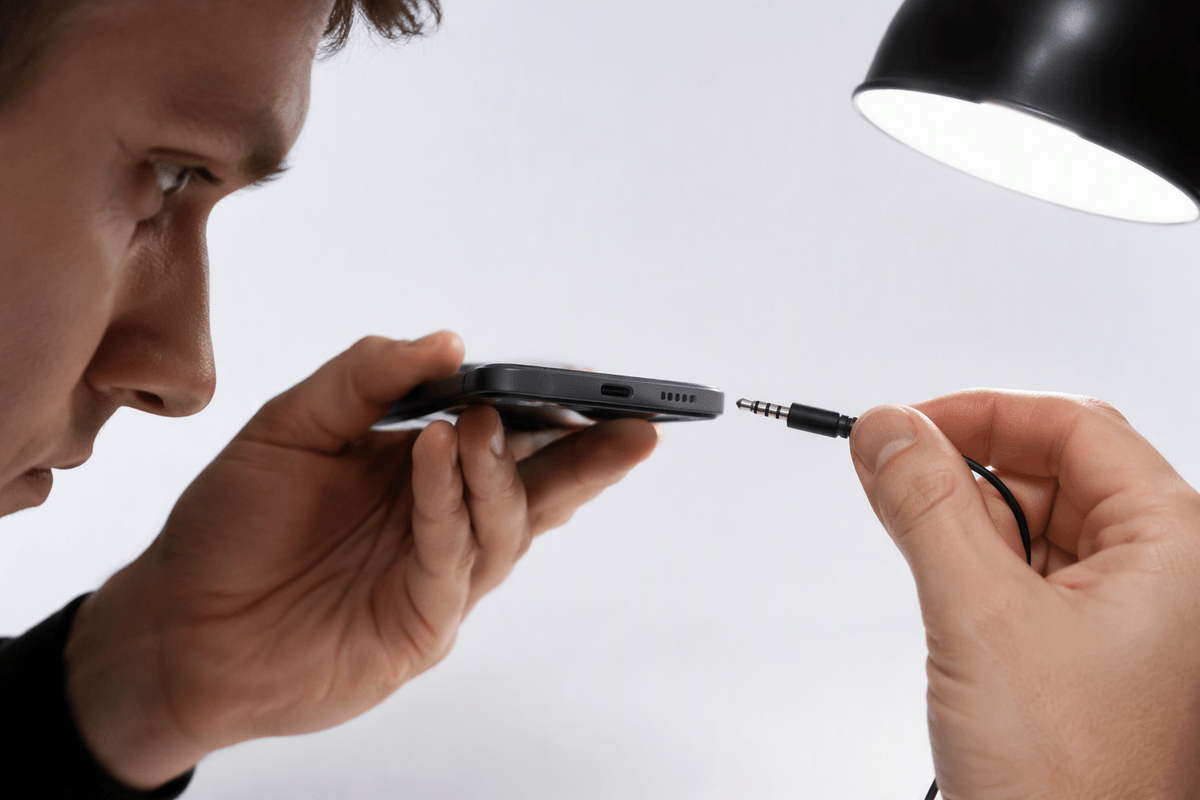
Start by forcing the phone to “re-decide” what’s connected. If you have wired headphones (Lightning, USB‑C, or a 3.5 mm adapter), plug them in firmly, then unplug them straight out—don’t wiggle side to side. Do that 3–5 times, then press a volume button and see if the label switches back to “Ringer” or “Speaker.” If you’re using an adapter, try a different adapter or different headphones if you can; a flaky adapter can leave the phone confused even when the port is fine.
Then inspect the port under a bright light. You’re looking for obvious lint, a “felt” layer packed at the back, or any sign of moisture or corrosion. Don’t use a metal pin or a paperclip—scratching the contacts is an expensive mistake. If you see moisture, stop here and let the phone dry before you do anything else; repeated plugging while wet can make the problem worse.
Safely clear lint and moisture without making it worse
If you saw lint, power the iPhone off before you try to remove anything. Use a bright light and a wooden toothpick or a soft nylon interdental brush to gently lift debris out, working from the opening toward the center without scraping the pins. Take small passes, check your progress often, and stop if the “felt” layer won’t move—forcing it can bend contacts or pack lint deeper. Compressed air is risky because it can drive debris inward; if you use it at all, use short bursts from a distance with the phone angled so material can fall out.
If you suspect moisture (recent rain, pocket sweat, bathroom steam), don’t plug anything in and don’t heat it with a hair dryer. Blot the outside, then leave the phone in a dry, moving-air spot for several hours. A port can look dry but still have moisture bridging contacts, so patience matters. After it’s dry, turn the phone on and recheck the volume indicator; if it still reads “Headphones,” move on to routing checks before you assume the port is damaged.
When it’s actually Bluetooth or AirPlay stealing audio
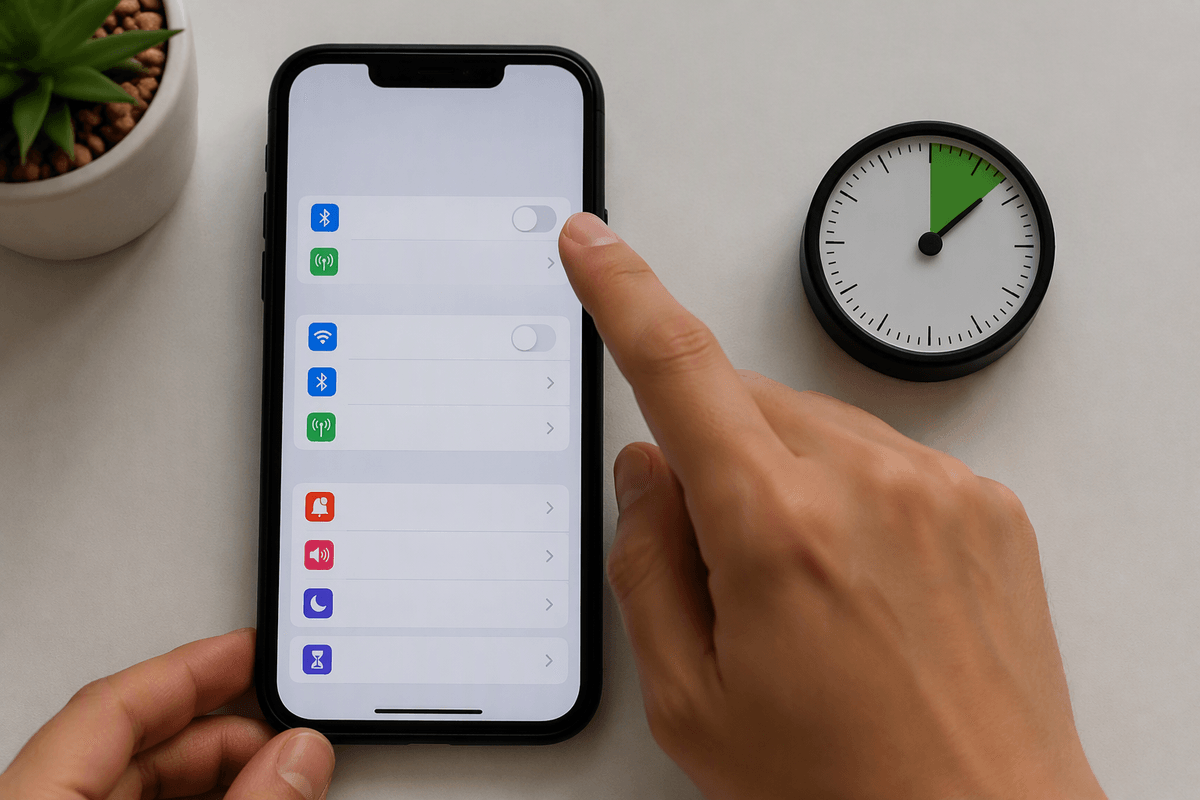
A common false alarm is Bluetooth or AirPlay quietly grabbing your audio while the port is fine. Open Control Center, long-press the audio card, then tap the AirPlay icon and choose “iPhone” as the output. If you see AirPods, a car stereo, a speaker, or an Apple TV listed, your iPhone may be reconnecting automatically in the background, especially if you were near that device recently.
To prove it, turn Bluetooth off in Settings (not just Control Center), wait 10 seconds, and test a ringtone preview in Settings > Sounds & Haptics. If the speaker works, you’ve found the culprit. You can either “Forget This Device” for the one that keeps stealing audio, or turn off its auto-connect behavior by unpairing and re-pairing when you actually need it. The practical downside is you’ll lose quick switching until you set it back up.
Software resets that usually snap audio back to speaker
When the port is clean and you’ve confirmed audio isn’t being routed to Bluetooth or AirPlay, a few quick resets often force iOS to rebuild the audio route. Start simple: restart the iPhone (power off fully for 20–30 seconds, then power back on). After it boots, press a volume button and check the label. If it still says “Headphones,” toggle Airplane Mode on for 10 seconds, then off, and test a ringtone preview.
If that doesn’t do it, reset the parts of iOS most likely to be “stuck.” Go to Settings > Accessibility > Touch and turn off “Call Audio Routing” overrides if you’ve changed them, then set Call Audio Routing back to Automatic. Next, go to Settings > General > Transfer or Reset iPhone > Reset > Reset Network Settings. This won’t erase your photos, but it will wipe saved Wi‑Fi networks and Bluetooth pairings, so you’ll need to reconnect afterward. One more quick check after the reset: open Control Center, long-press the audio card, and confirm the output is “iPhone.”
If none of this works: signs of hardware damage and next steps
If the volume indicator still stubbornly reads “Headphones” after cleaning, routing checks, and resets, start thinking hardware. Red flags include a port that feels loose, visible bent pins/corrosion, crackling when you plug in, or the headphone state changing only when you press on the bottom of the phone. Recent drops and any liquid contact make this much more likely. At that point, stop trying repeated plug/unplug cycles; it can worsen a damaged jack.
Back up your iPhone, then book service (Apple or a reputable repair shop) and describe the exact checks you tried. Expect a port or flex-cable replacement, not a software fix, and plan for cost and same-day downtime depending on parts.